Inside the EasyDMARC platform.
Designing in-depth, multi-state product surfaces inside a security platform — Aggregate Reports GeoMaps, Reputation Monitoring, User Access Management, the Marketing Materials library, and the MSP integrations flow. Each shipped end-to-end on the EasyDMARC design system.
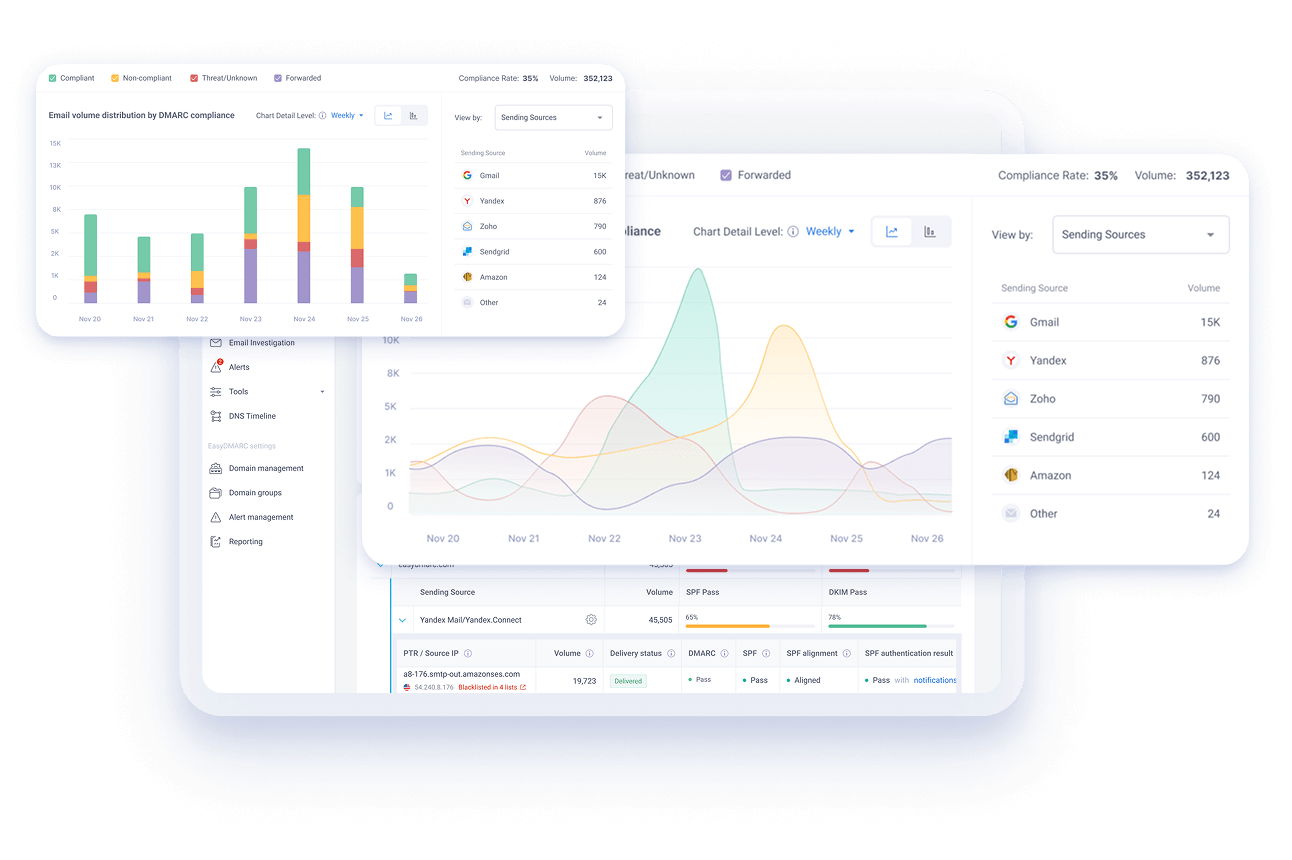
A security platform that needed to feel like a product, not a console.
EasyDMARC helps organizations protect their email — DMARC, SPF, DKIM, BIMI, reputation monitoring, and more. The category tends to live in dense, table-heavy admin consoles built for specialists. Across my time at EasyDMARC I designed a series of tools inside the main app whose job was the opposite: take serious, technical workflows and turn them into clear, navigable, modern product surfaces.
This case study collects four of those tools. Each one is shipped and live in the EasyDMARC platform today. Each one was mine end-to-end — the UX flow, the polished UI, the empty and error states, the modals and drawers, and the visual language they all share with the rest of the system.
The throughline: in security tooling, the difference between “I can find the answer” and “I'm staring at a wall of data” is almost always design. These tools are how I worked that throughline into a real product.
End-to-end ownership.
Each of the designs below was my sole design responsibility — I owned the flow, the screens, the components, the empty/error/success states, and the modal and drawer patterns. All sit on the EasyDMARC design system, so anything new — a country tooltip, a domain tree, a permission selector, a folder grid, an integration wizard — extended that system rather than fighting it.
- Aggregate Reports · GeoMaps — a global, country-by-country view of where an organization's email traffic comes from, with three map modes and a layered tooltip system.
- Reputation Monitoring — an IP and domain reputation tool with a three-step onboarding drawer, a managed/trial dual model, blacklist visibility, and a full set of error and edge states.
- User Access Management — a permissions surface that supports organization-, product-, domain-group-, and domain-level access, plus bulk operations and a single-pass invite flow.
- Marketing Materials library — an in-app asset library for MSPs (Managed Service Providers) — folders, drilldowns, list/grid switching, search, and multi-select downloads.
- Integrations — connecting EasyDMARC to MSP PSA/RMM platforms (HaloPSA, ConnectWise, Acronis, Pax8) through an integrations catalog and a four-step configuration wizard with customer and alert-to-ticket mapping.
A note on the screens below: these are a selection of screenshots from each tool — enough to show the structure and the key states — not the full flow.
Where your email is actually coming from, on a map.
DMARC aggregate reports are powerful but unforgiving — they arrive as XML, organized by sending source and IP. GeoMaps takes that same dataset and answers the question security teams actually ask: which countries is our email coming from, and is it compliant?
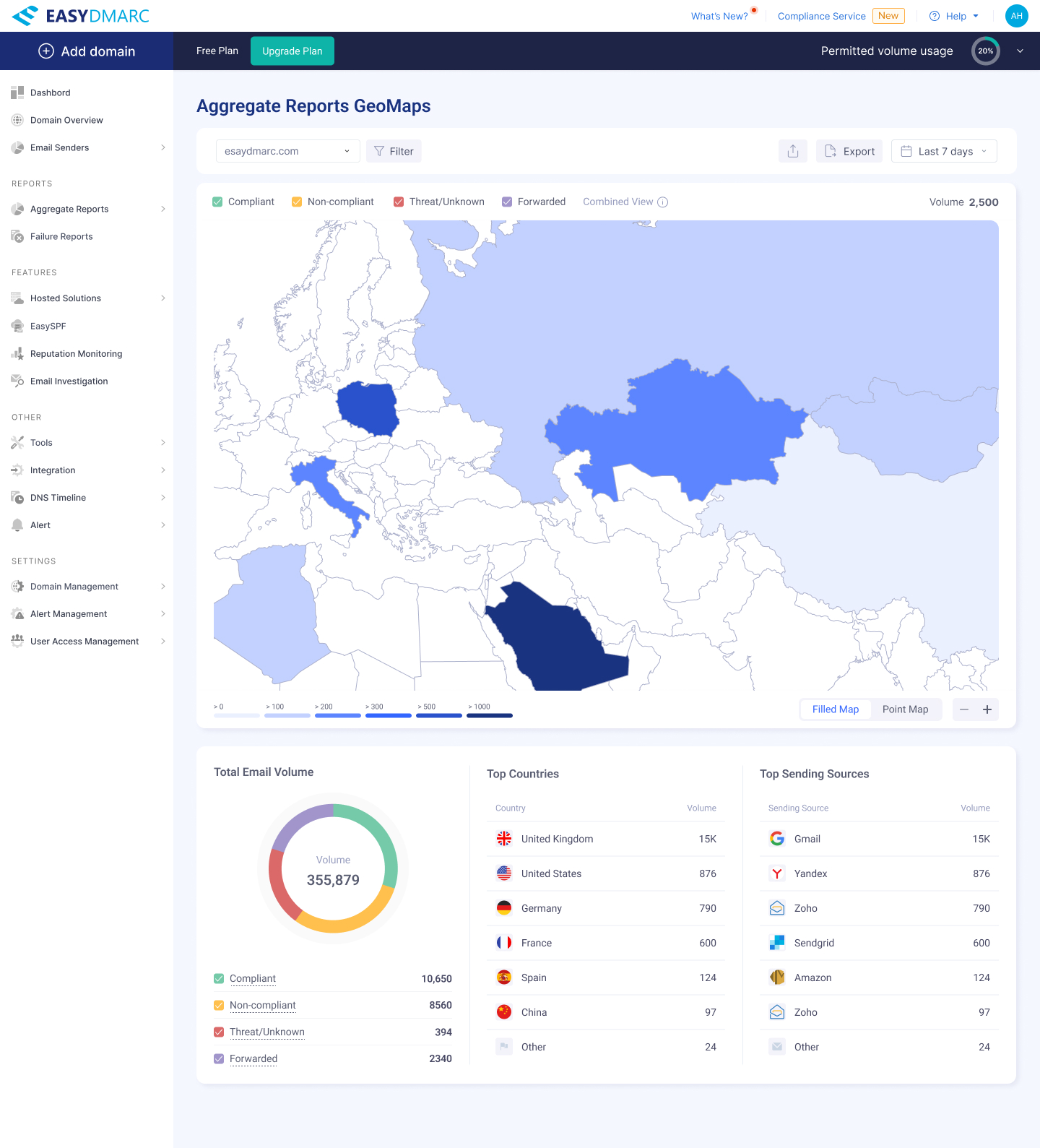
I designed three view modes — Filled Map, Point Map, and a Combined View that overlays both — plus a tooltip system that progressively reveals depth as the user hovers from a legend chip to a country to a sending category.
The two views
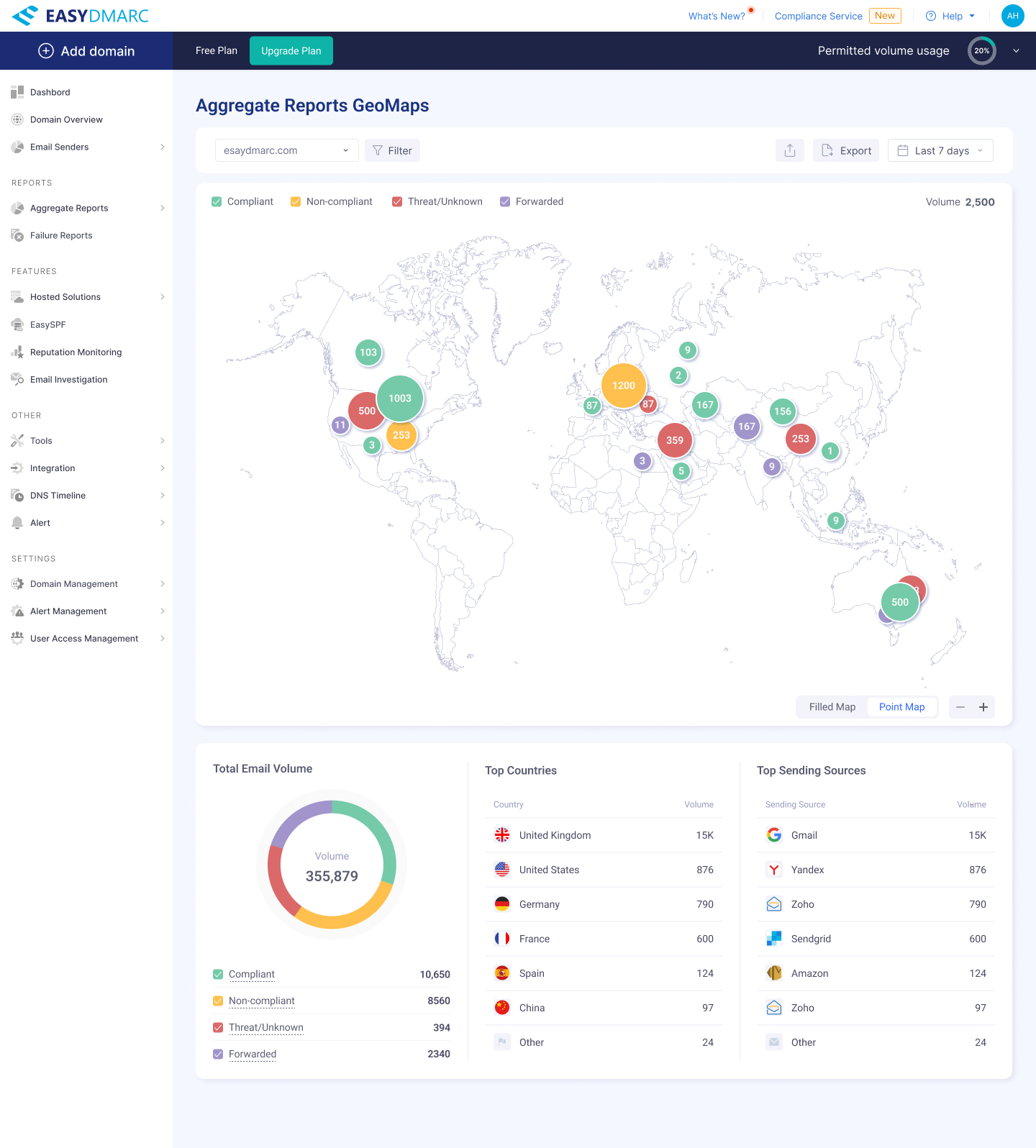
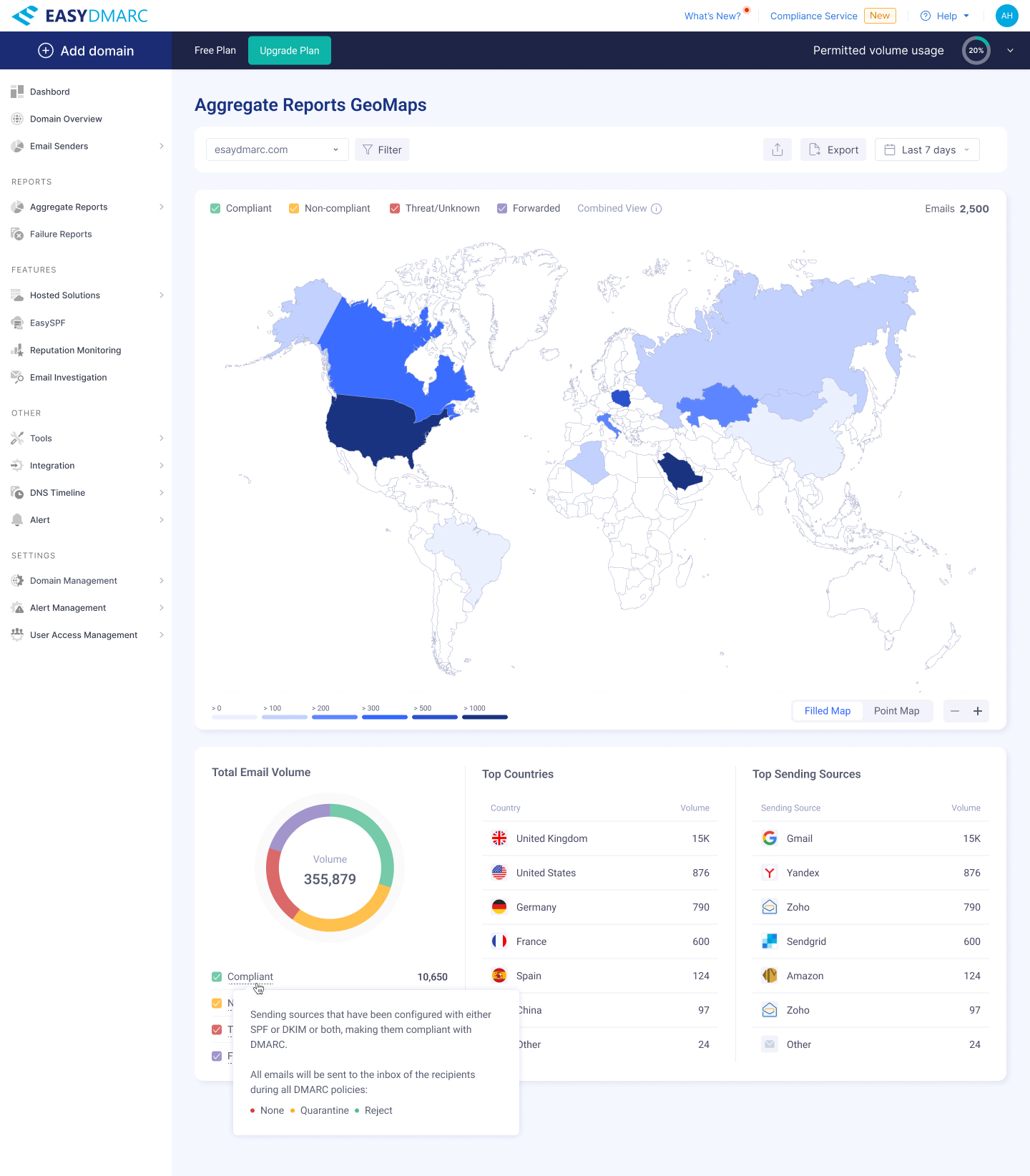
Two view modes for the same dataset — Filled Map (volume by country), Point Map (clustered category markers), and a Combined View that overlays both. Each one answers a different question.
Tooltip depth
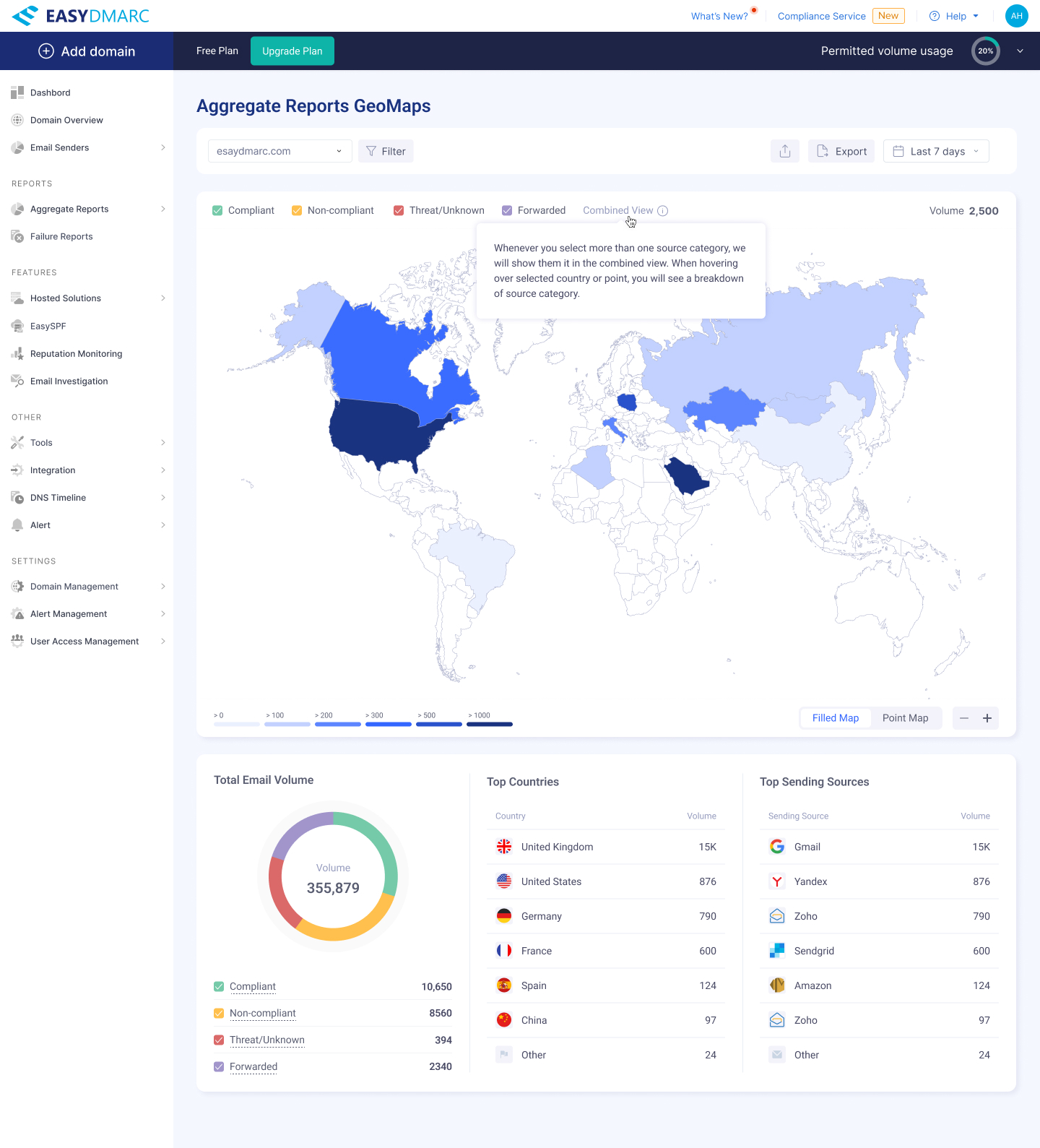
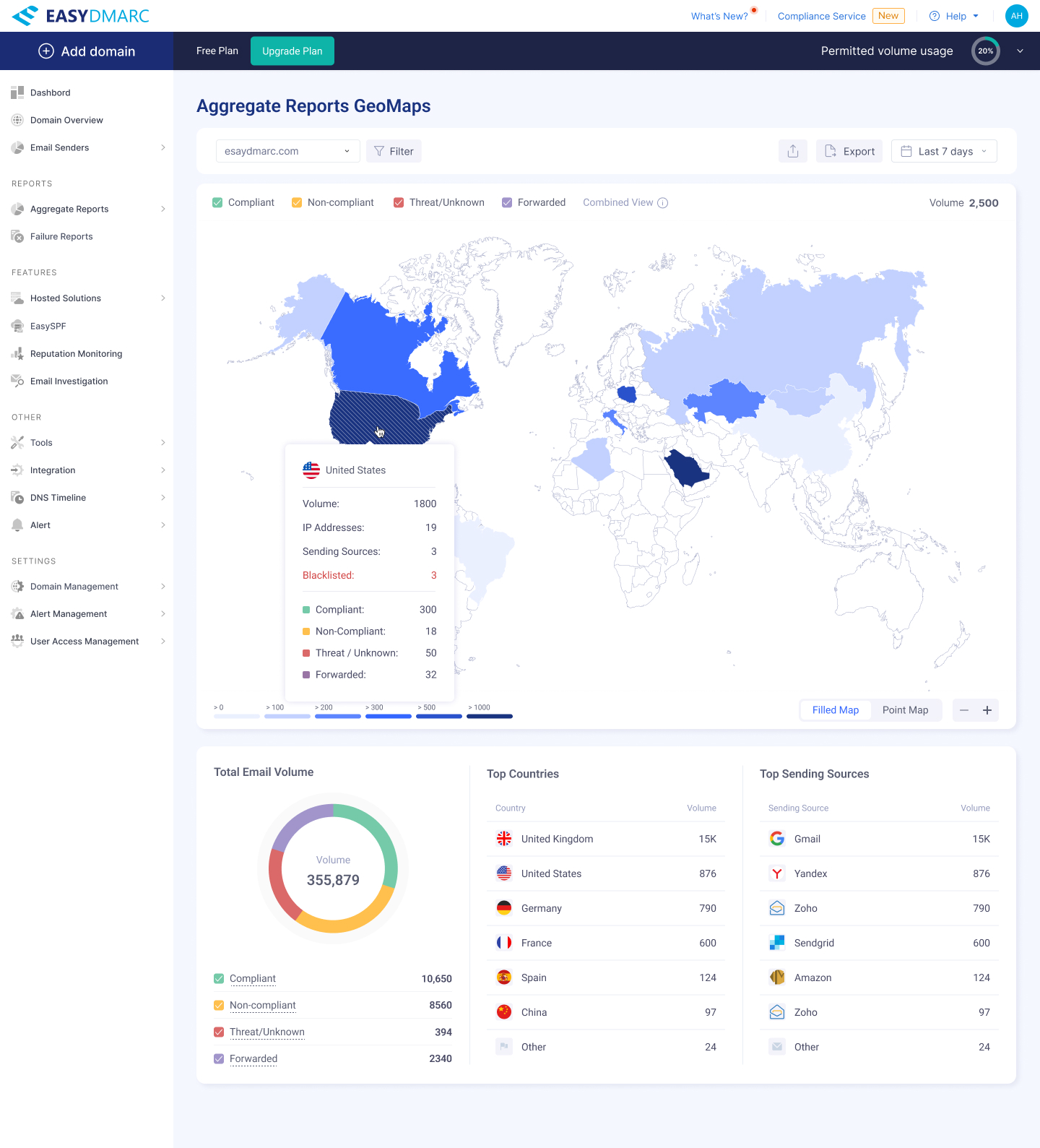
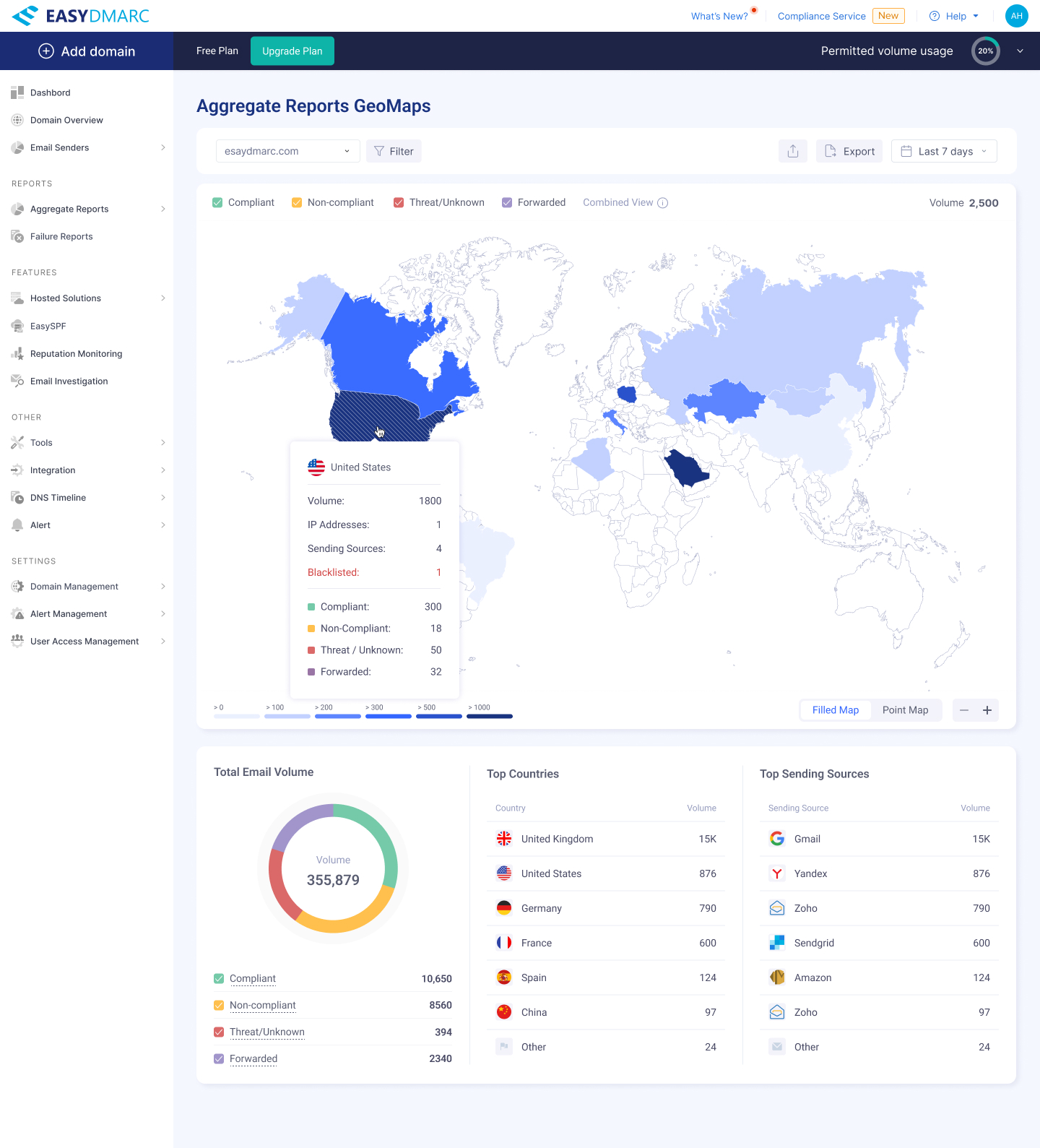
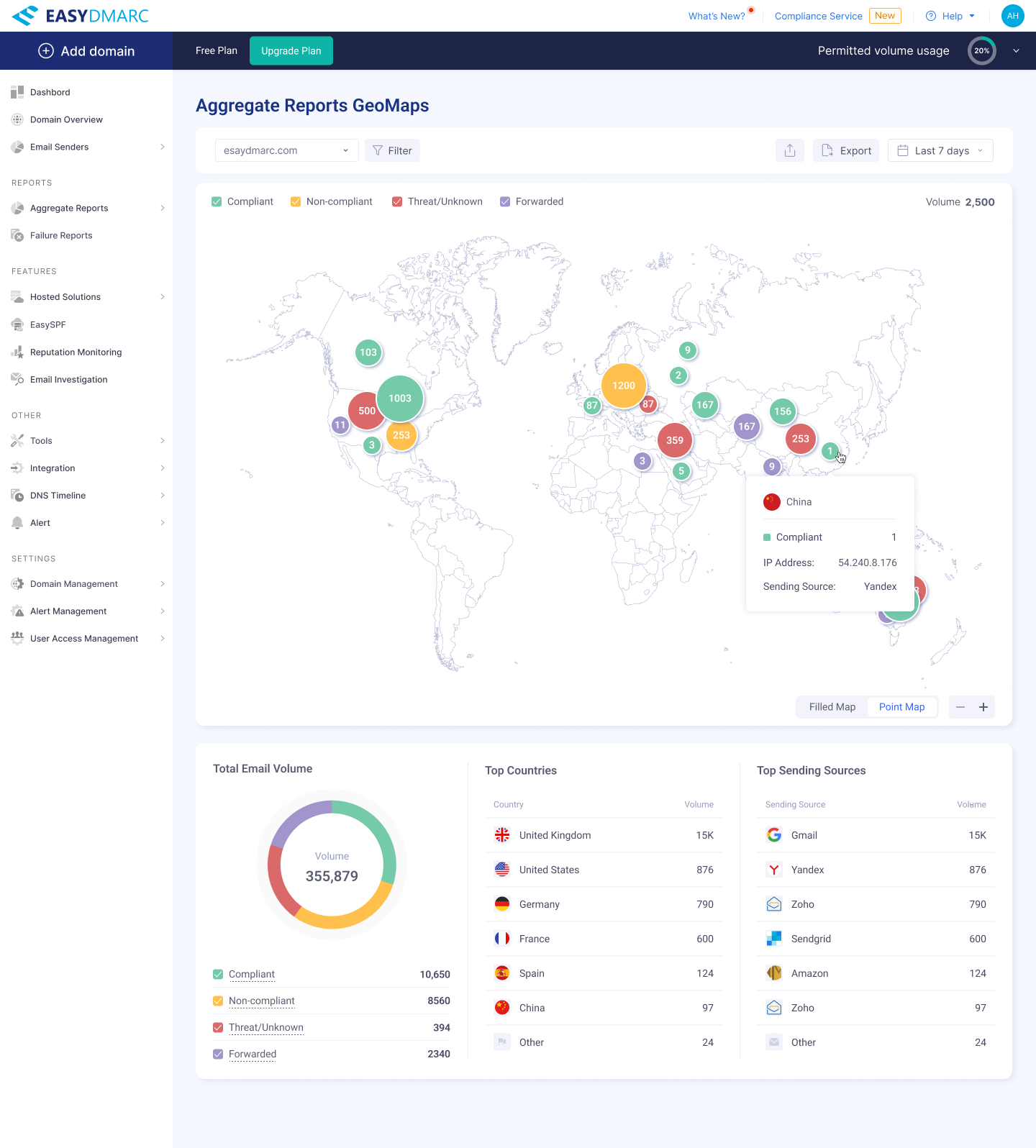
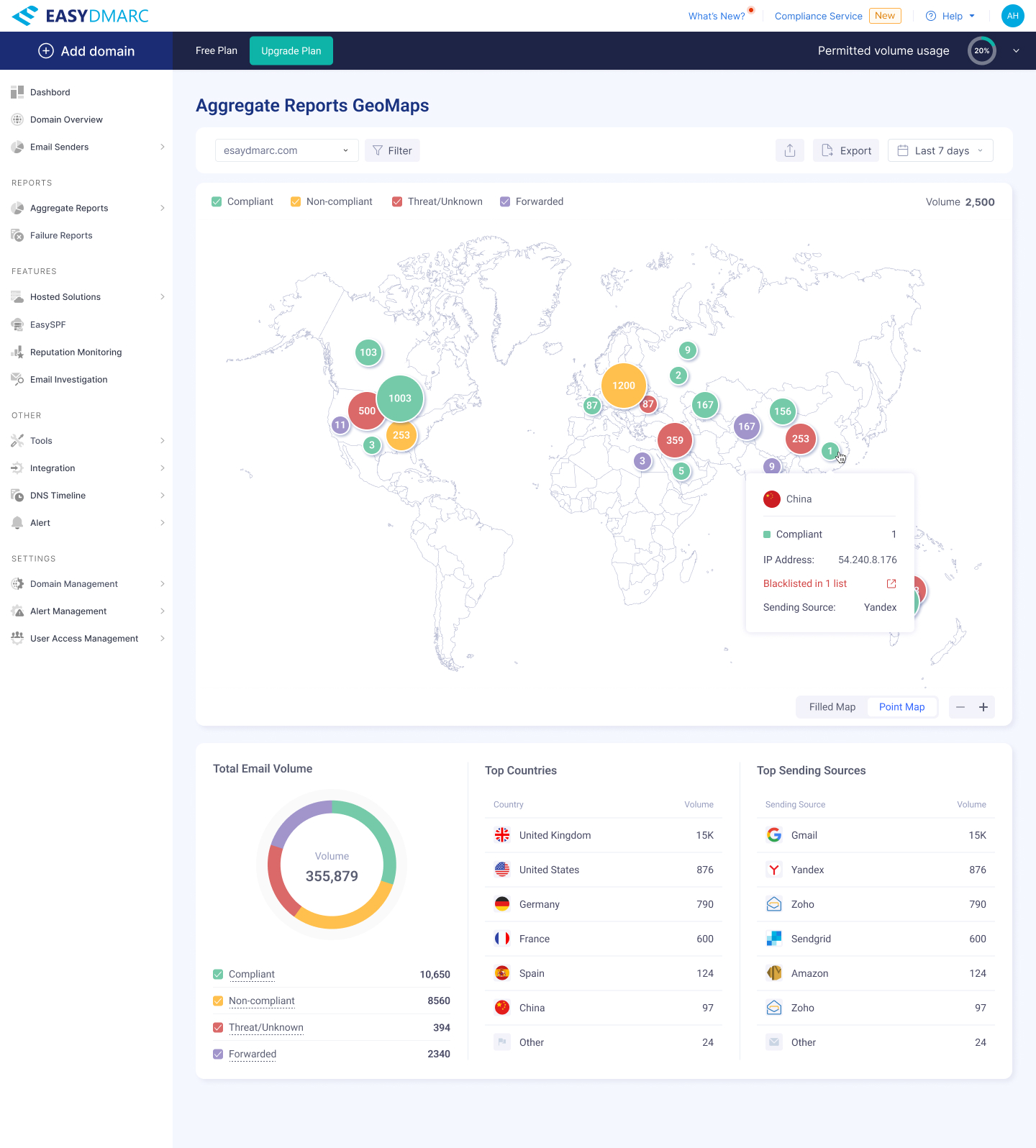
A tooltip system layered to the data — chip → country → cluster — so users can learn the model without leaving the map.
Empty & activation state
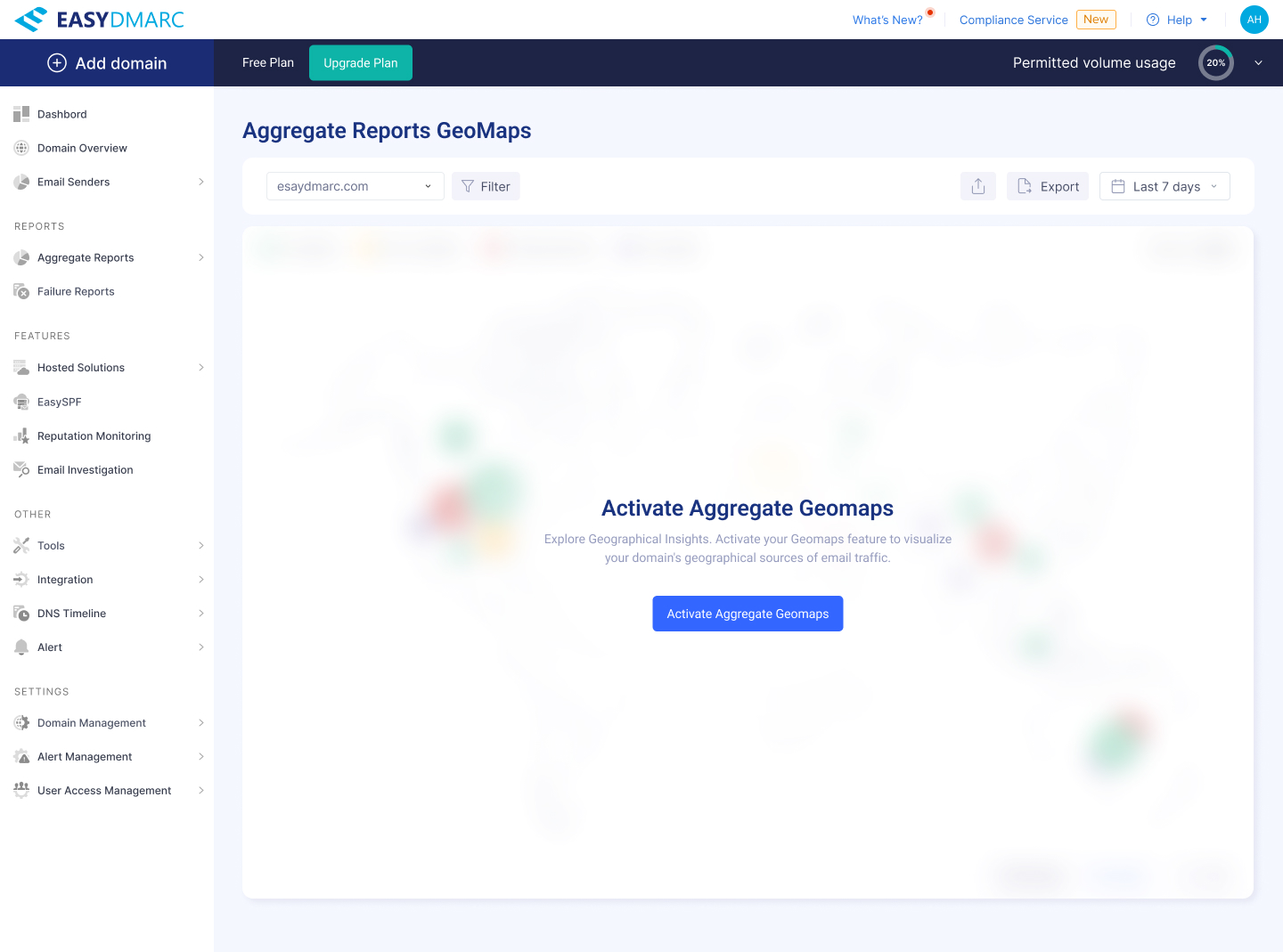
The first-run state and the supporting data panels — designed so a new account sees a useful page before the first reports arrive, not an empty map.
From “is my domain blacklisted?” to a managed workflow.
Reputation Monitoring tracks an organization's IP and domain reputation across a long list of blacklists, and surfaces what's listed where. The challenge: it has to work for an MSP managing dozens of domains across multiple organizations and for a single admin who just wants to check one domain right now.
I designed the empty/activation state, the Managed Domains tree, a parallel Trial Domains tab for accounts evaluating the tool, the three-step Add Domain drawer with inline DMARC verification, all error and skip-verify states, and the small modals that orbit the table (custom name, remove, manage).
Activation
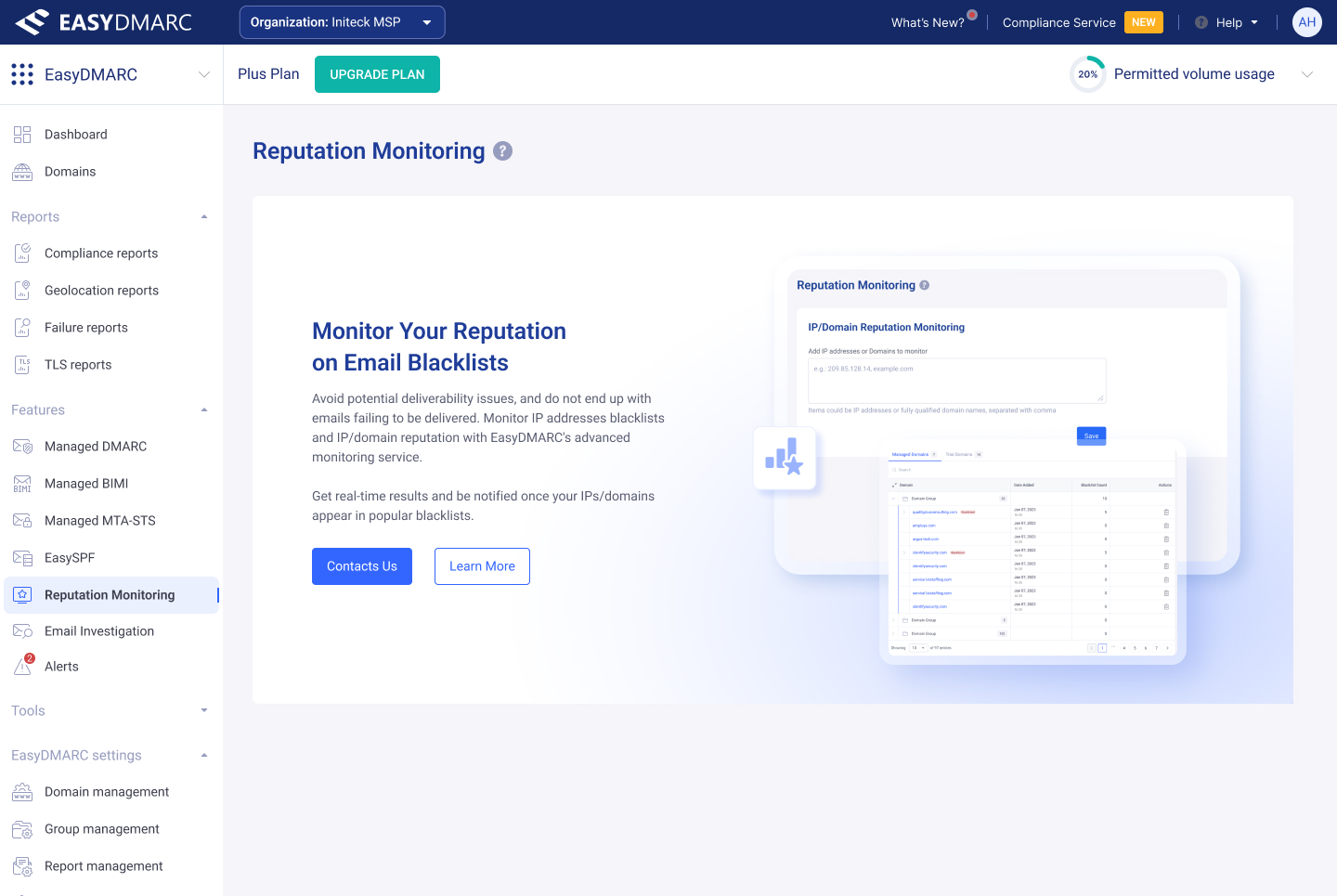
First-run state — a value statement, a preview of the tool, and one clear next step. No empty table.
Managed Domains & Trial Domains
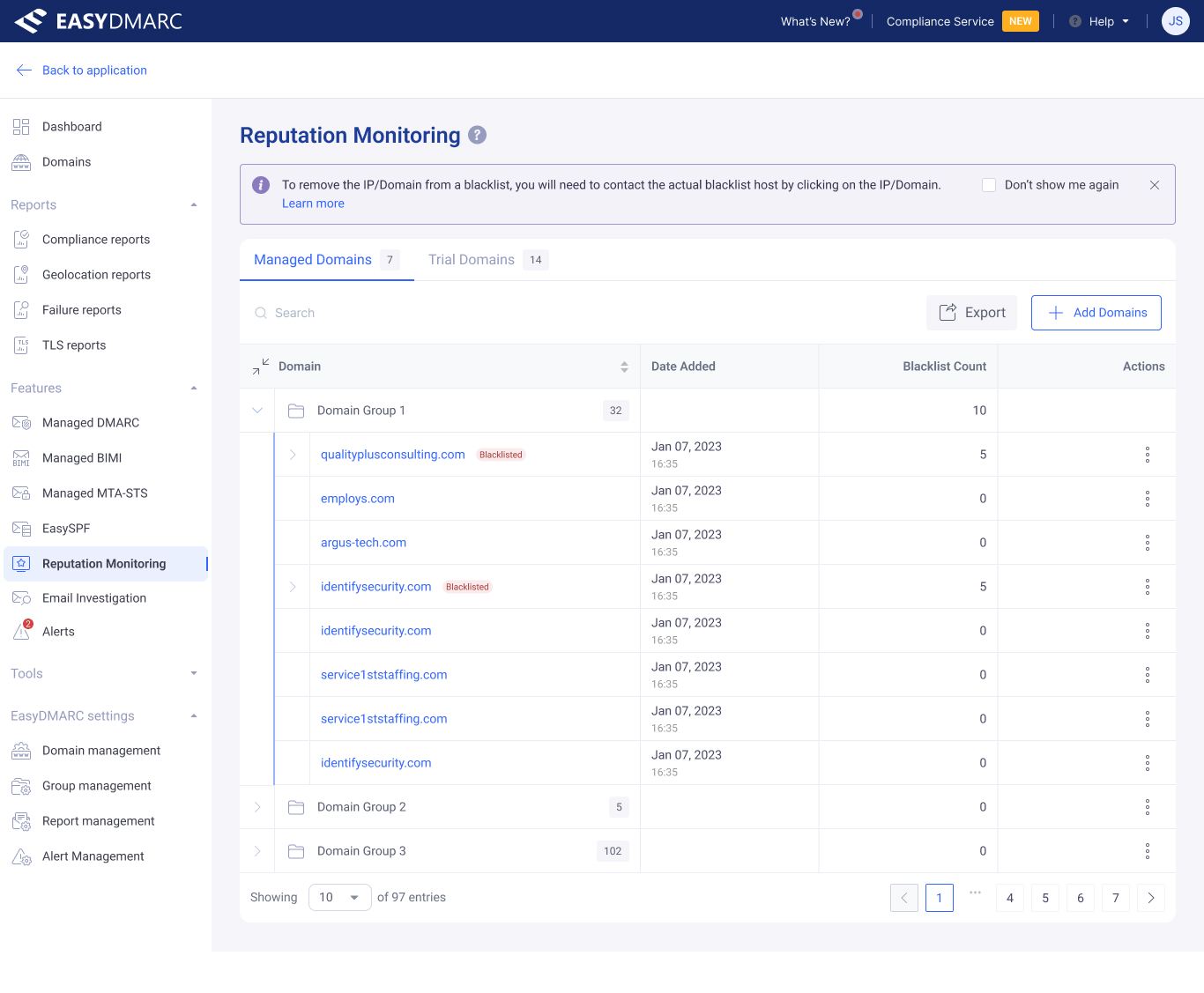
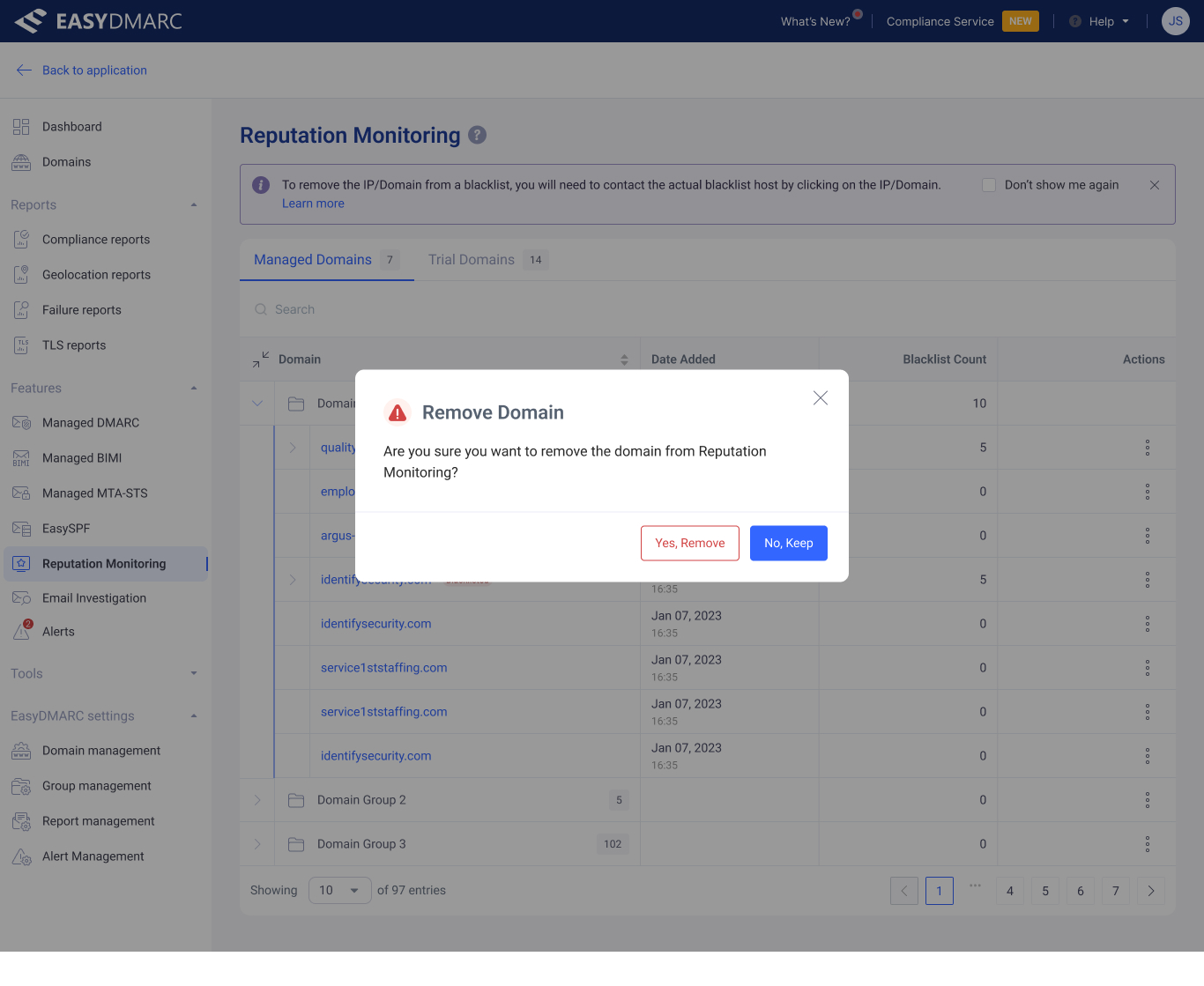
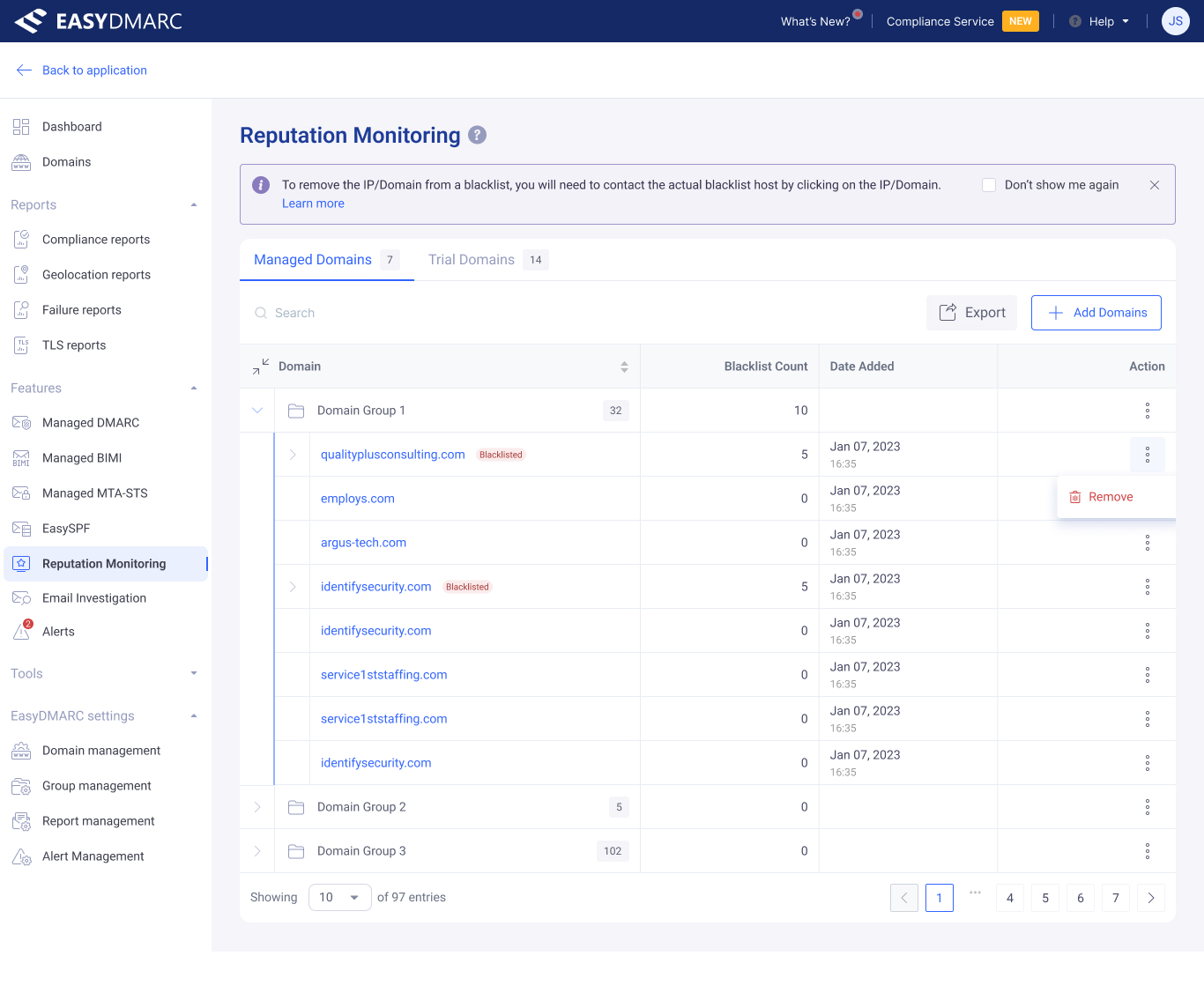
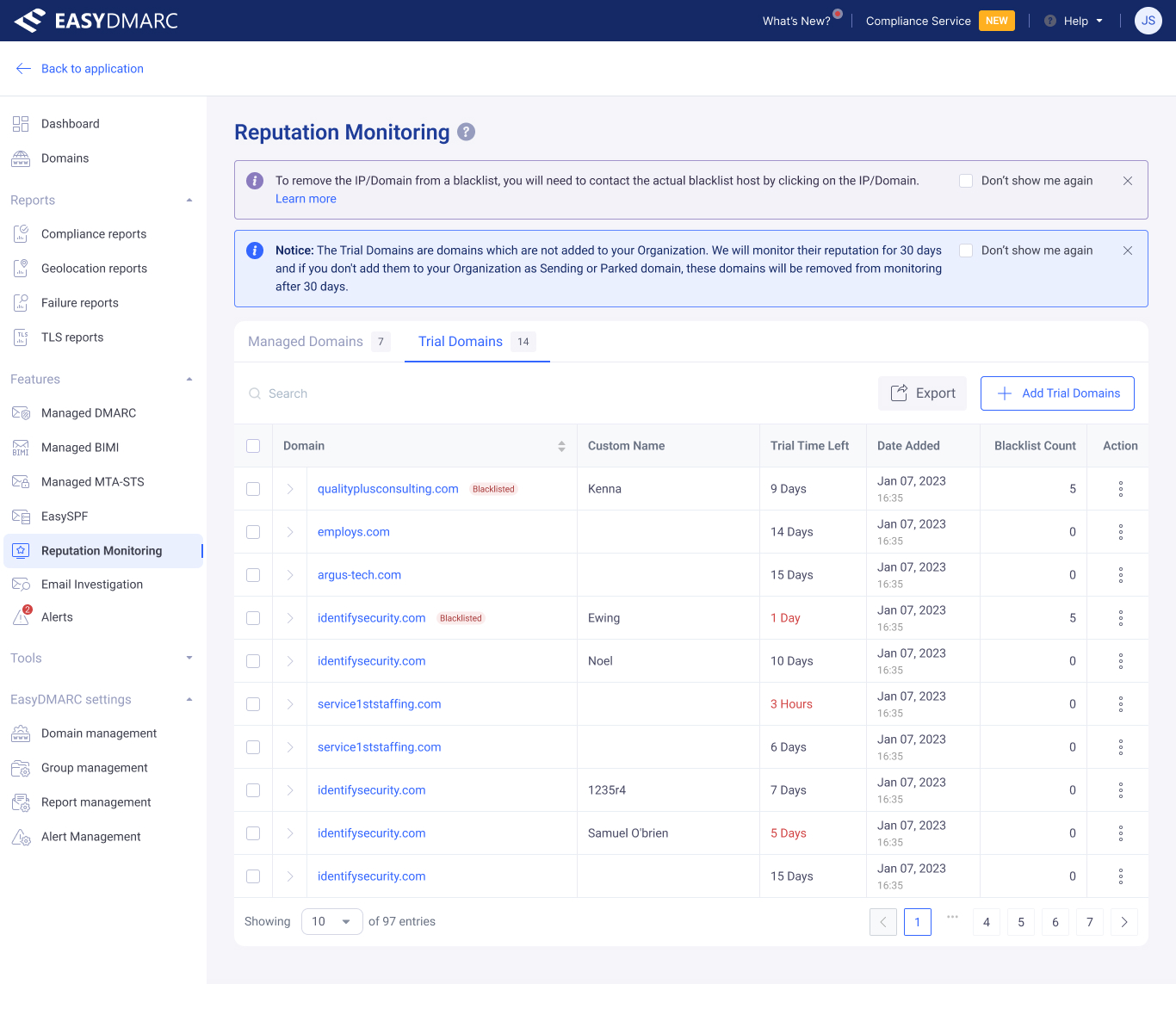
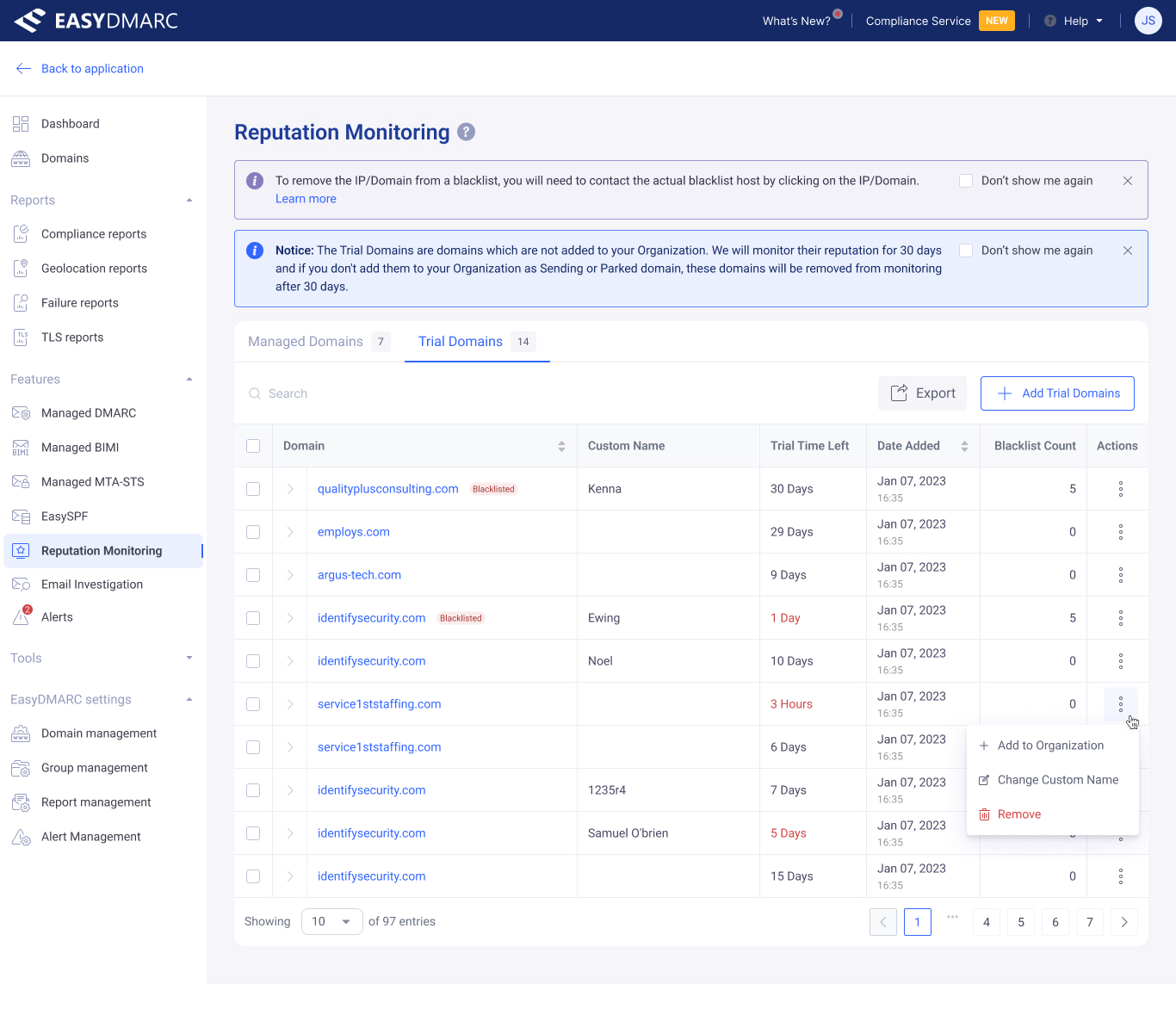
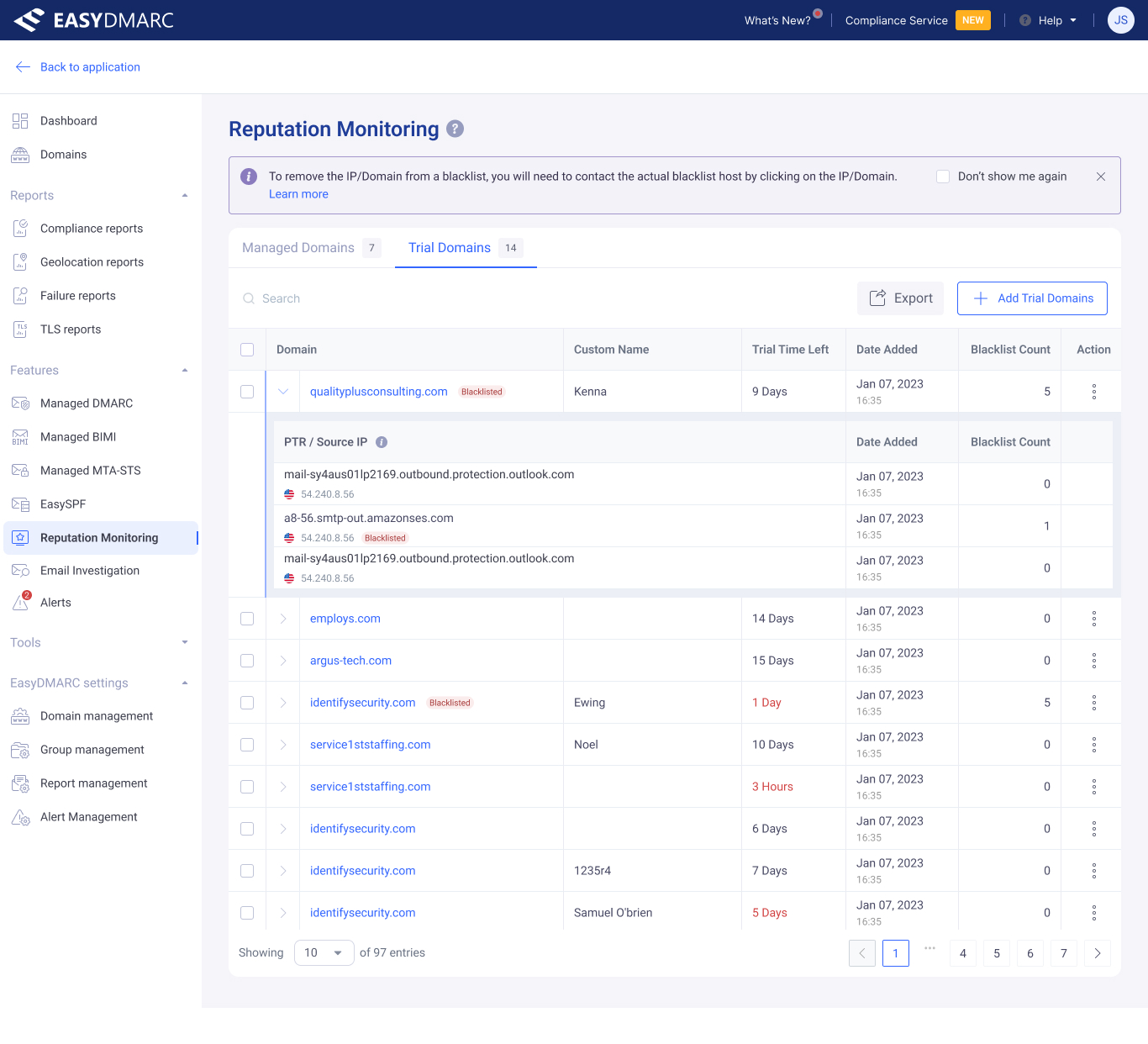
The Managed and Trial Domains tabs share the same table grammar — domain, blacklist count, date added, action — so the move from evaluation to production never asks the user to re-learn the screen.
Add Domain — three-step drawer
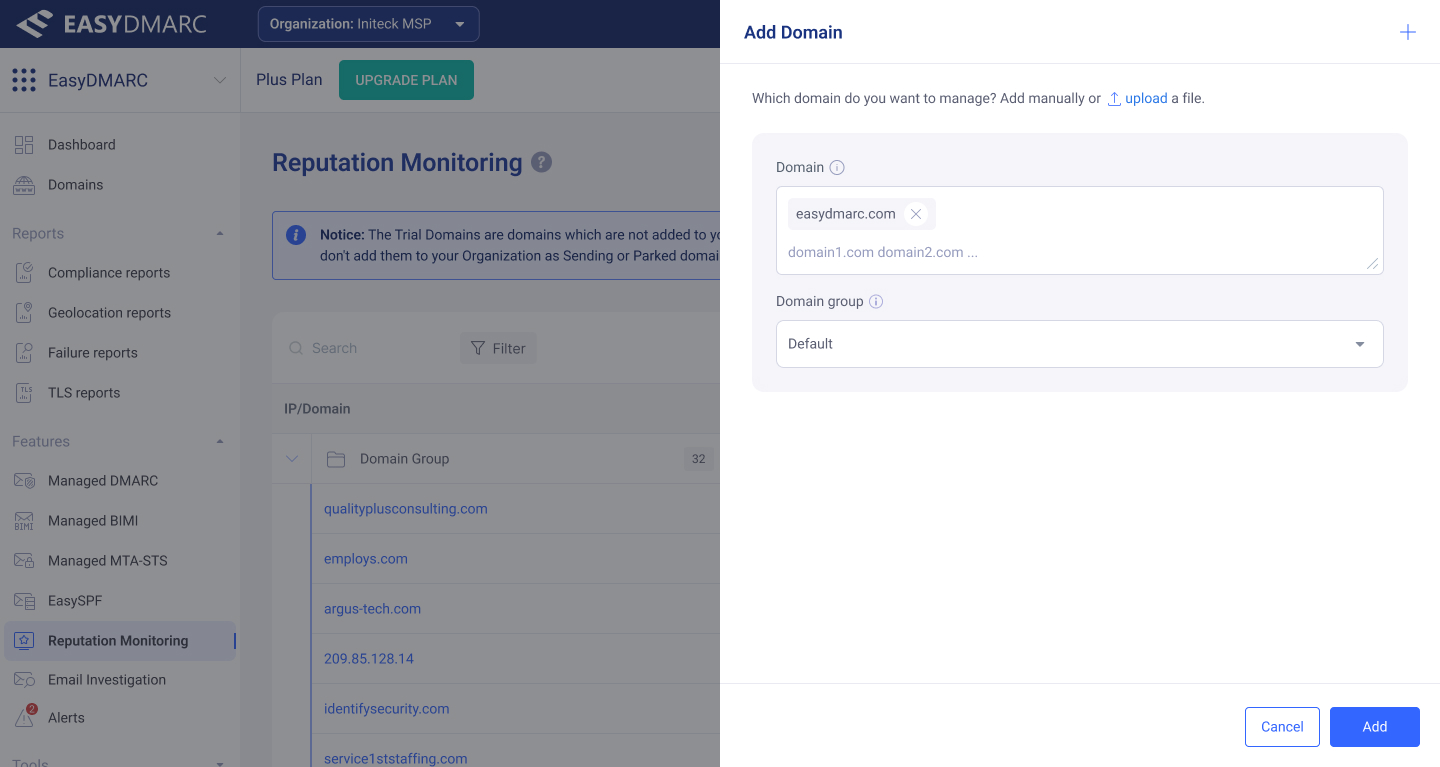
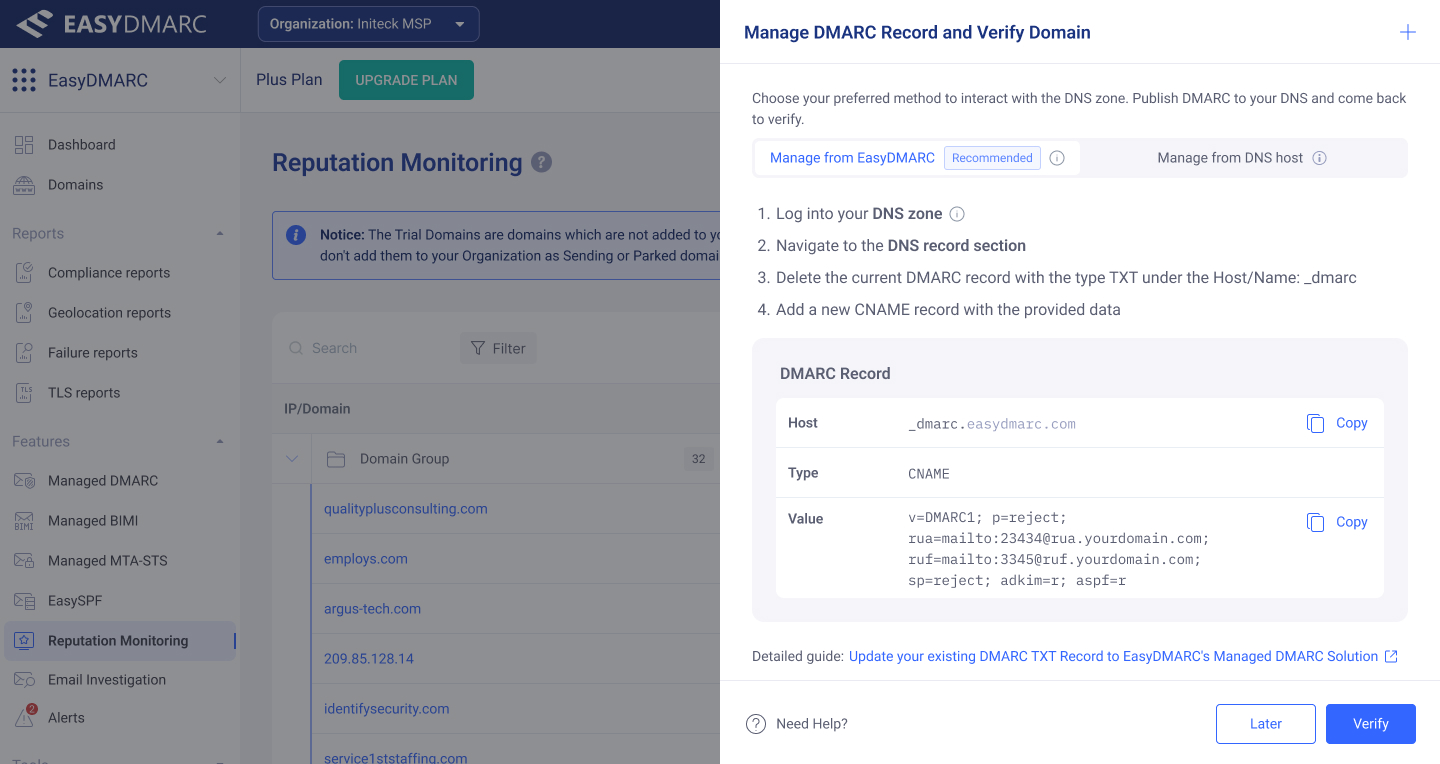
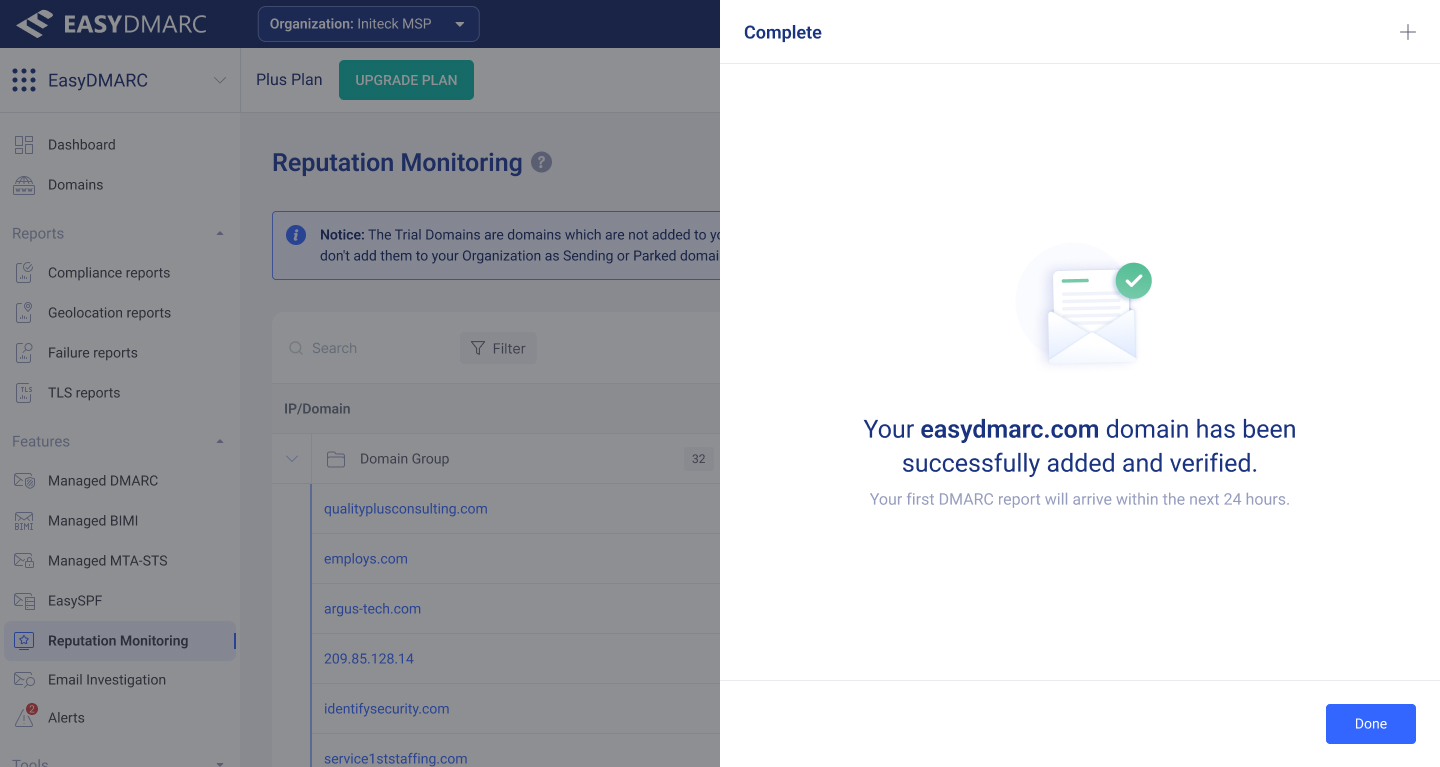
The three-step Add Domain drawer — Configuration → Management & Verification → Final Verify. Designed as one continuous surface, not three modals.
Skip-verify, error, and modal states
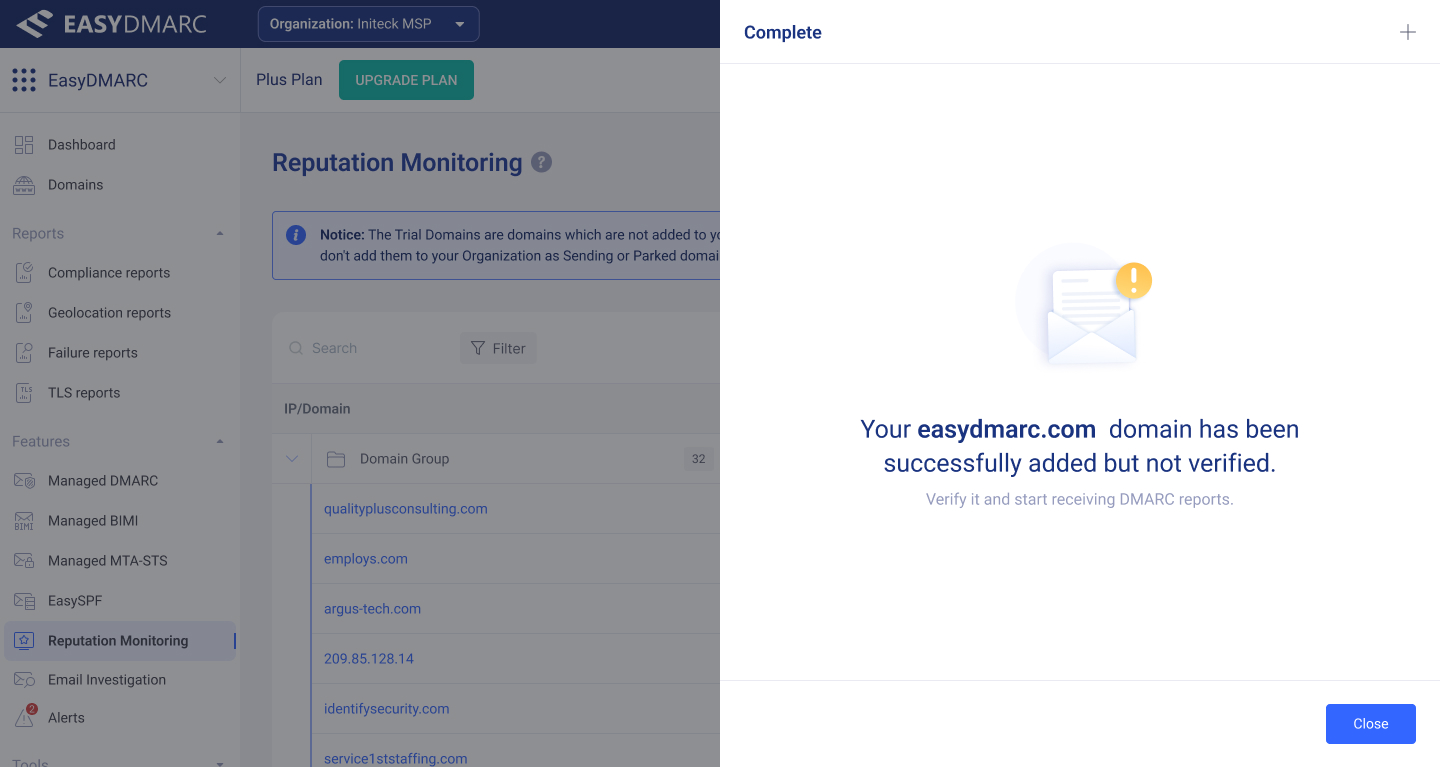
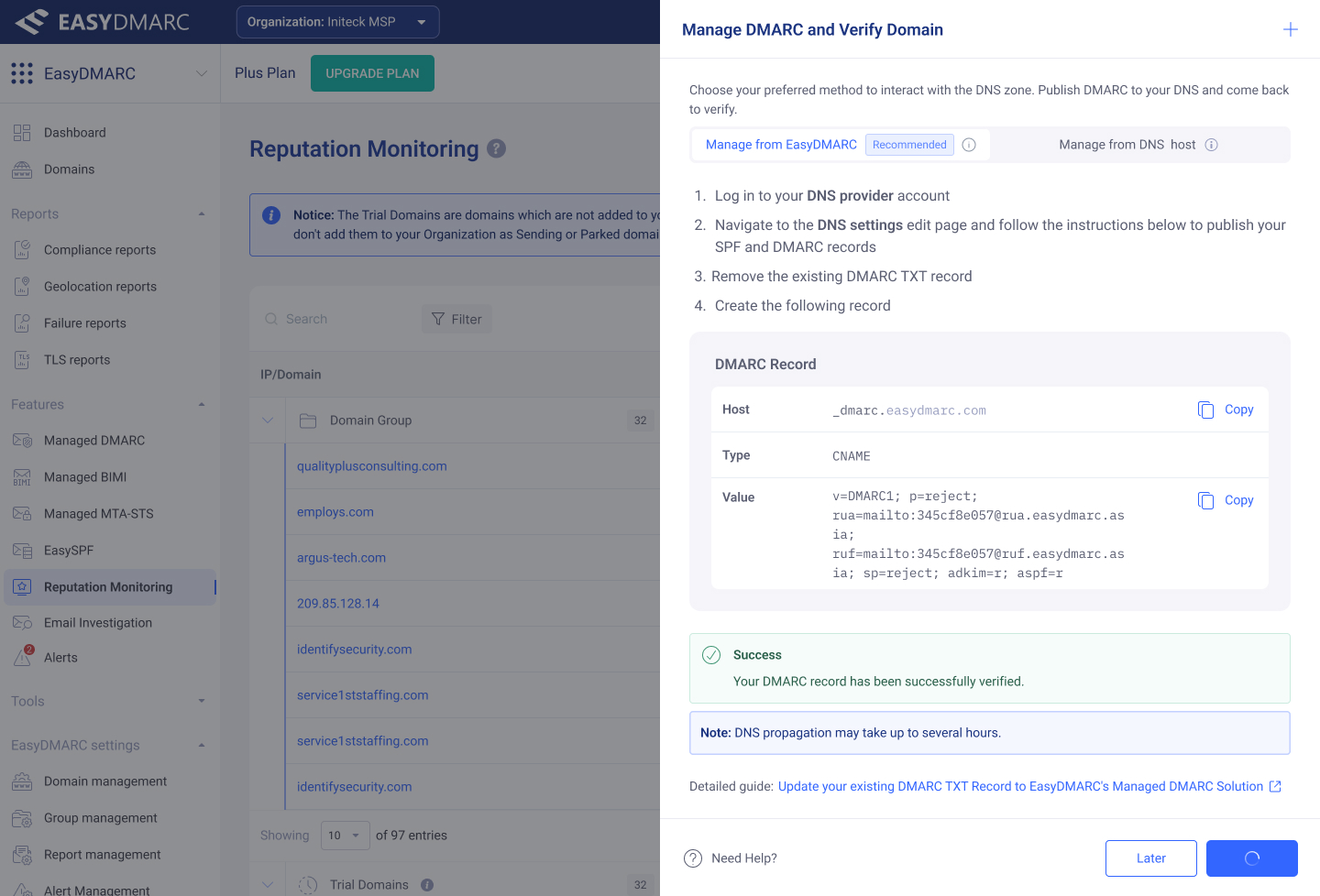
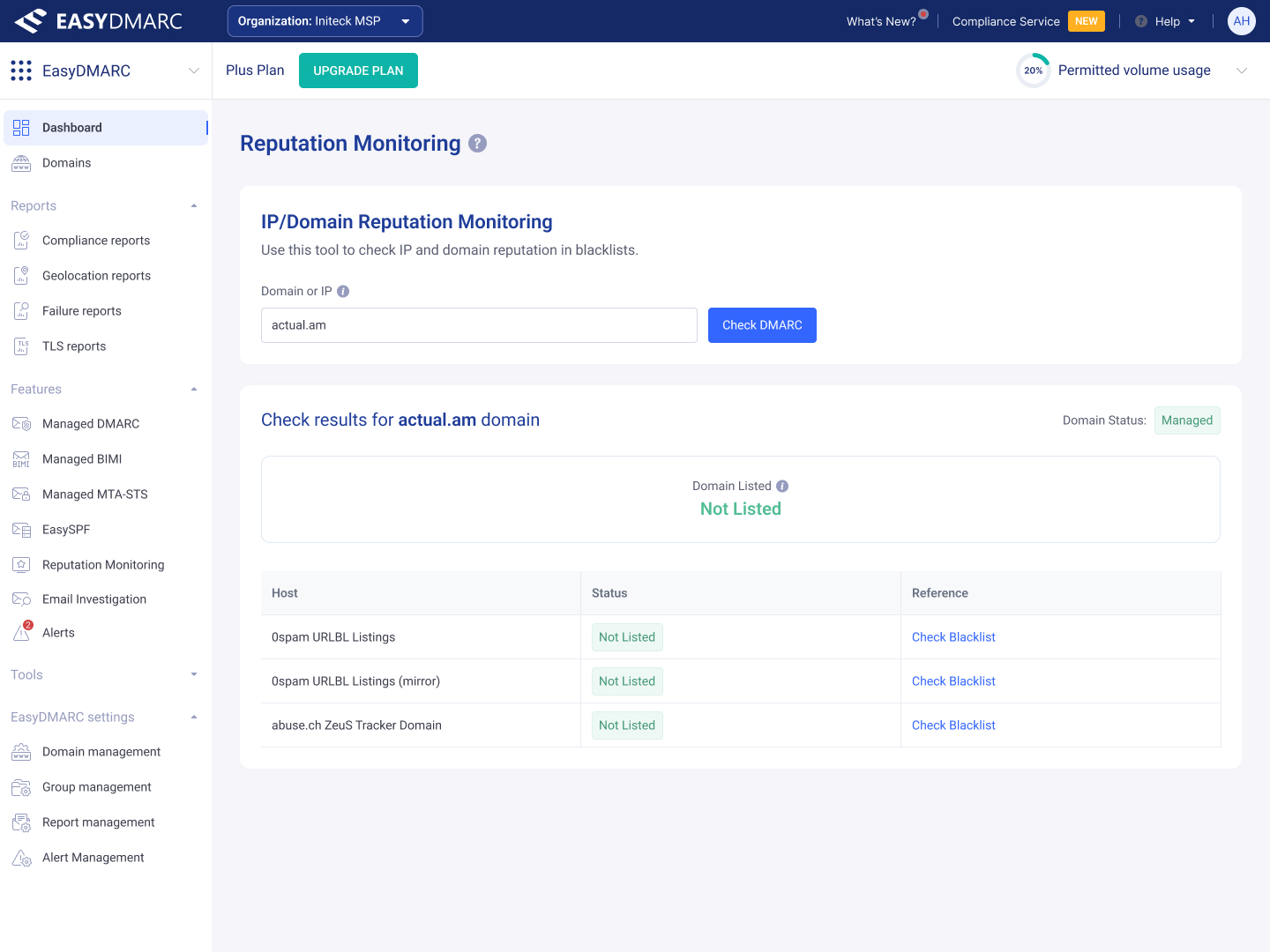
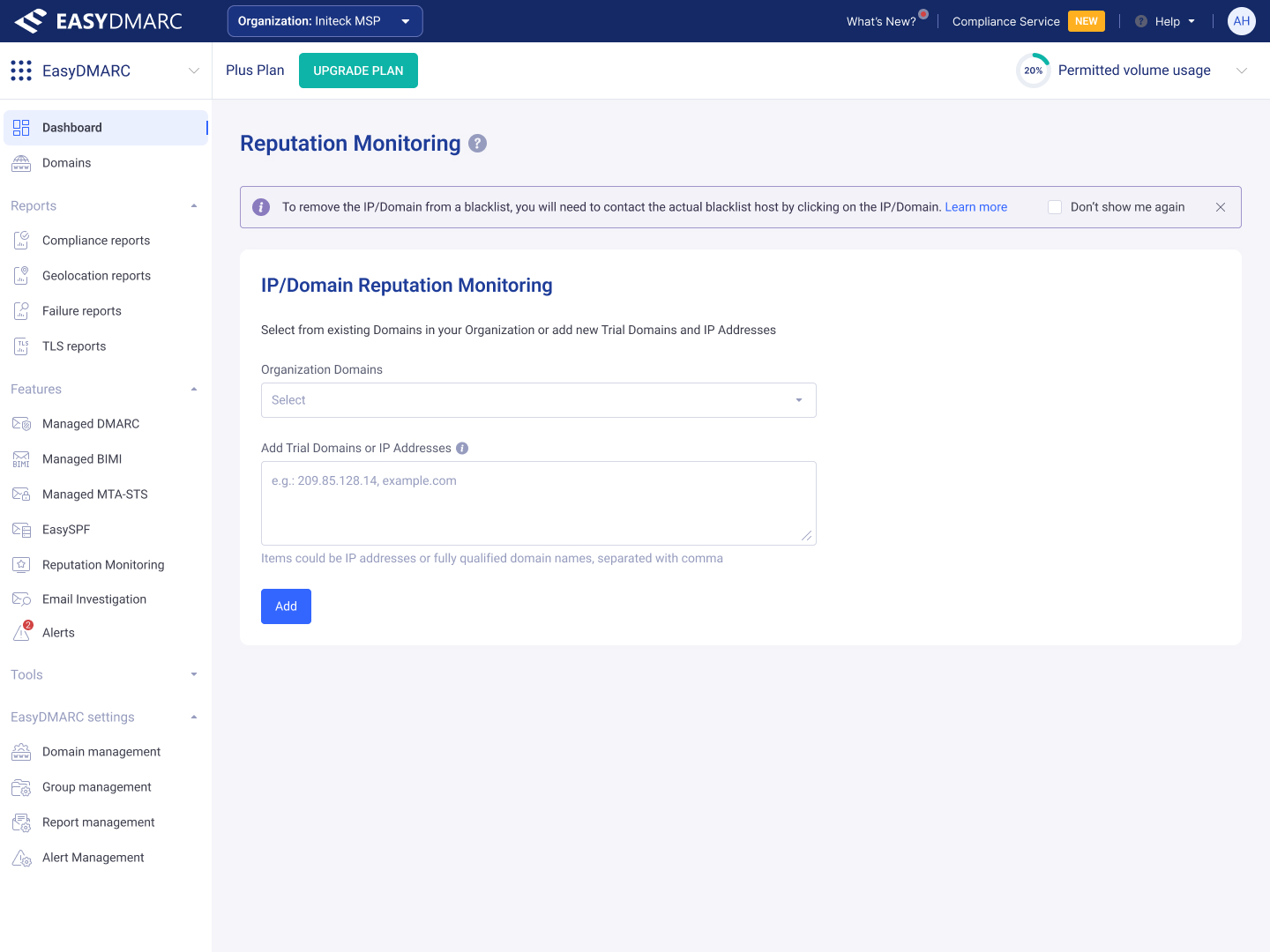
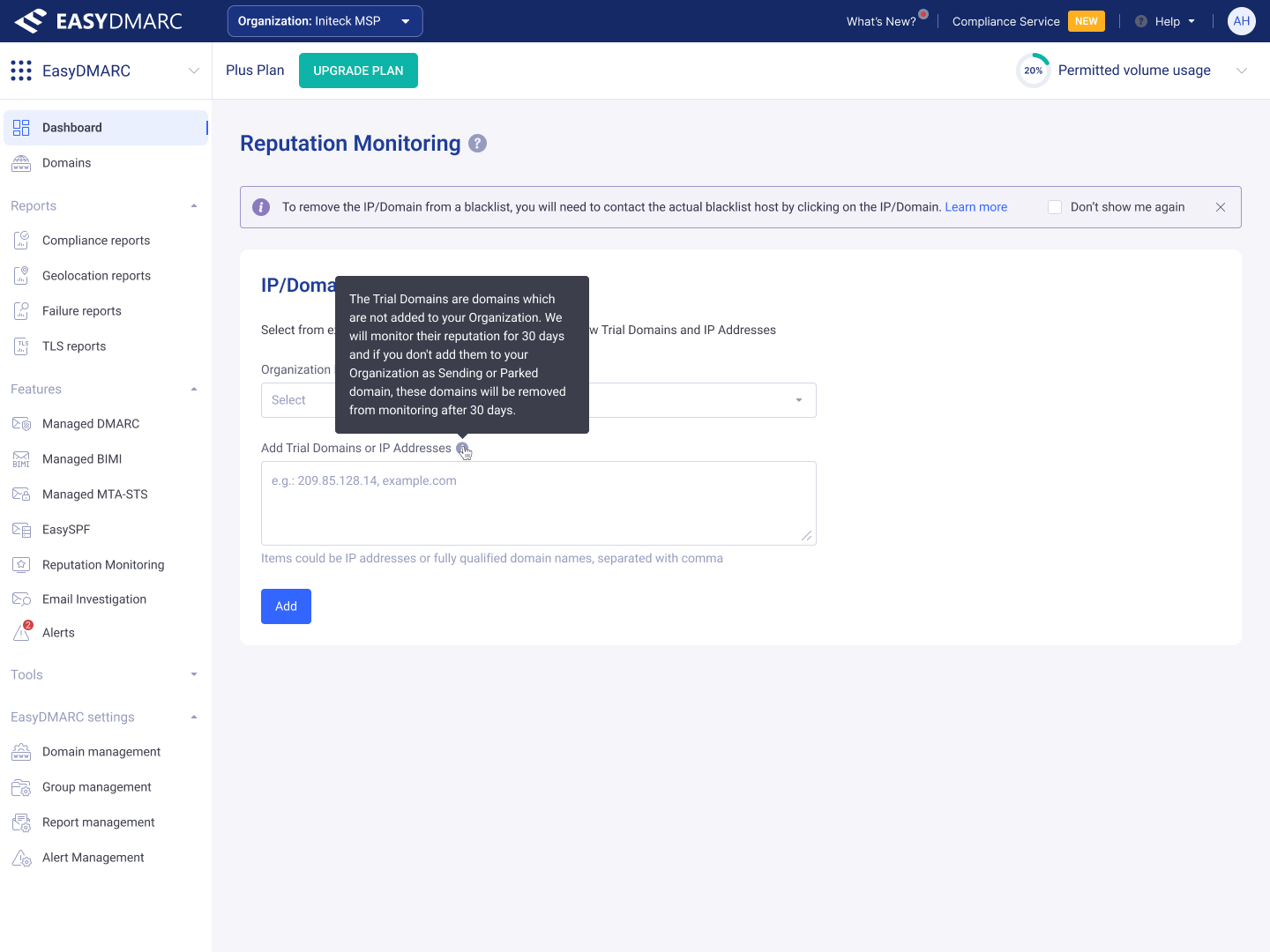
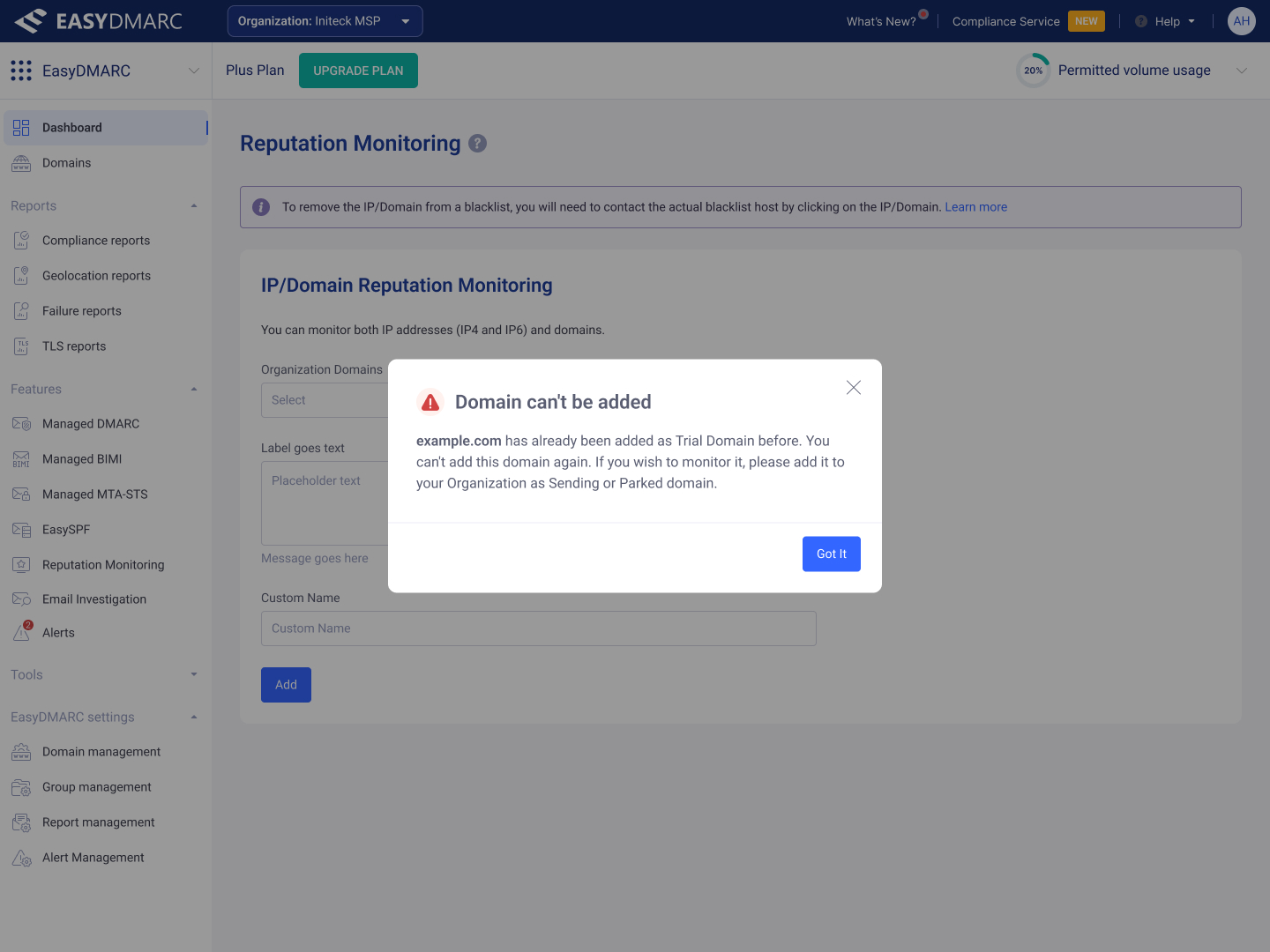
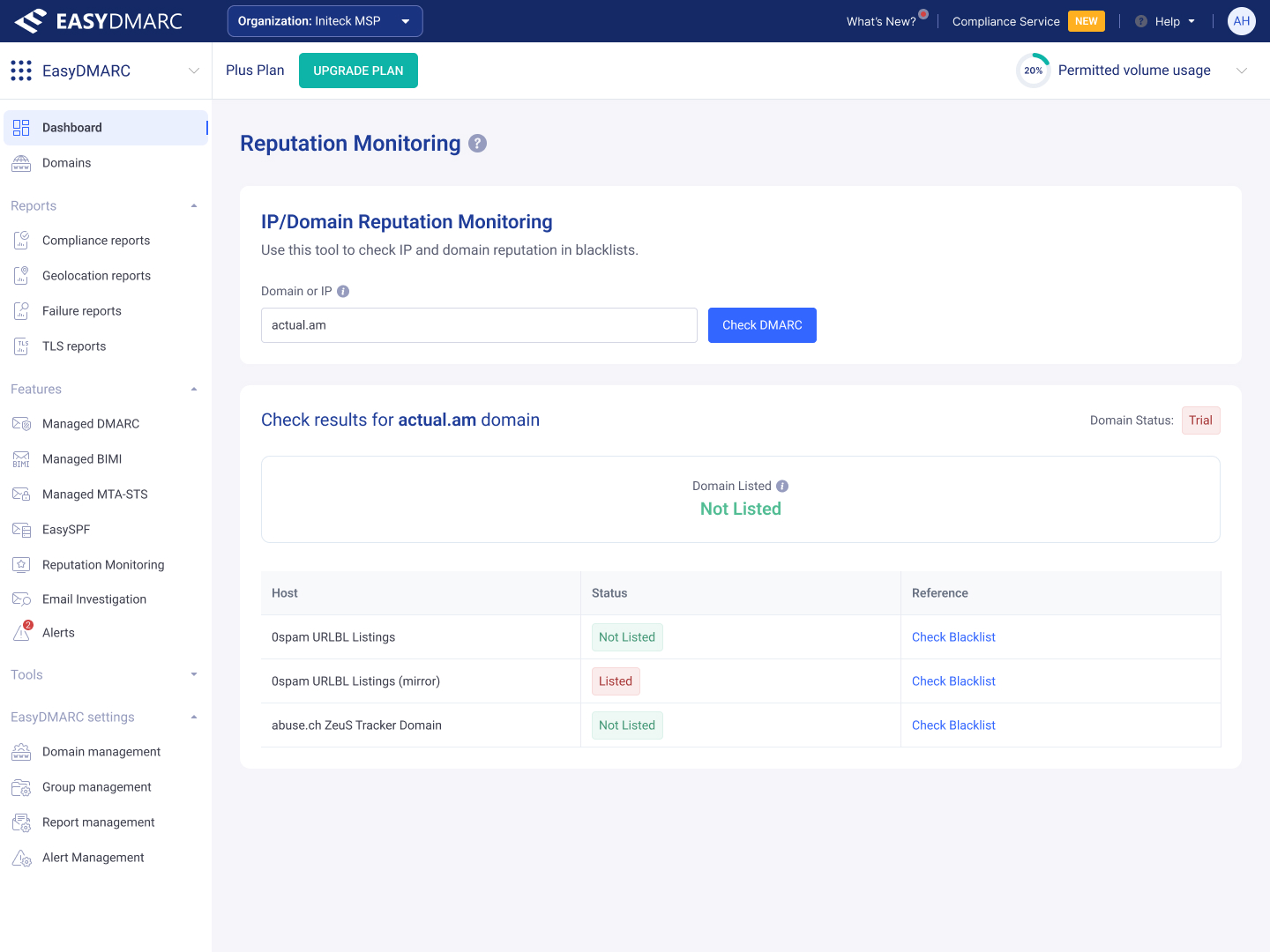
The states that make the tool feel finished — skip-verify, validation errors, custom-name and remove modals, and the action menus that handle the rare-but-needed paths.
Permissions that scale from one domain to a whole MSP.
EasyDMARC's customers range from a single admin running one domain to MSPs managing hundreds across many organizations. User Access Management is the surface that has to make that range workable: Organization-, Product-, Domain-Group-, and Domain-level access, multiple roles (Admin, Editor, Viewer), and access to one or both products (EasyDMARC, EasySender) — without becoming a permissions maze.
The Users table
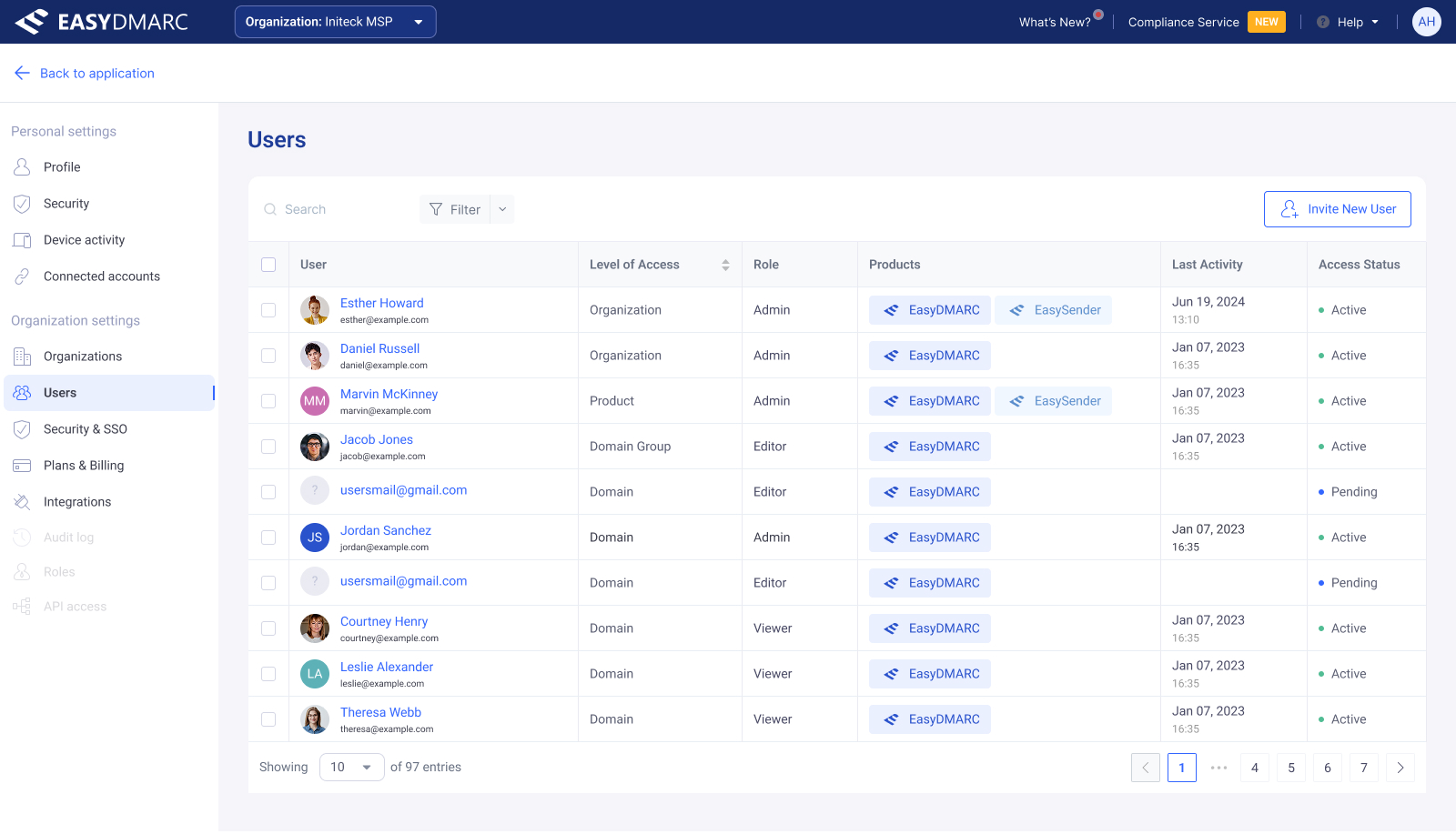
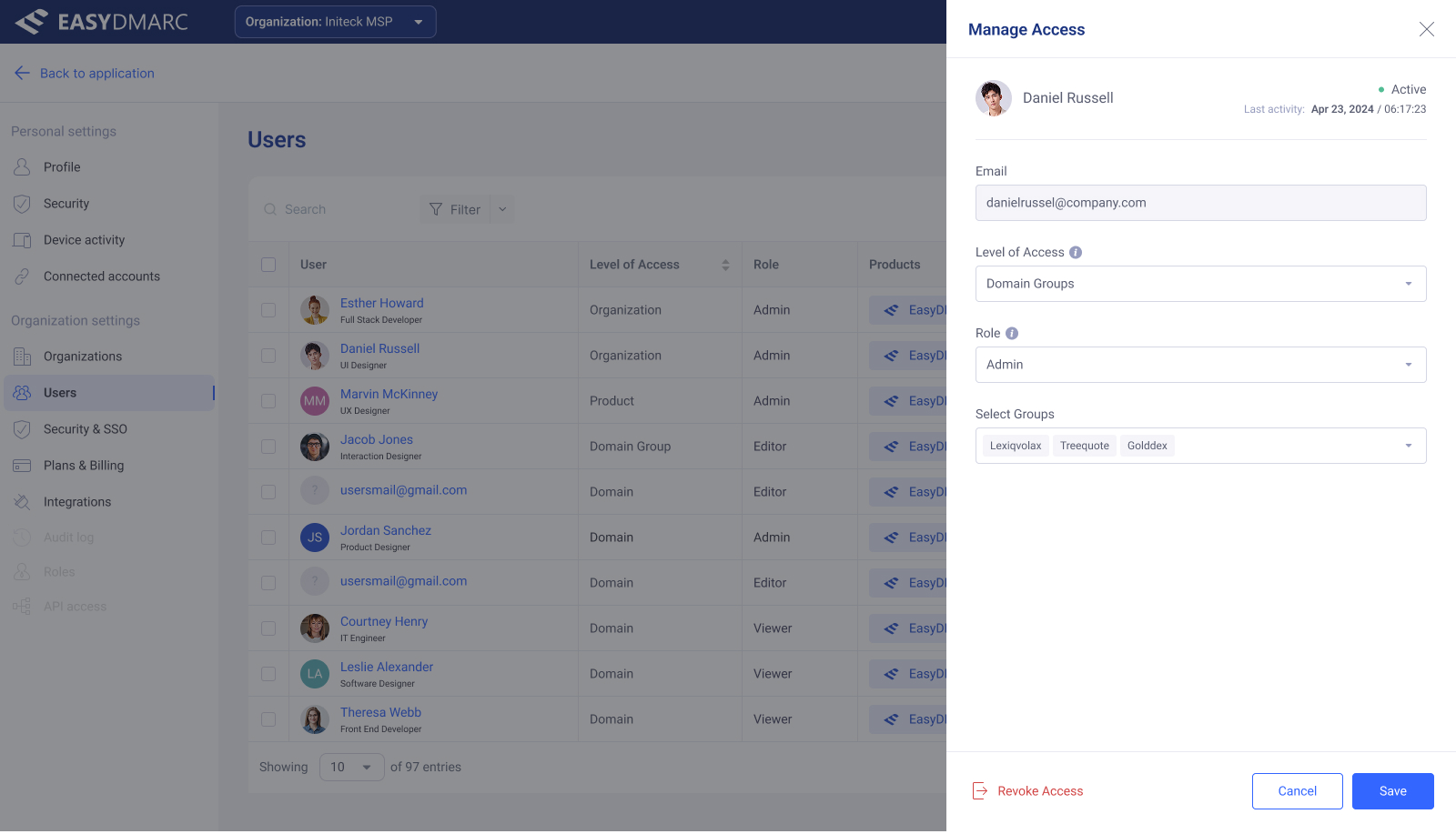
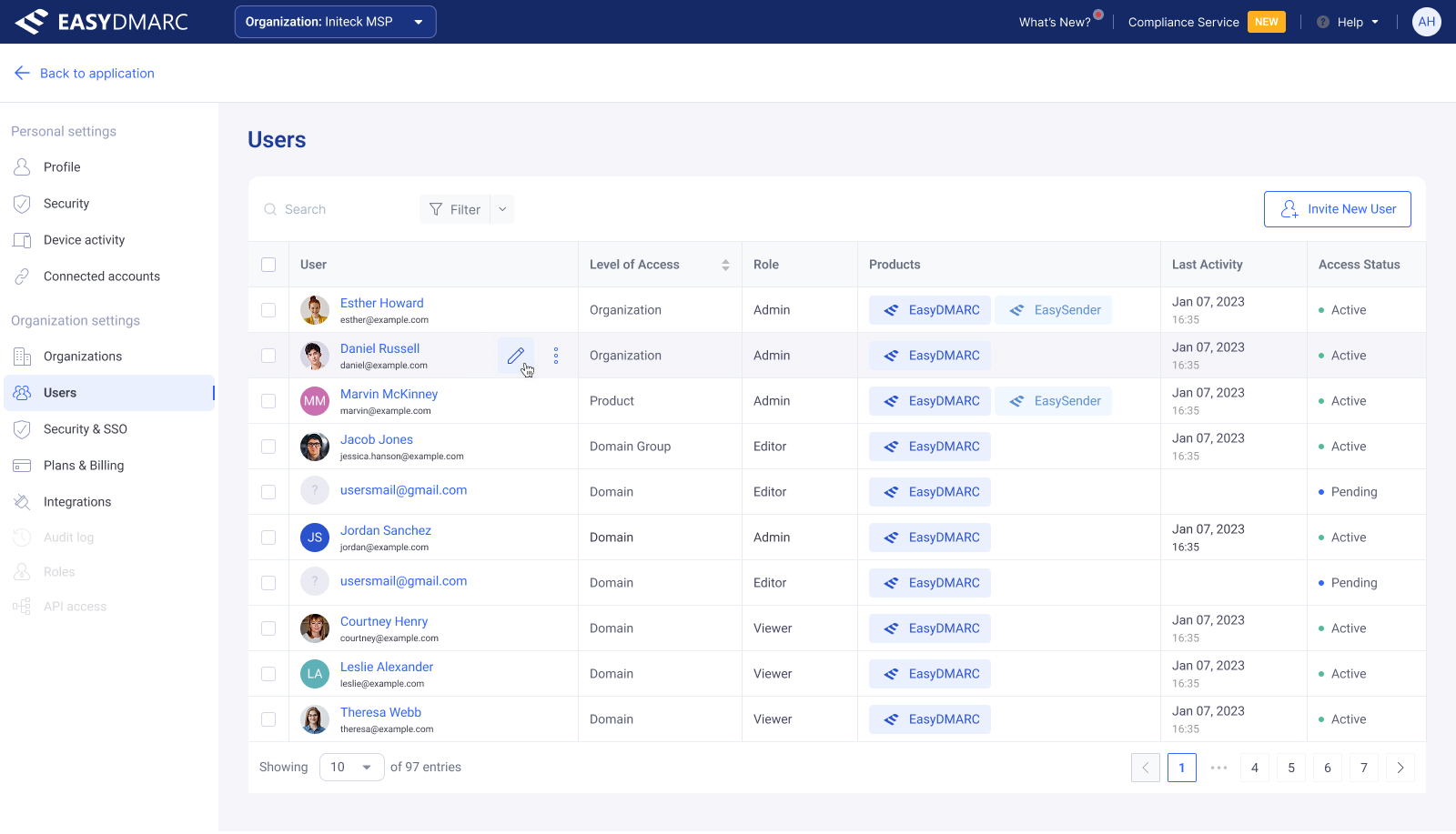
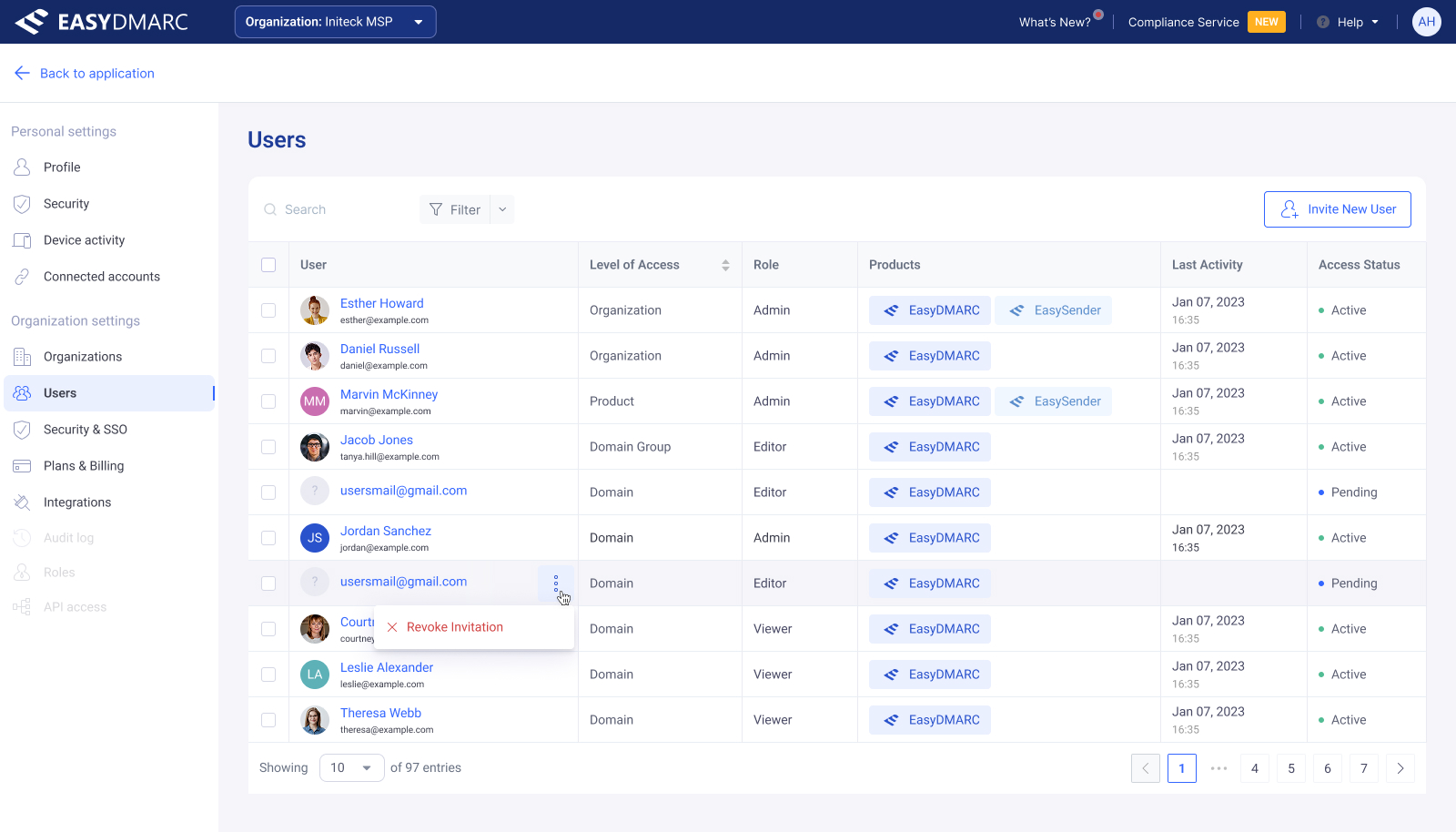
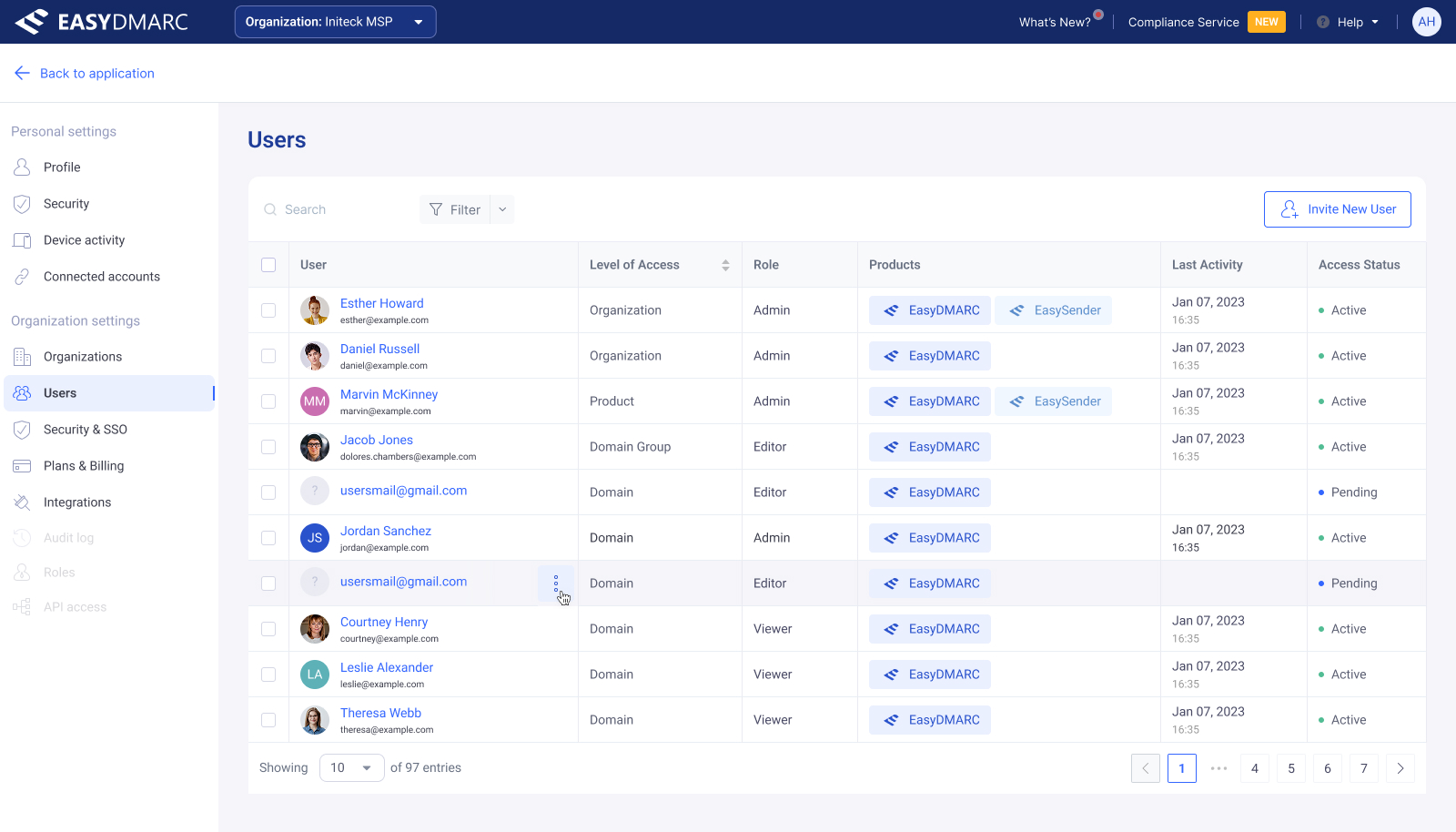
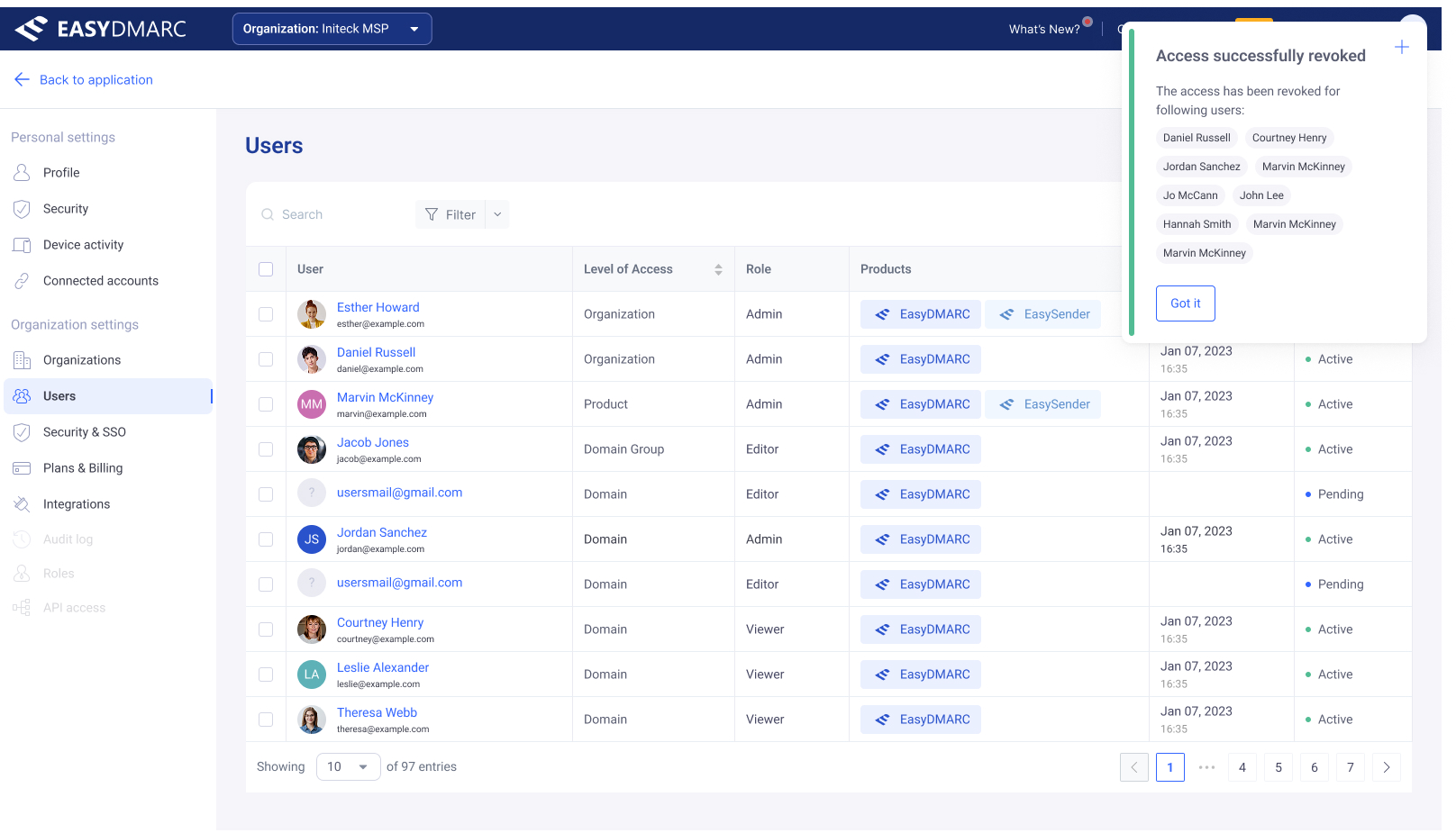
The Users table — one surface that handles active, pending, and inactive users without forcing the admin into three different screens.
Manage Access — drawer at every level
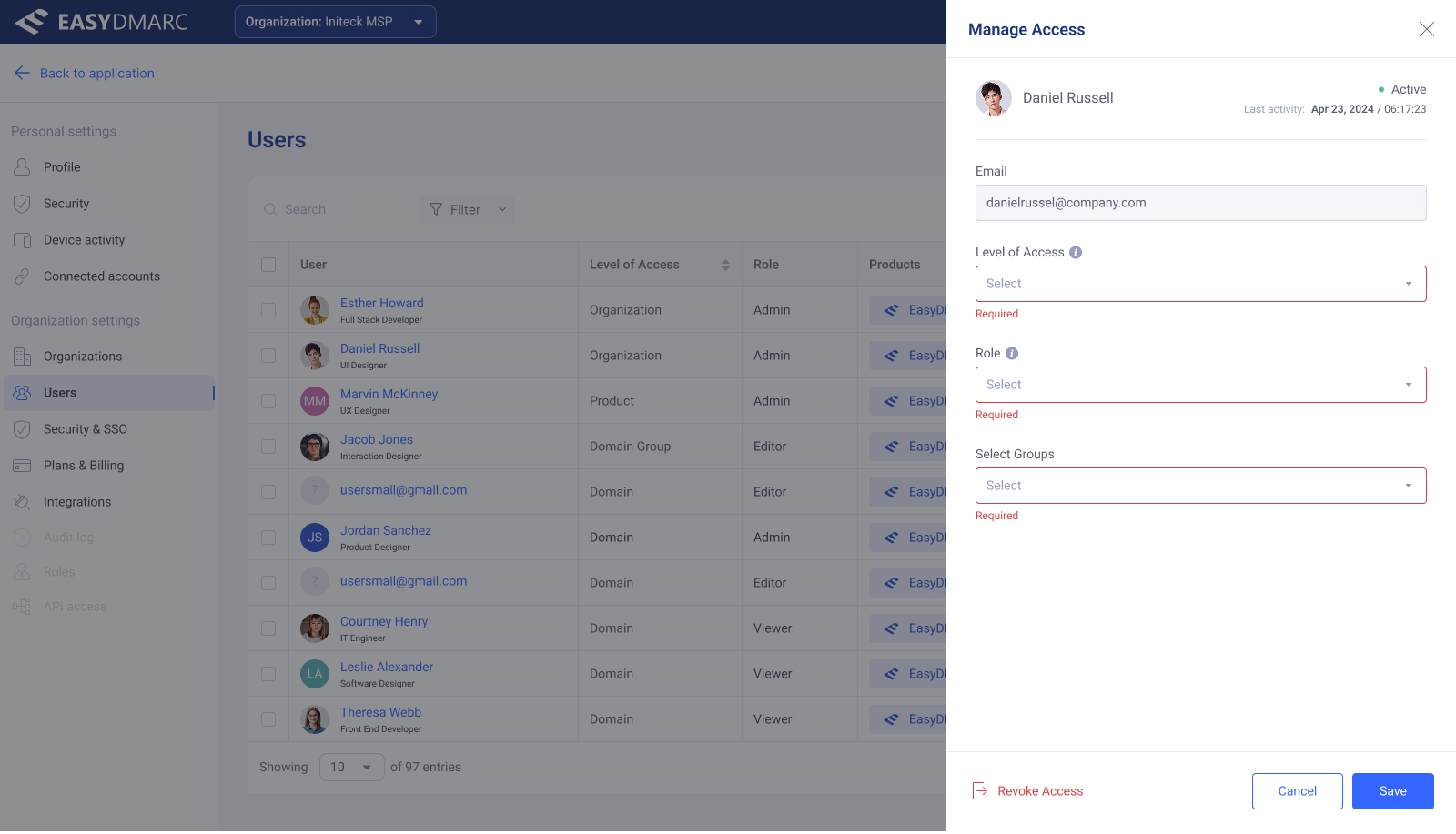
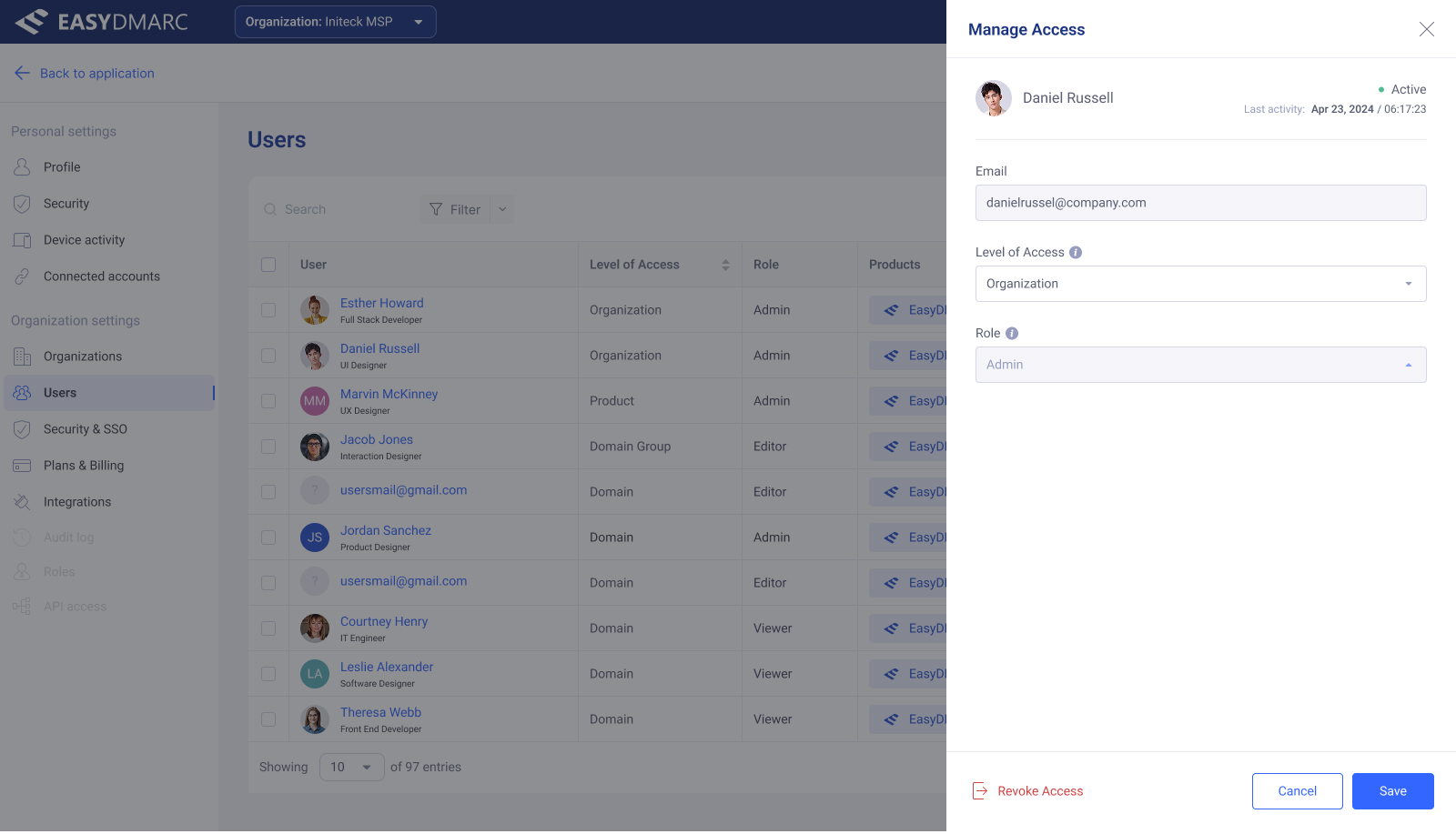
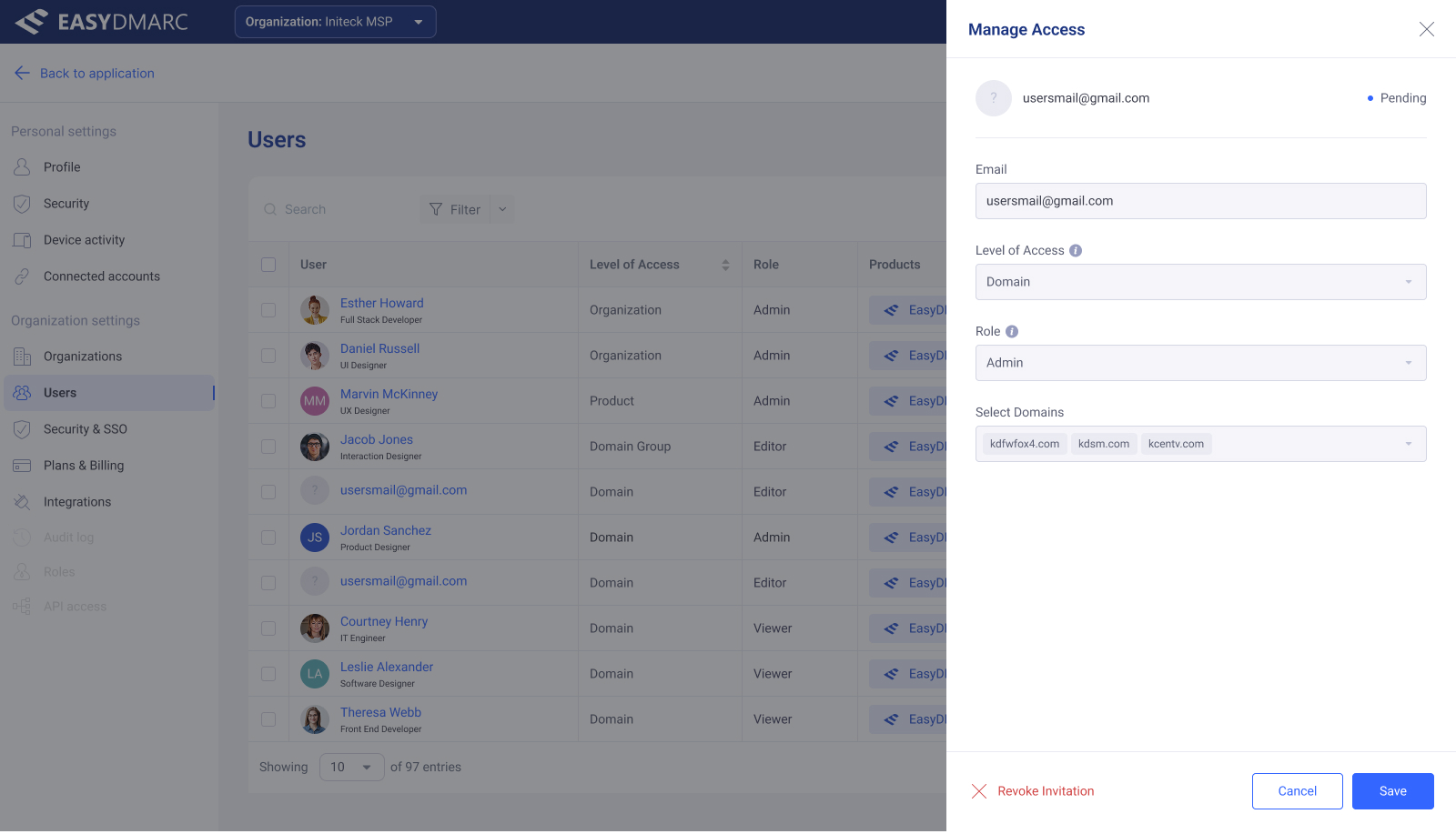
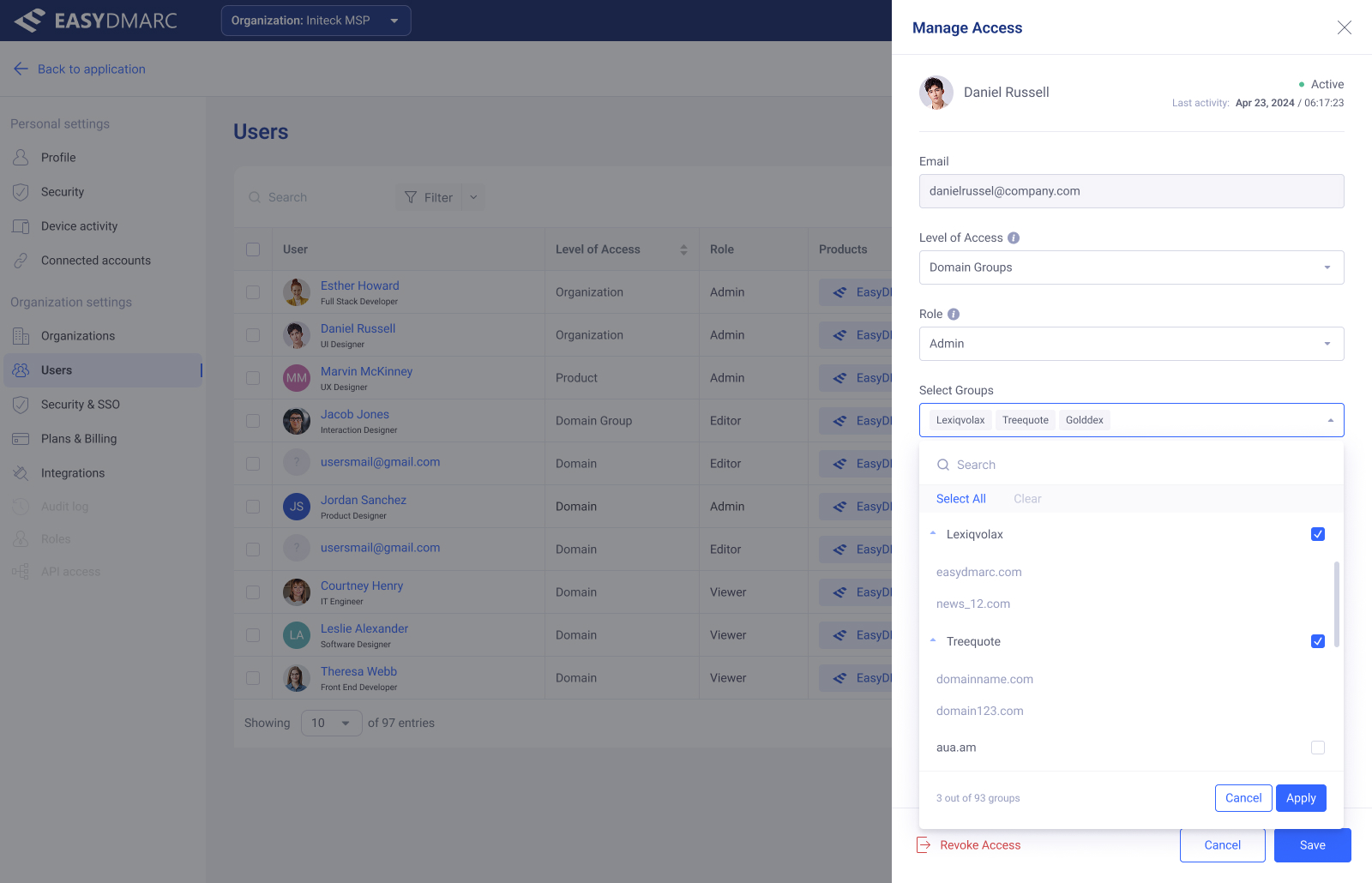
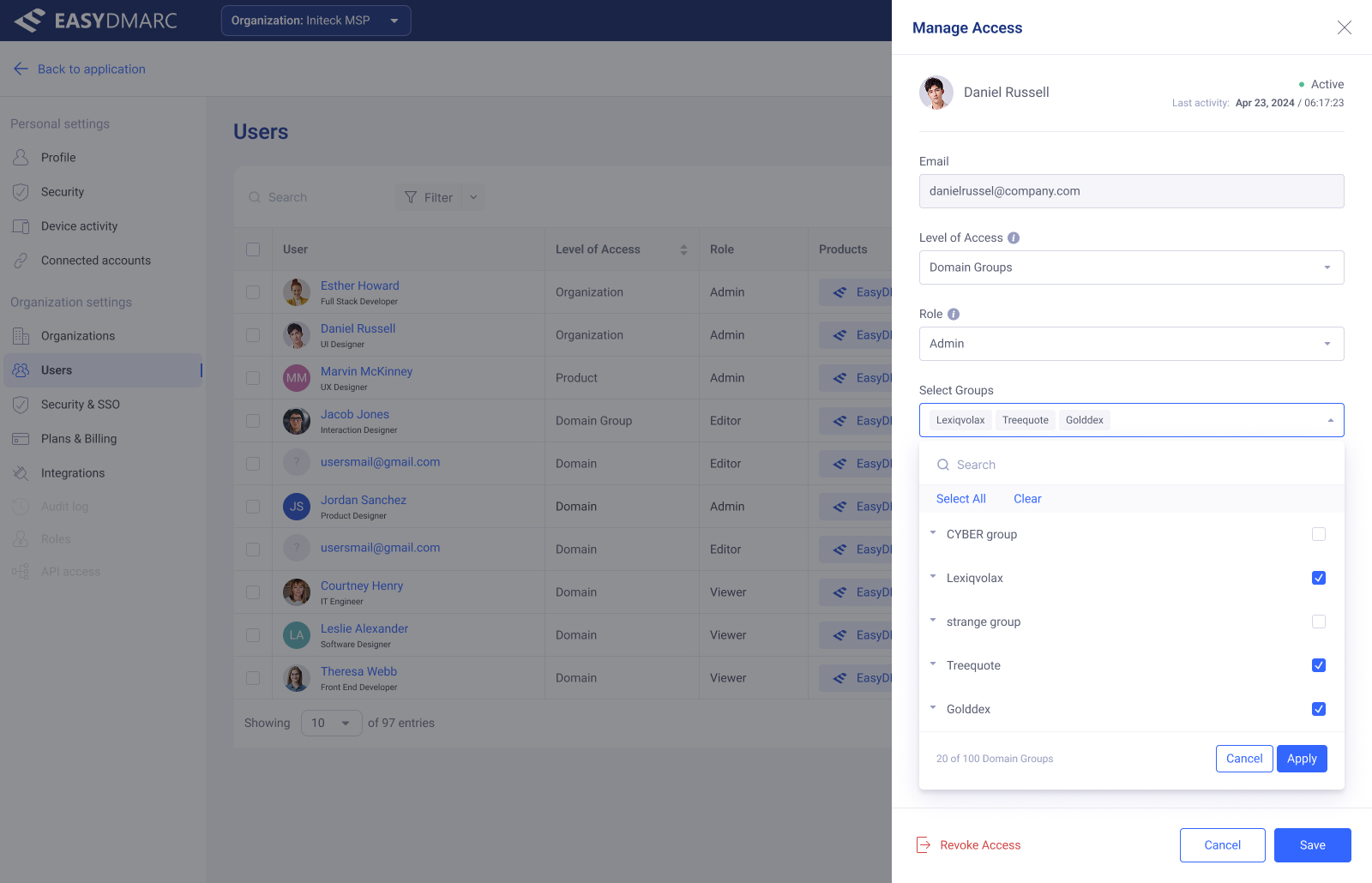
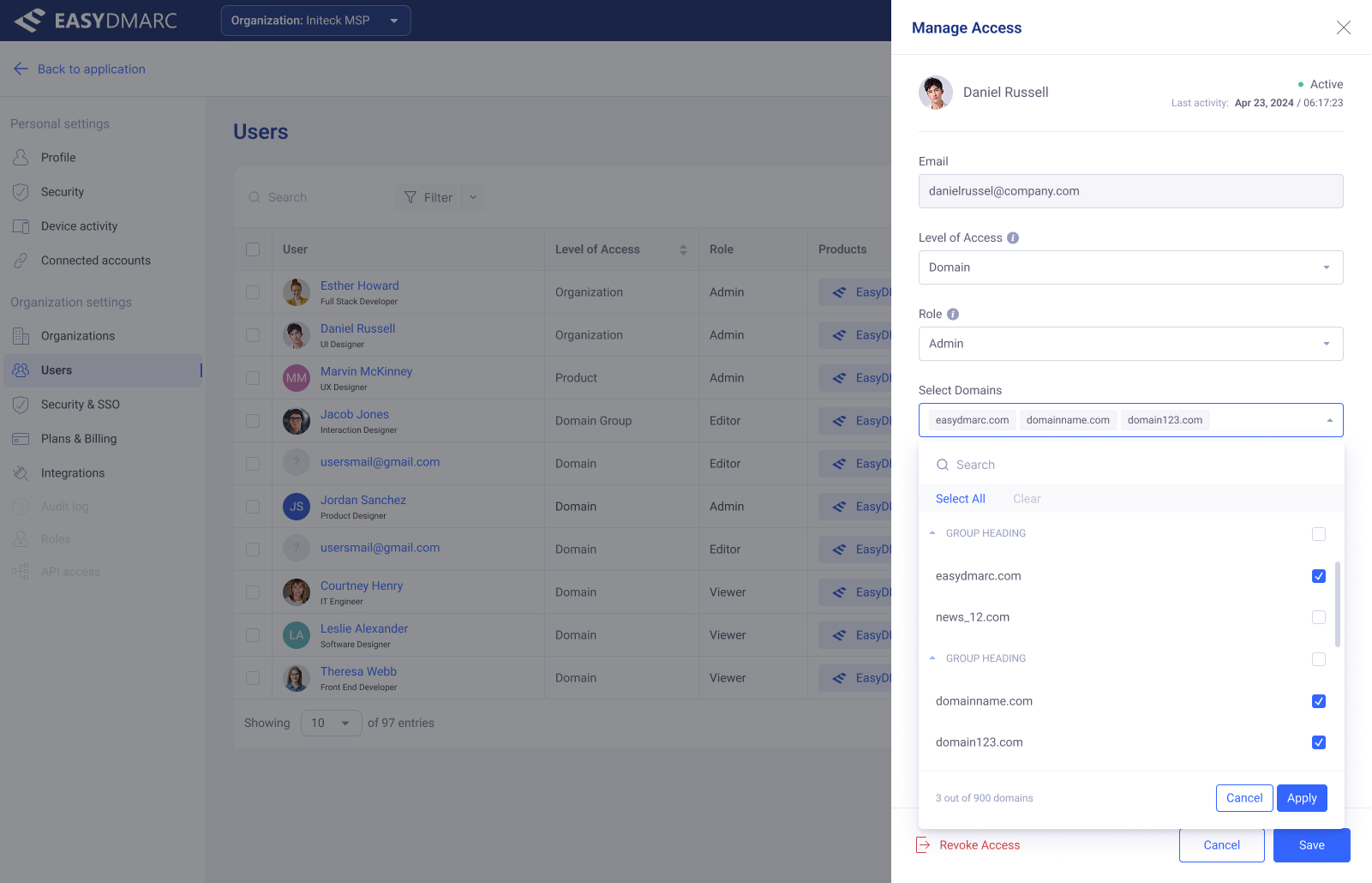
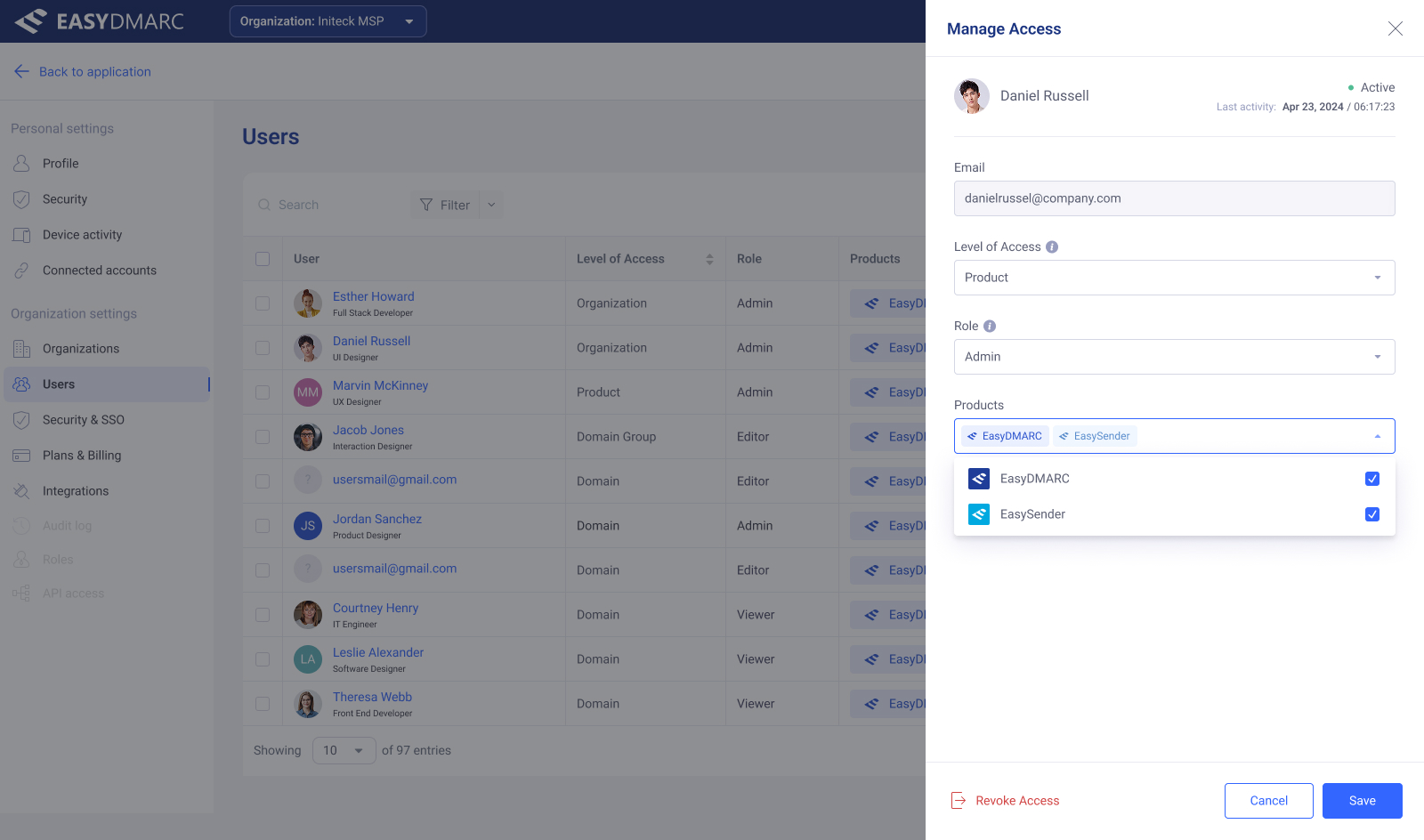
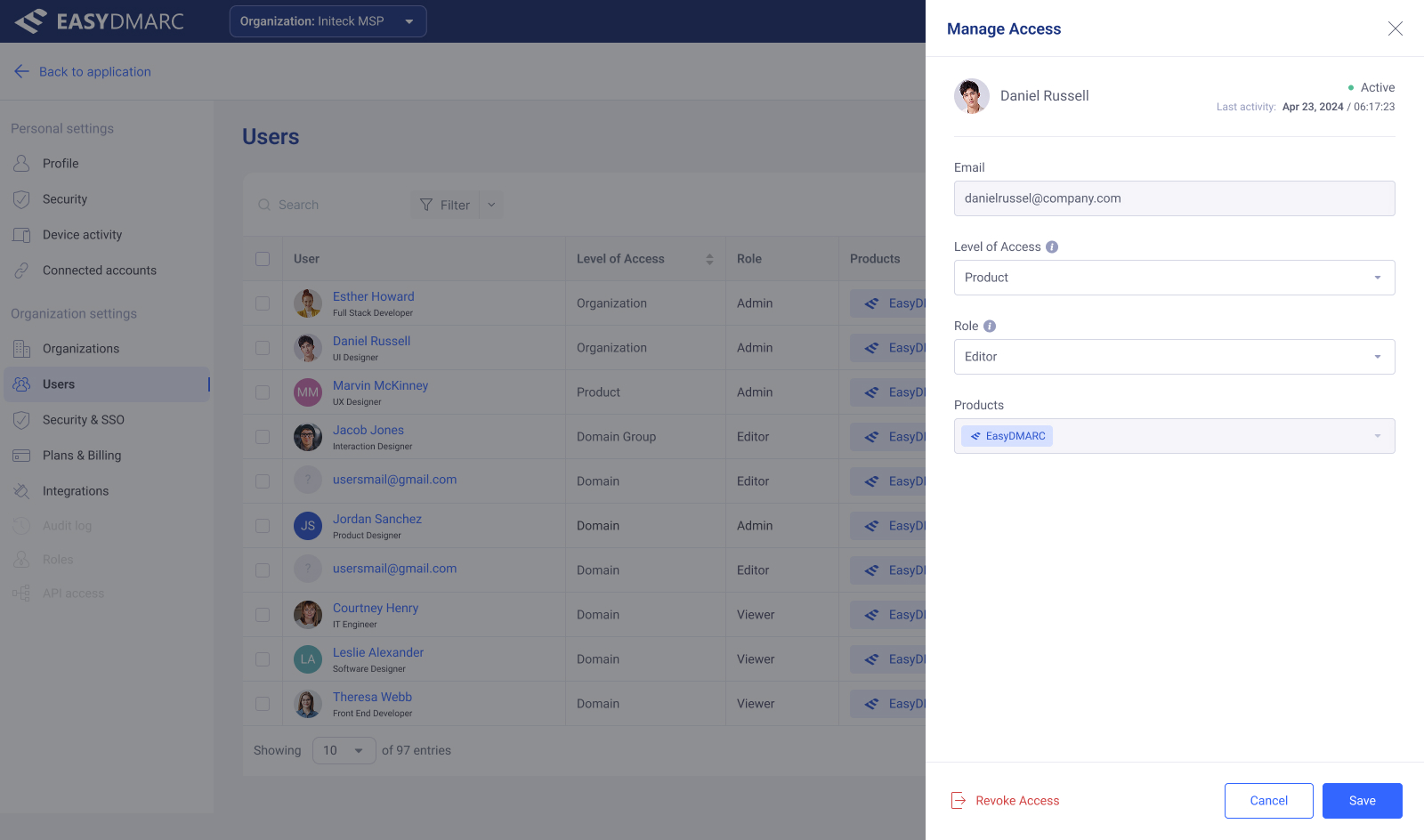
One drawer pattern, four access levels. The form re-shapes around the level — Domain pulls in a domain multi-select, Domain Group pulls in groups — so the user only sees fields that matter to the choice they just made.
Invite, bulk, and revoke
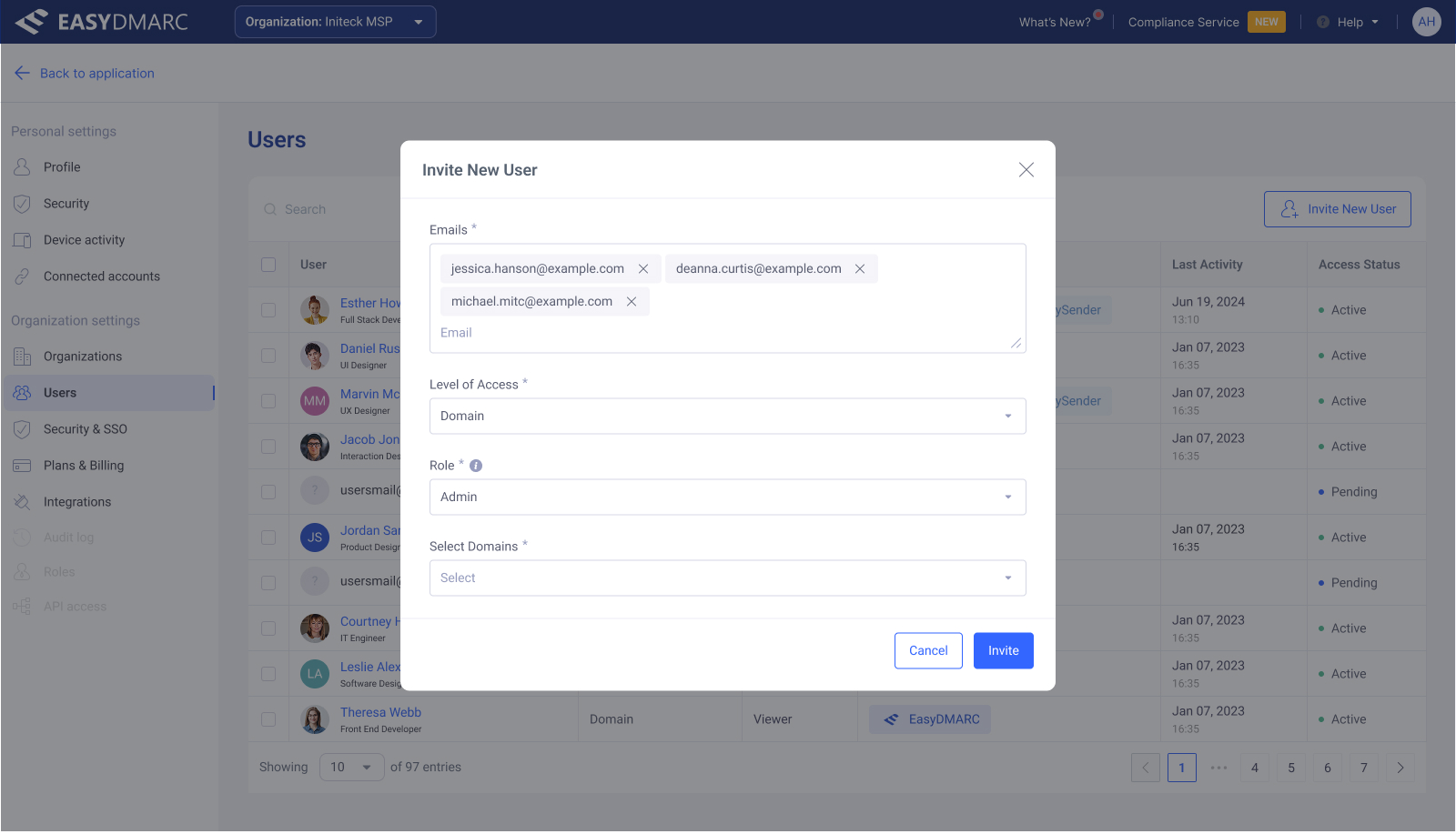
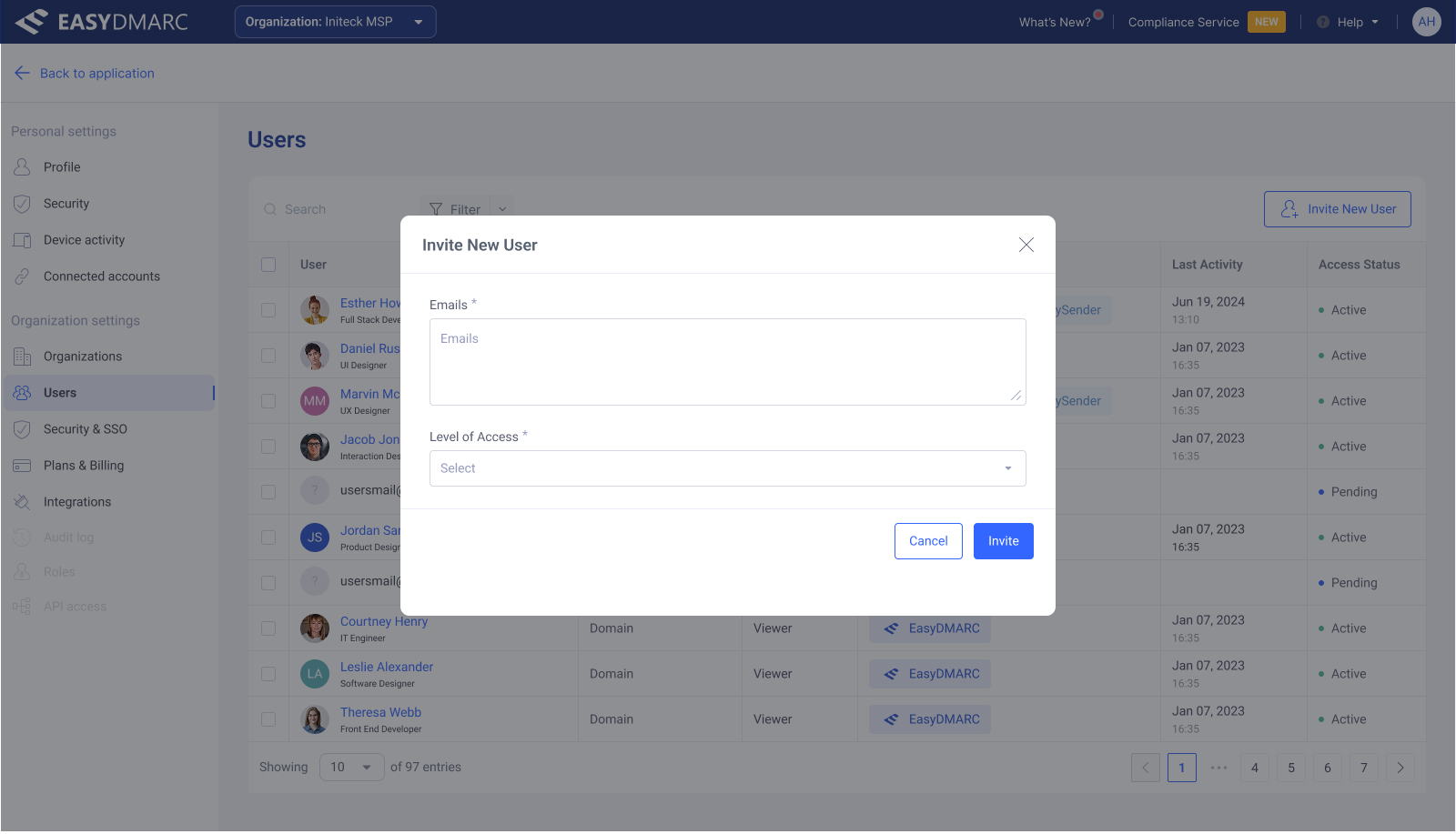
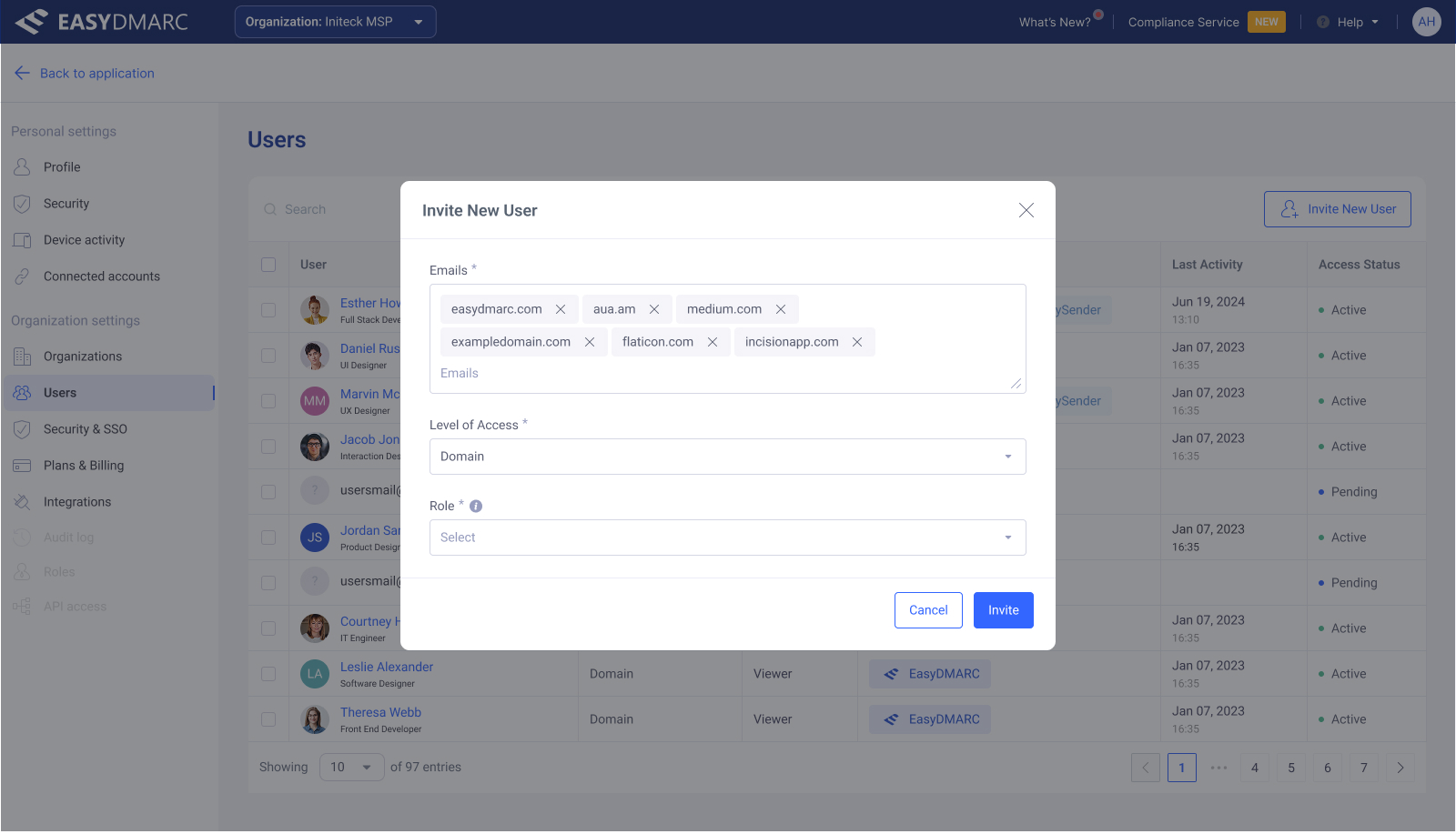
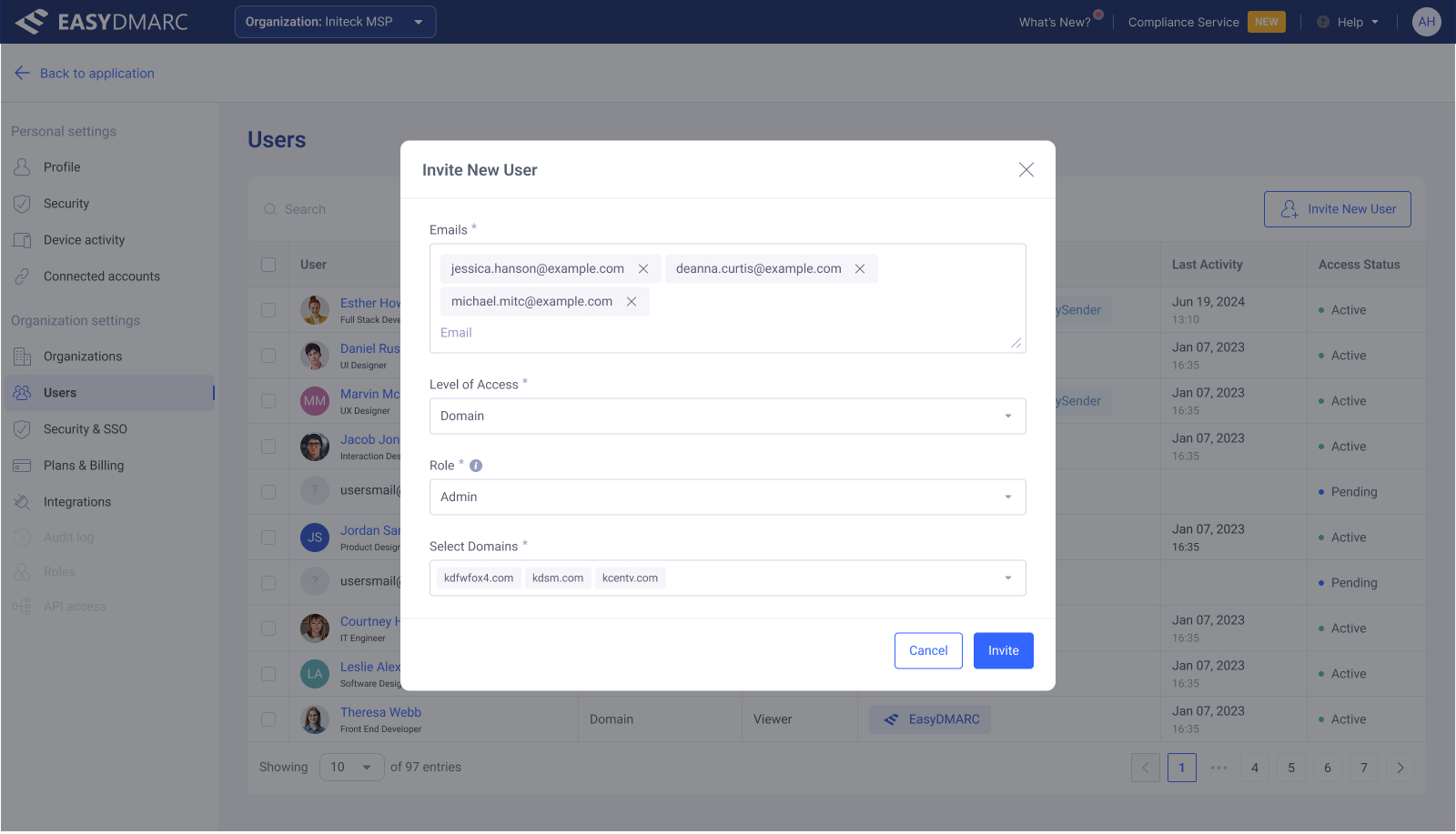
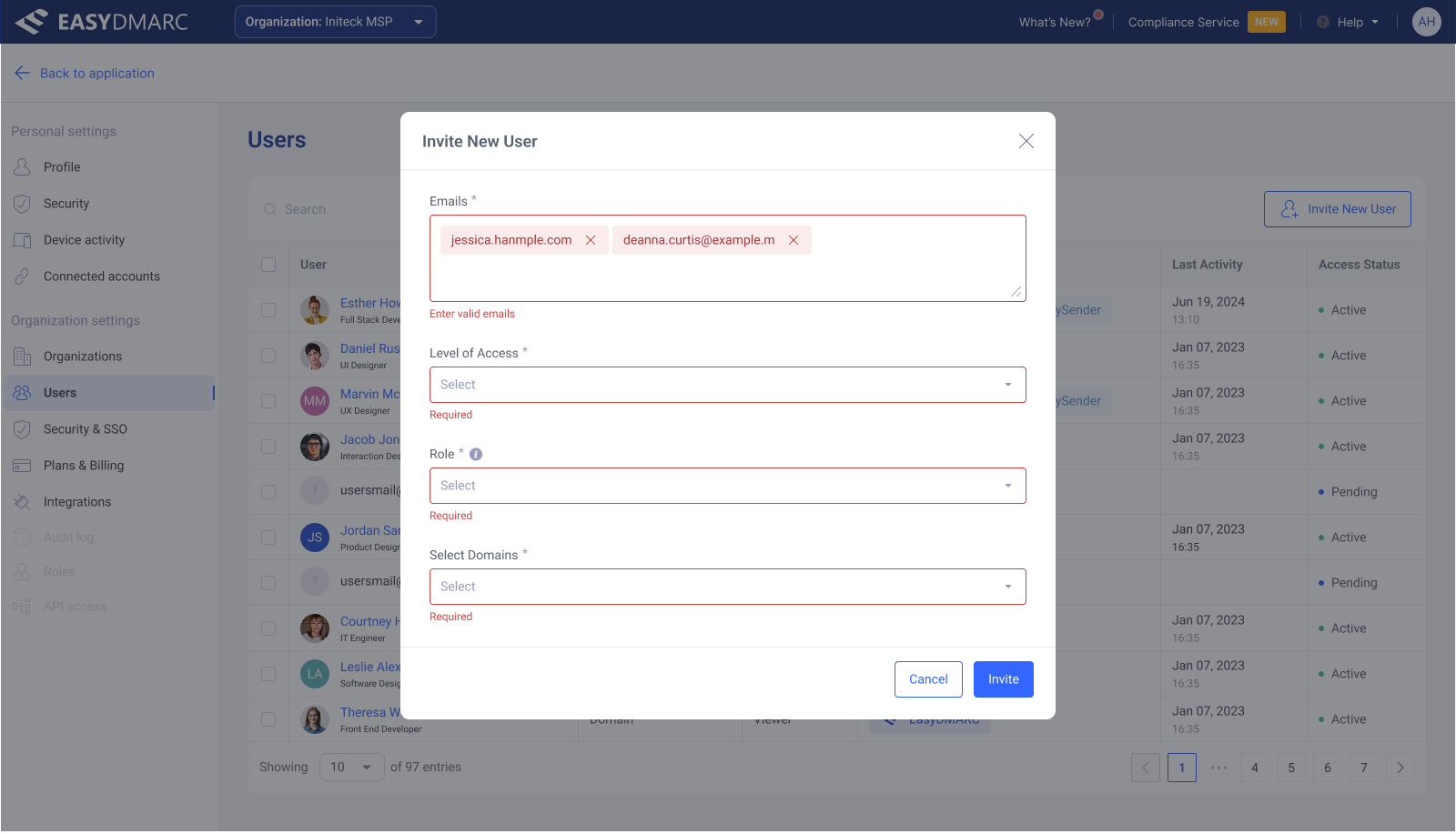
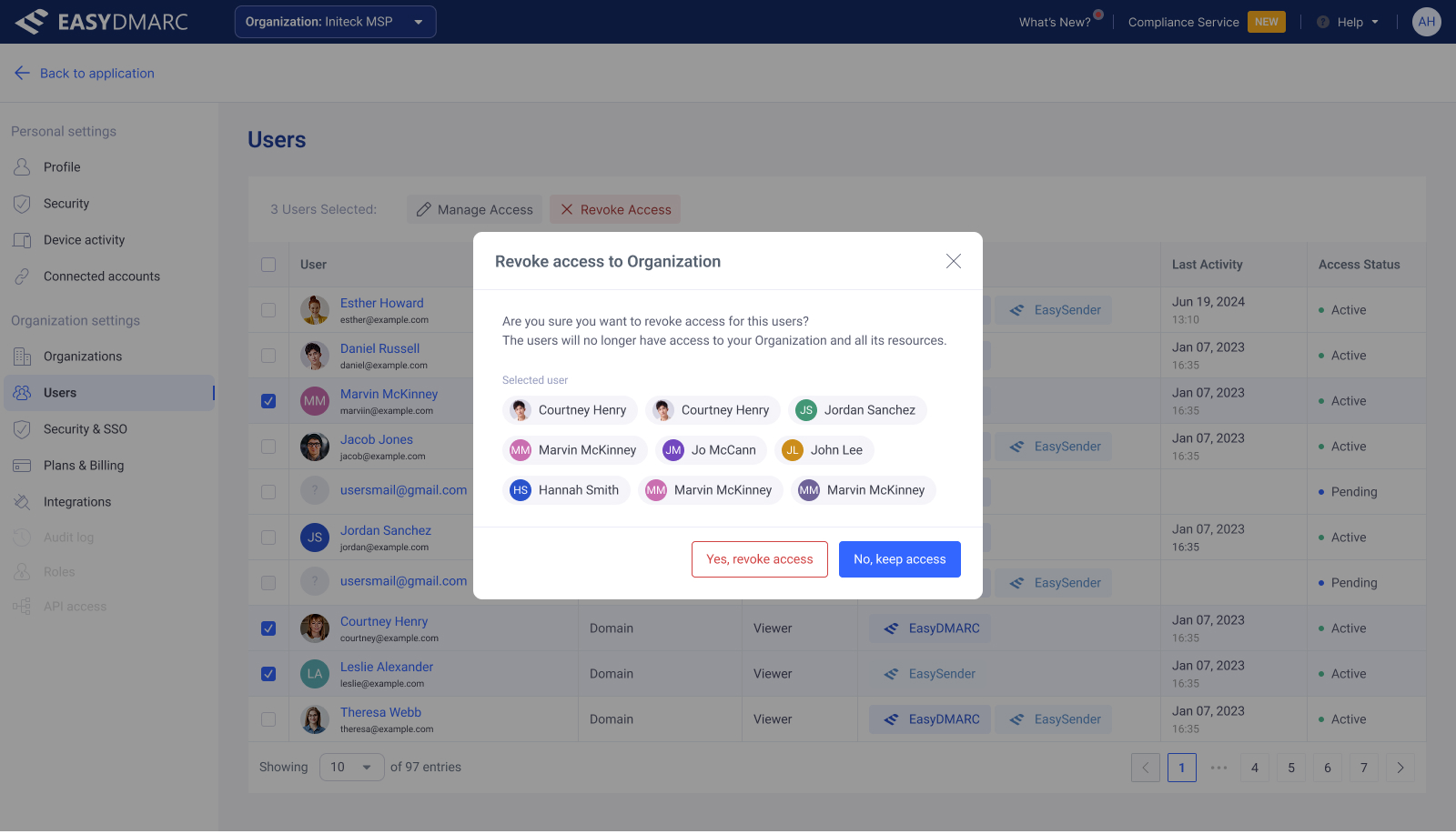
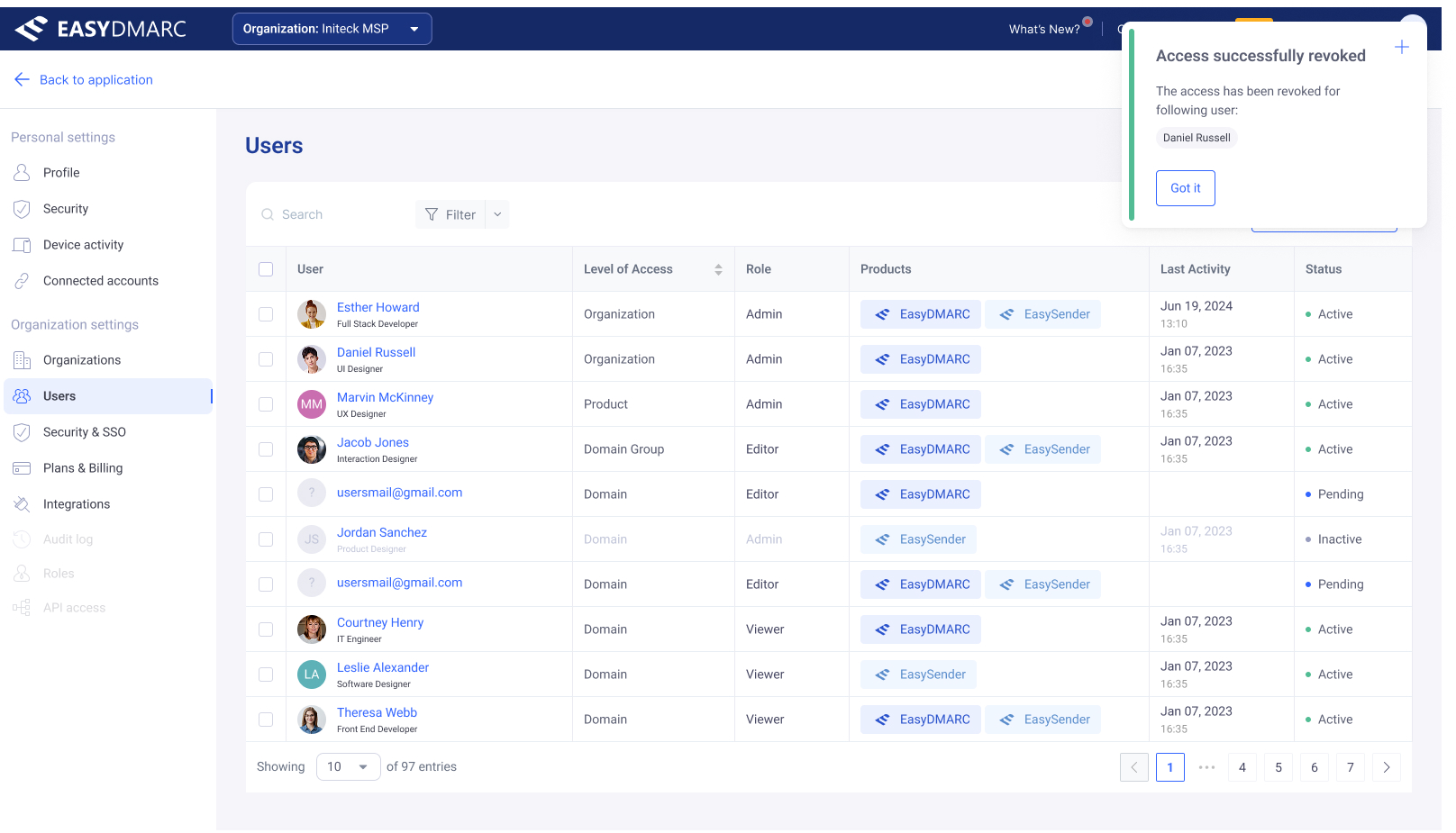
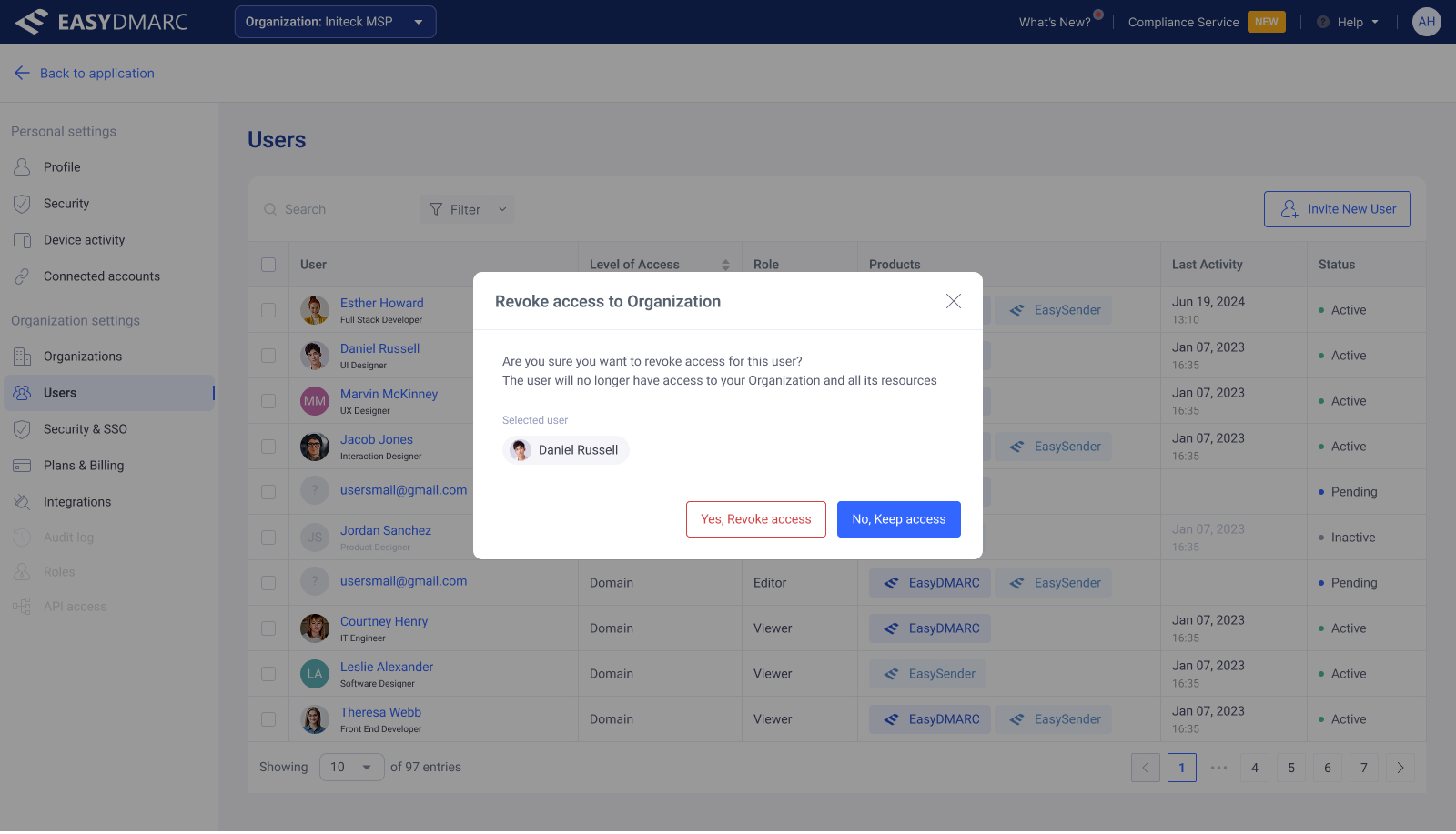
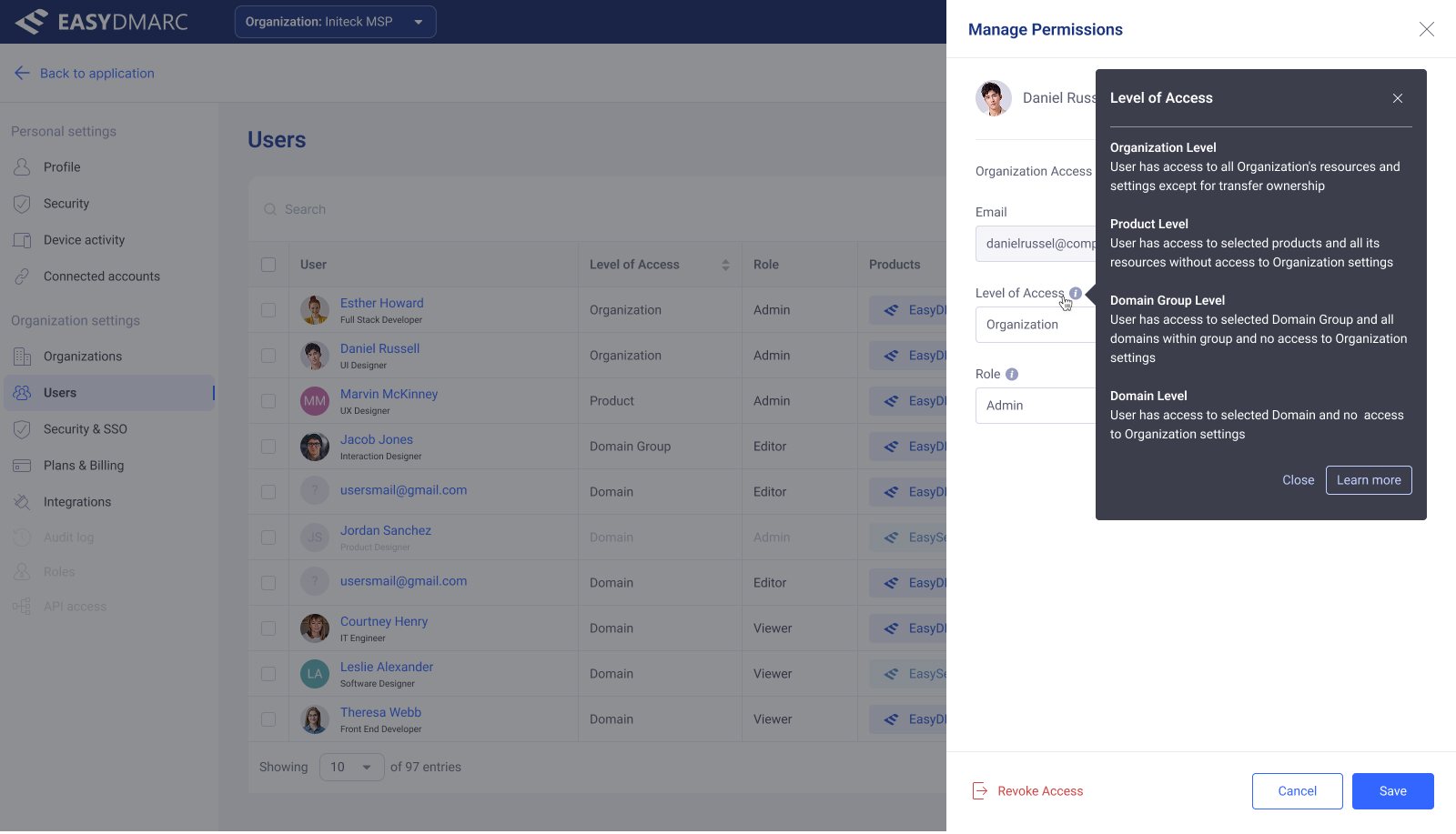
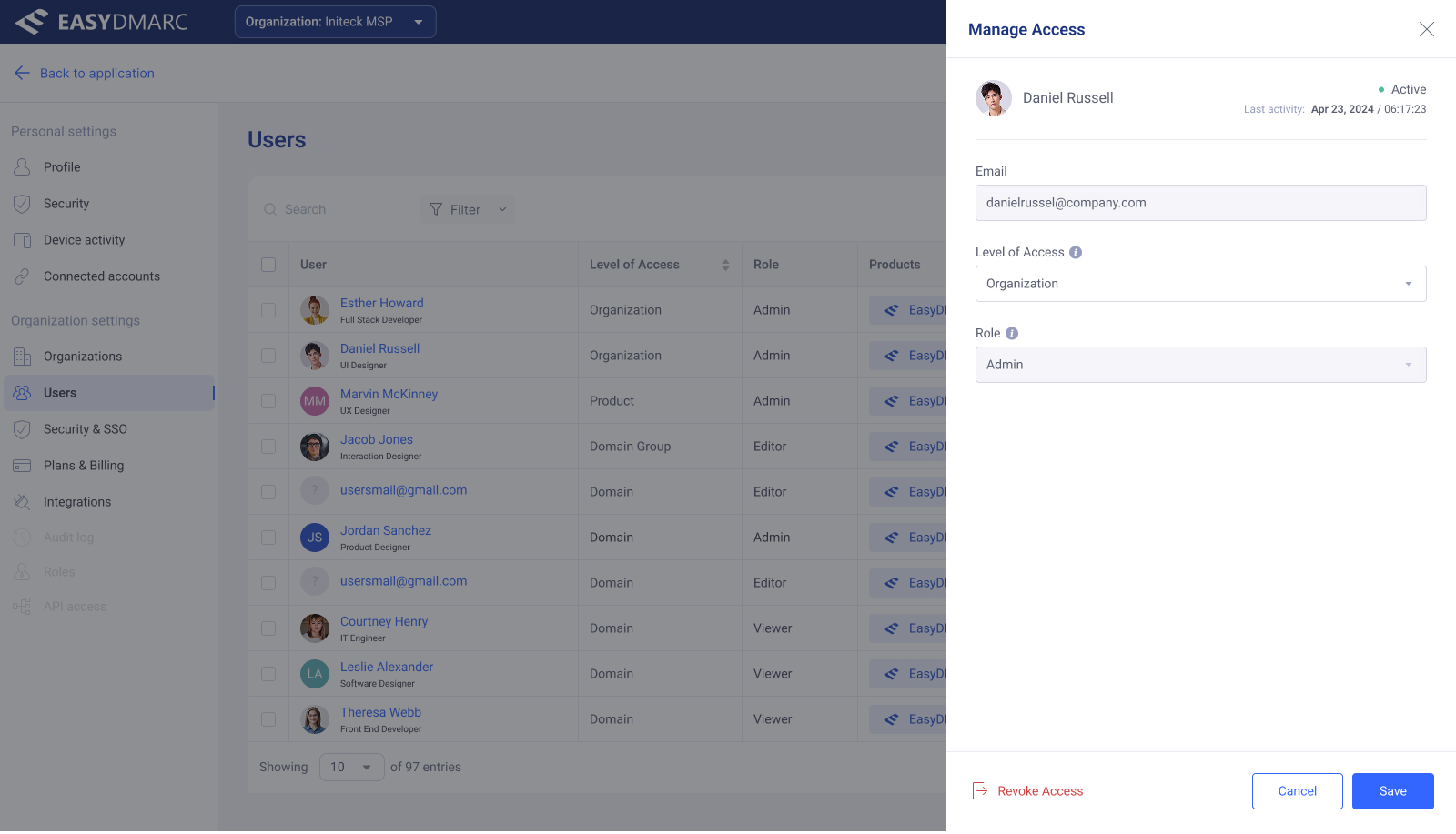
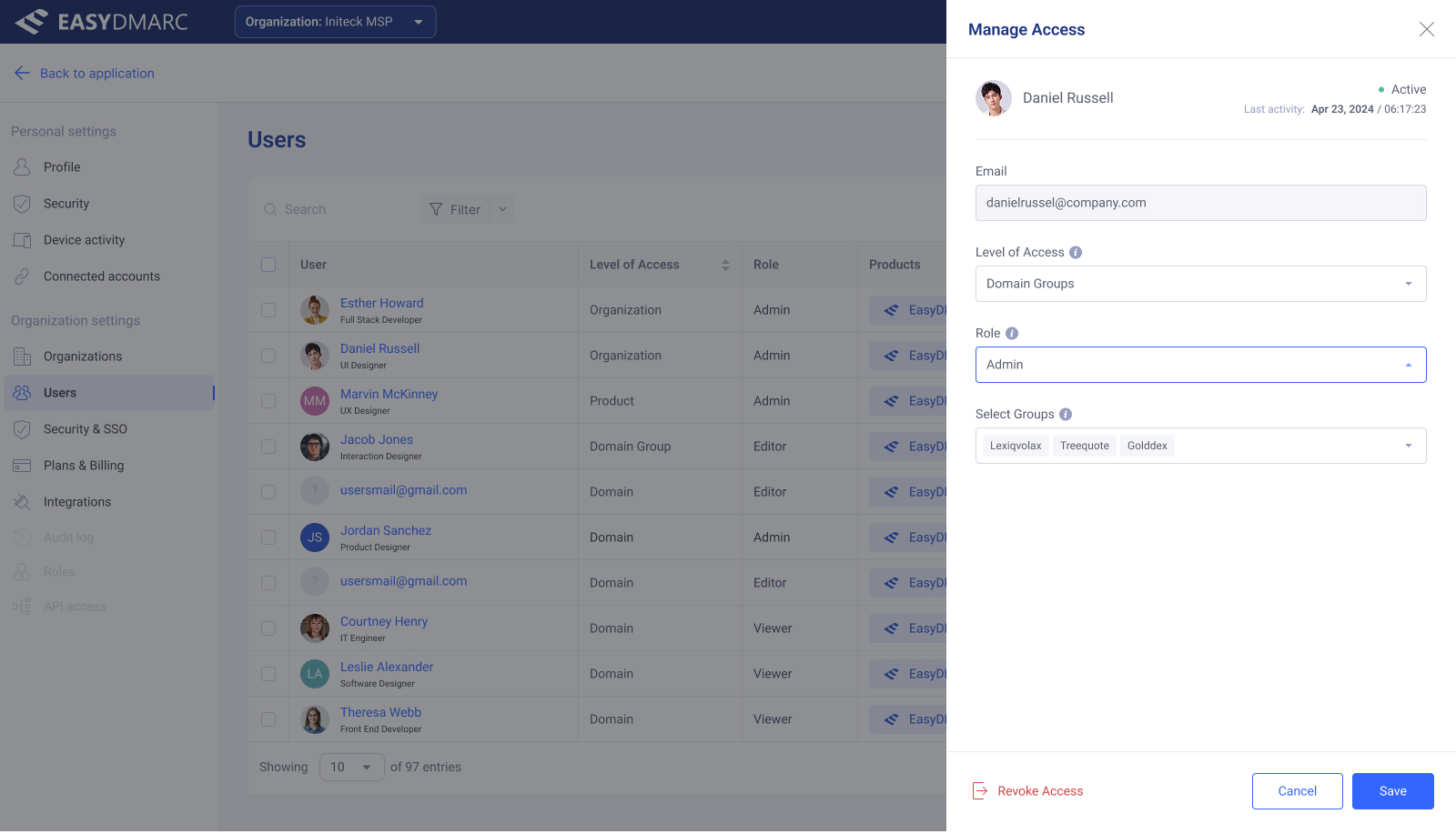
Invite, bulk-manage, revoke, and filter — the same access logic, expressed in the surface that fits the task. A single-user invite uses a modal; bulk operations promote into an action bar above the table; revoke uses the same destructive-confirmation pattern wherever it appears.
Concept · not yet released
An asset library for MSPs, built into the product.
This tool was designed as a concept and hasn't shipped to production yet.
EasyDMARC's MSP customers resell the platform under their own brand. They need EasyDMARC's marketing materials — logos, illustrations, email templates, white papers — packaged in a way they can actually use. Marketing Materials is the in-app library that gives them that.
I designed the folder grid, the breadcrumb-driven drilldown, the dual list/grid view, the multi-select download flow, and the row-level affordances for downloading folders or individual files.
Folders, drilldown, and view modes
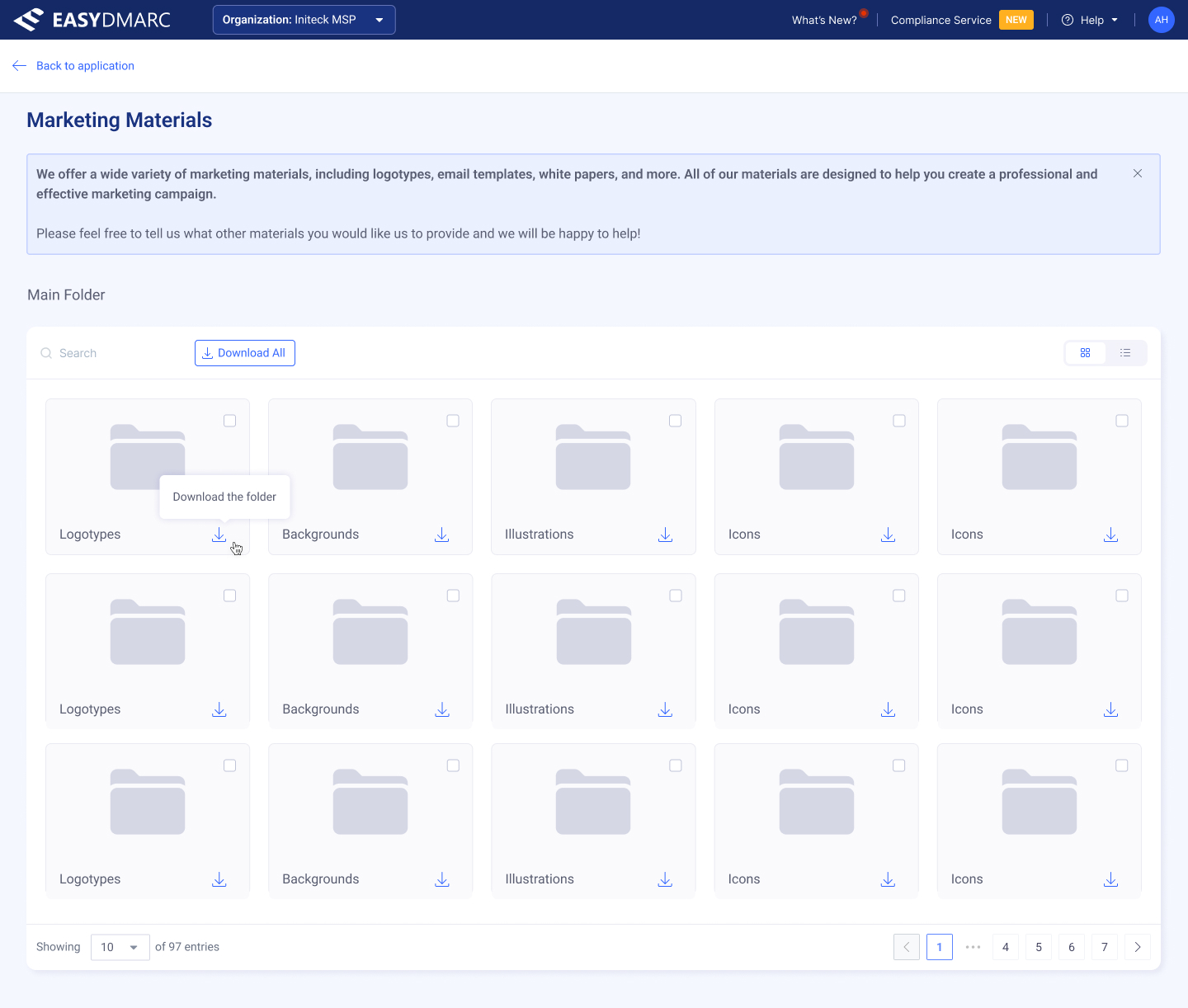
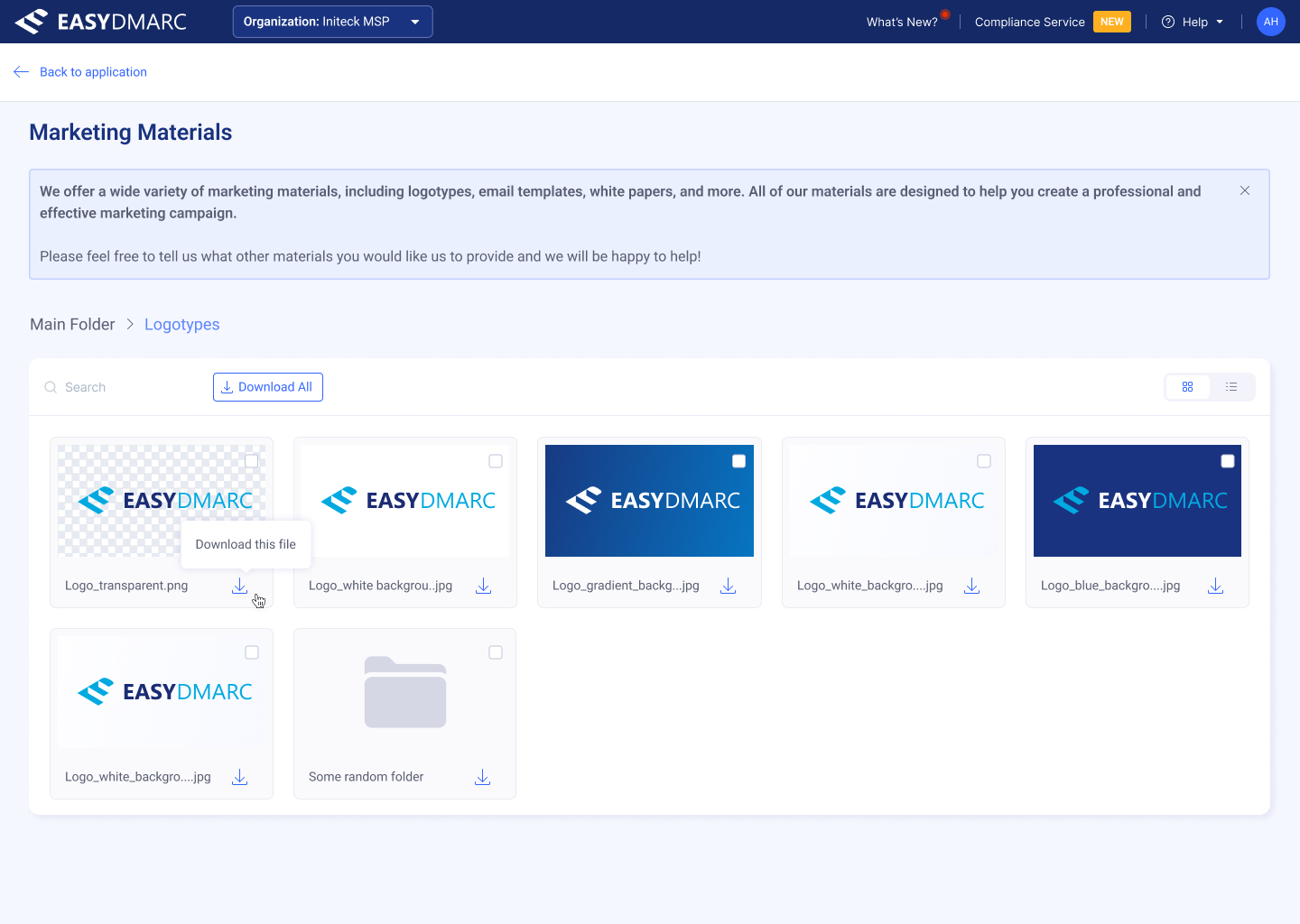
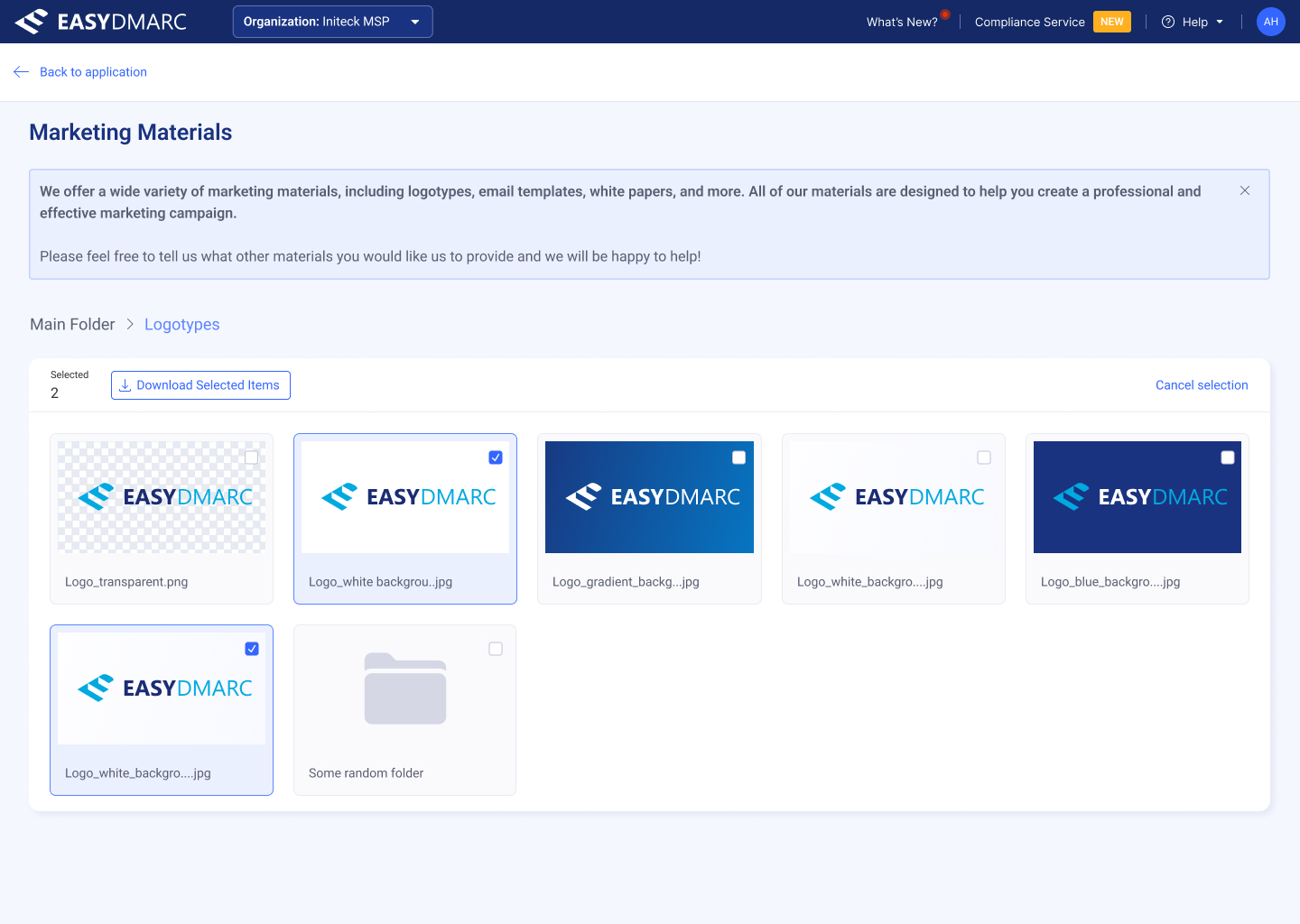
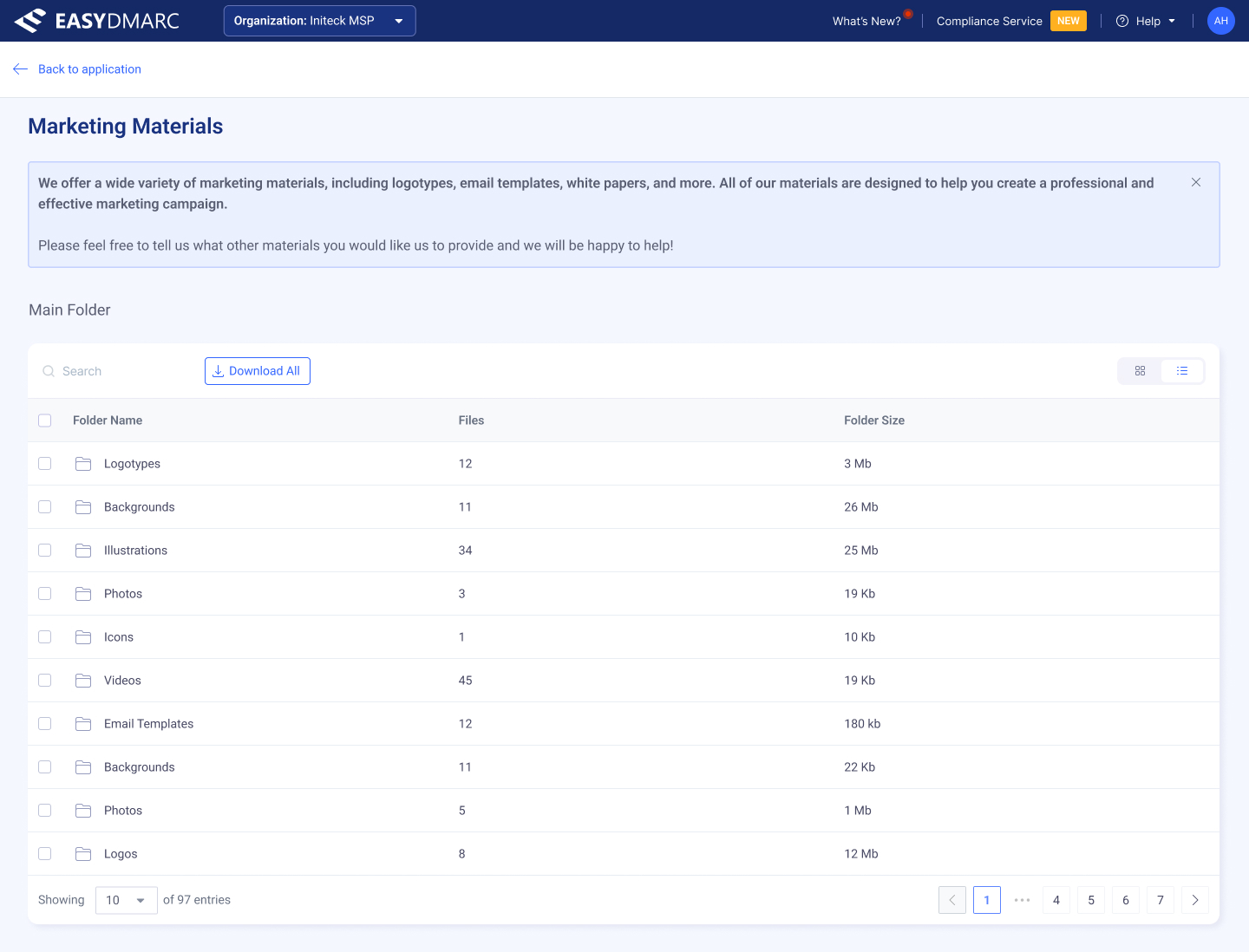
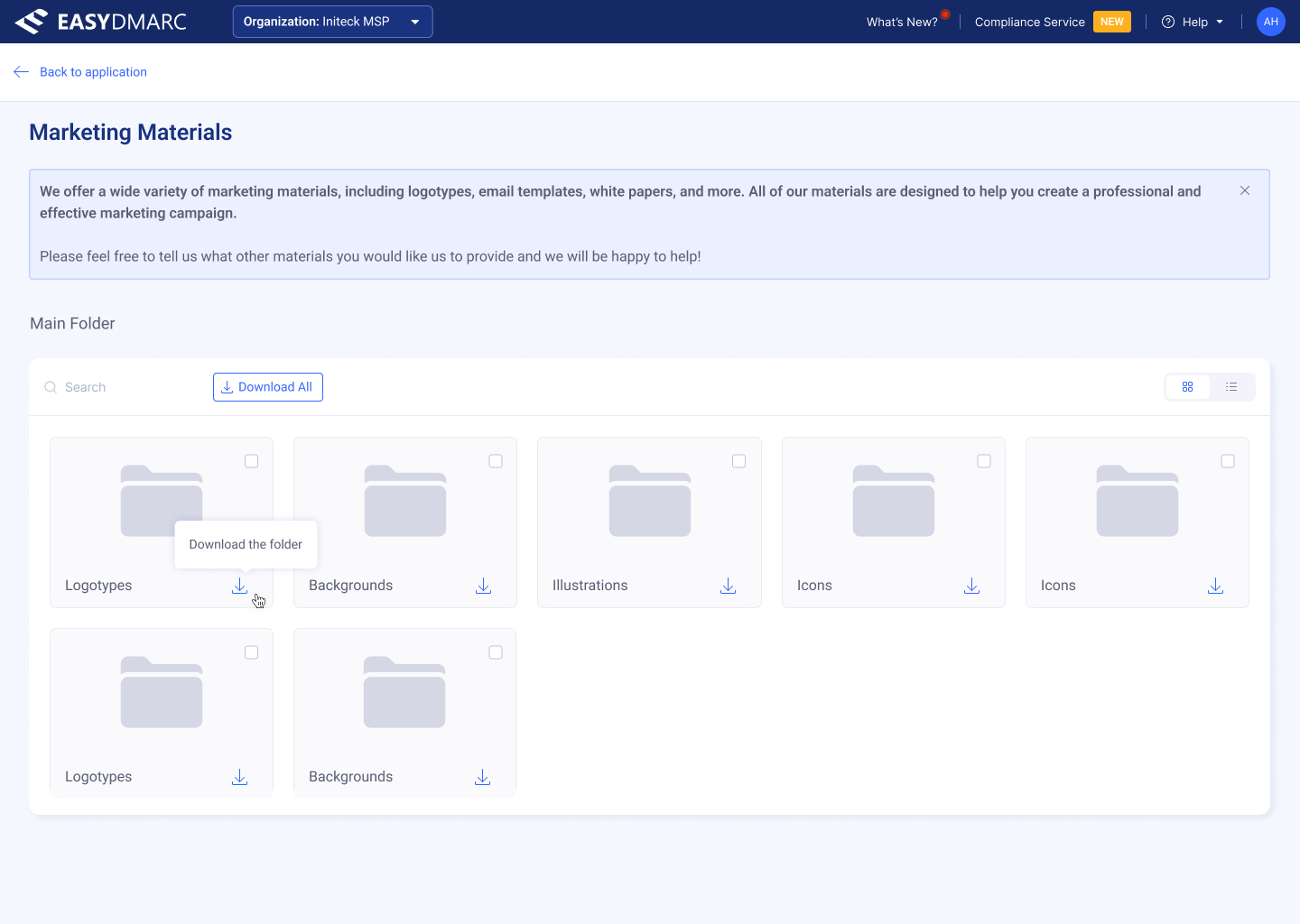
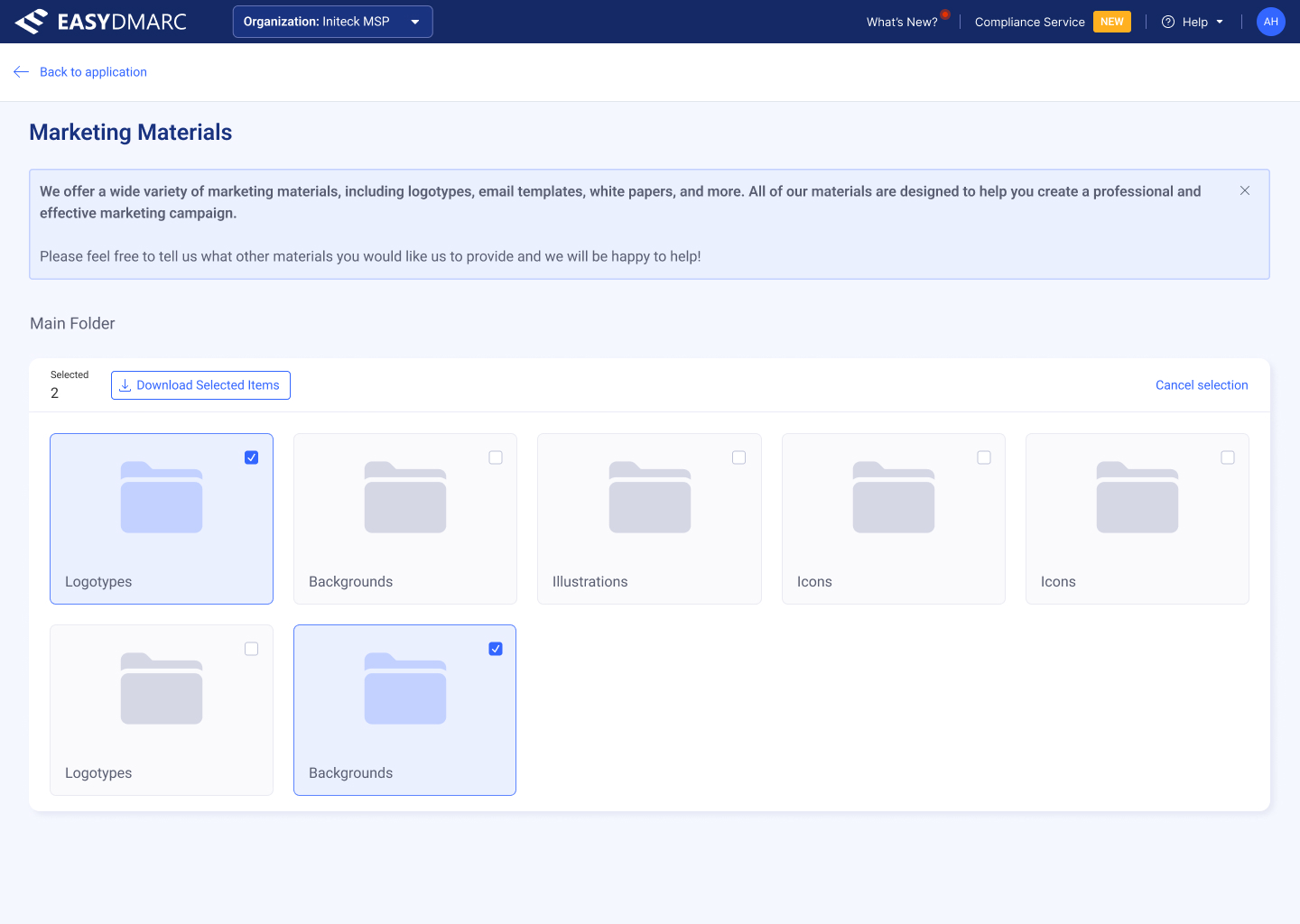
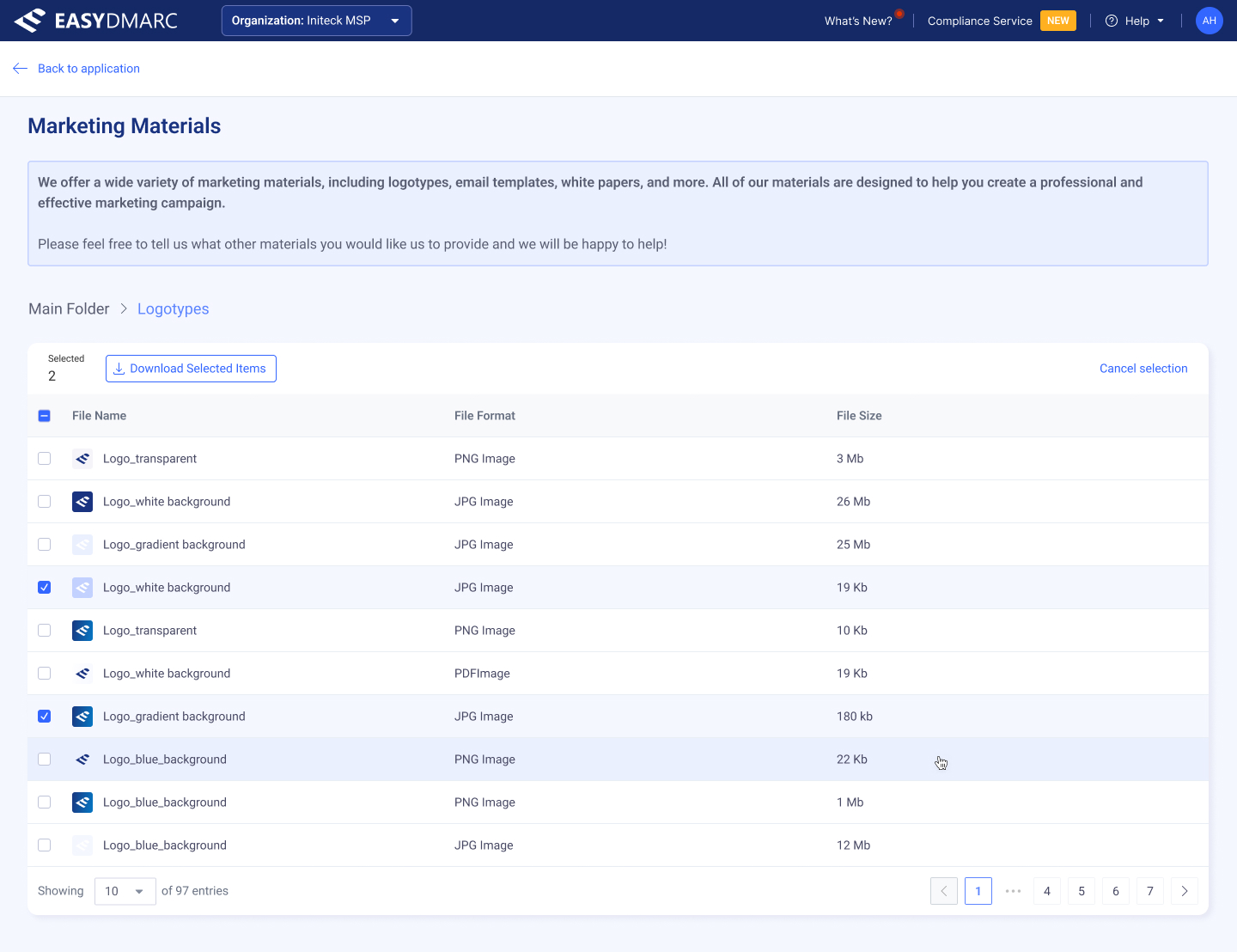
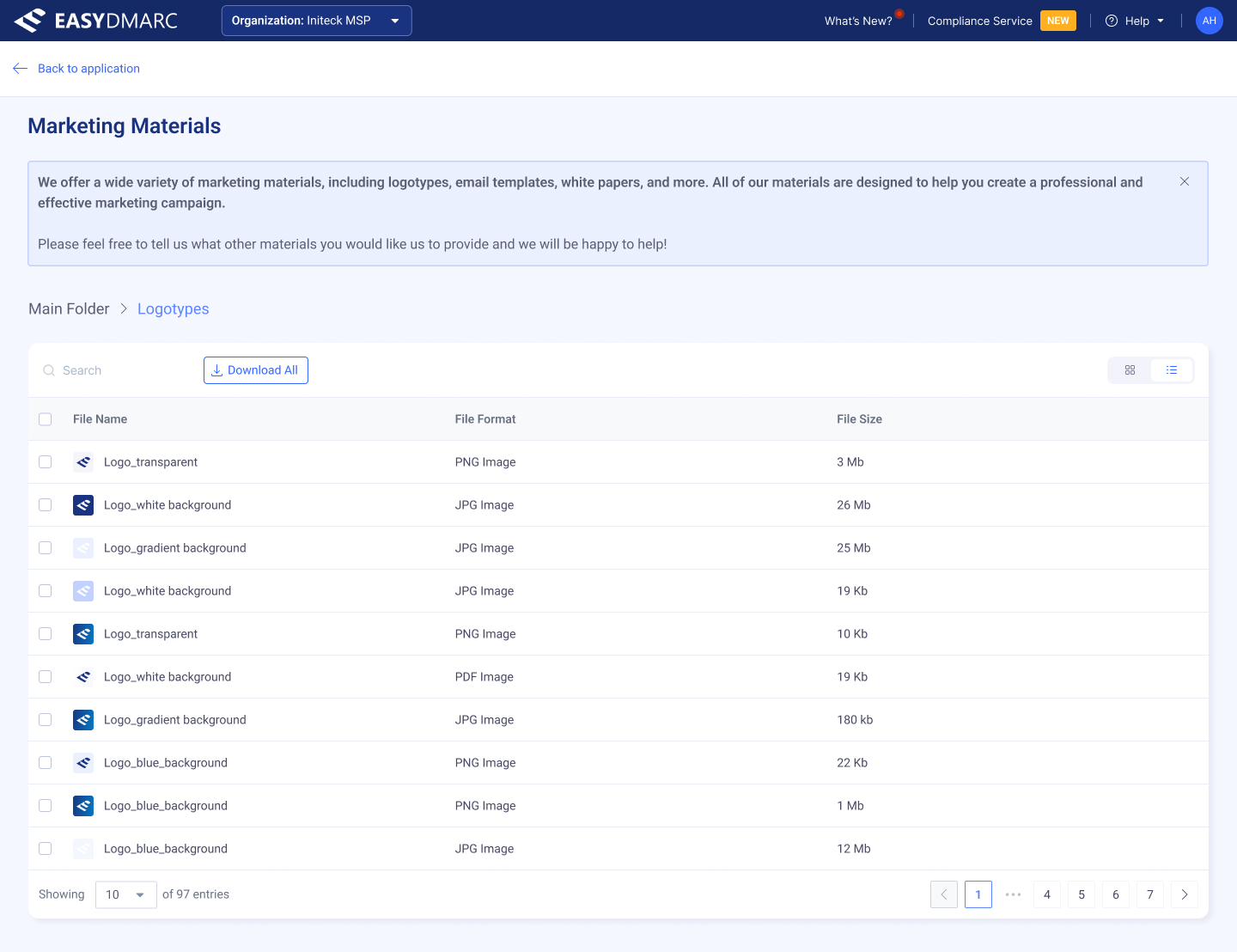
A library that behaves the way file browsers behave — folders, breadcrumbs, list/grid switch, multi-select download — adapted to the EasyDMARC visual language and to MSP workflows.
Plugging EasyDMARC into the tools MSPs already run.
MSPs don't live in EasyDMARC all day — they live in their PSA and RMM platforms. The Integrations surface connects EasyDMARC to those tools (HaloPSA, ConnectWise, Acronis, Pax8) so domain data, subscriptions, and alerts flow into the systems an MSP already bills and ticket-handles from.
I designed the integrations catalog, the per-integration detail page, and the four-step configuration wizard — Connect → Subscriptions → Customers → Alerts & Tickets — including the customer-mapping table and the alert-to-ticket mapping that turns an EasyDMARC alert into a PSA ticket.
Catalog & detail
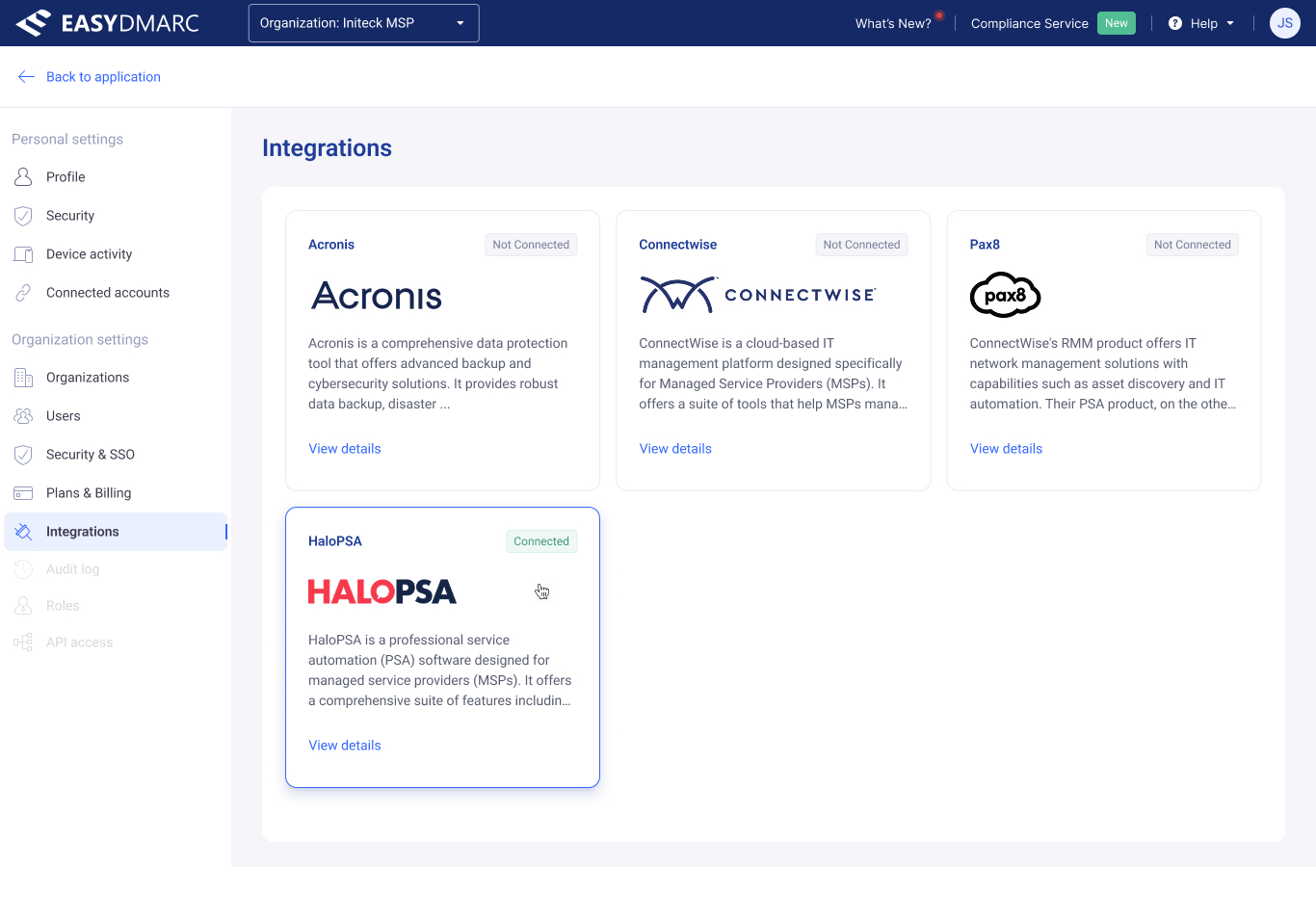
The catalog — every available integration as a card, with connection status at a glance and one way in.
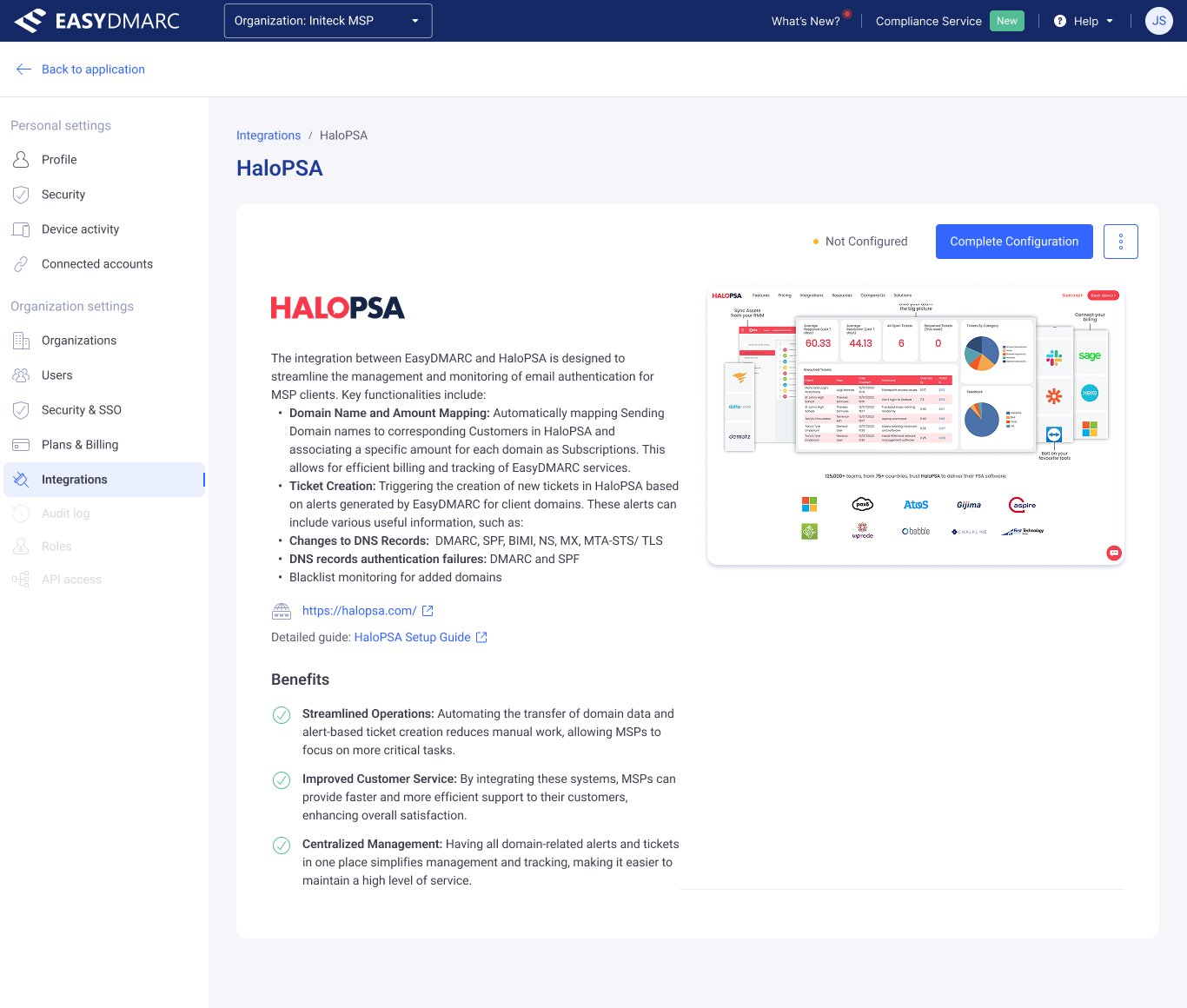
The per-integration detail page — what it does, what it needs, and the single primary action: complete the configuration.
The four-step setup wizard
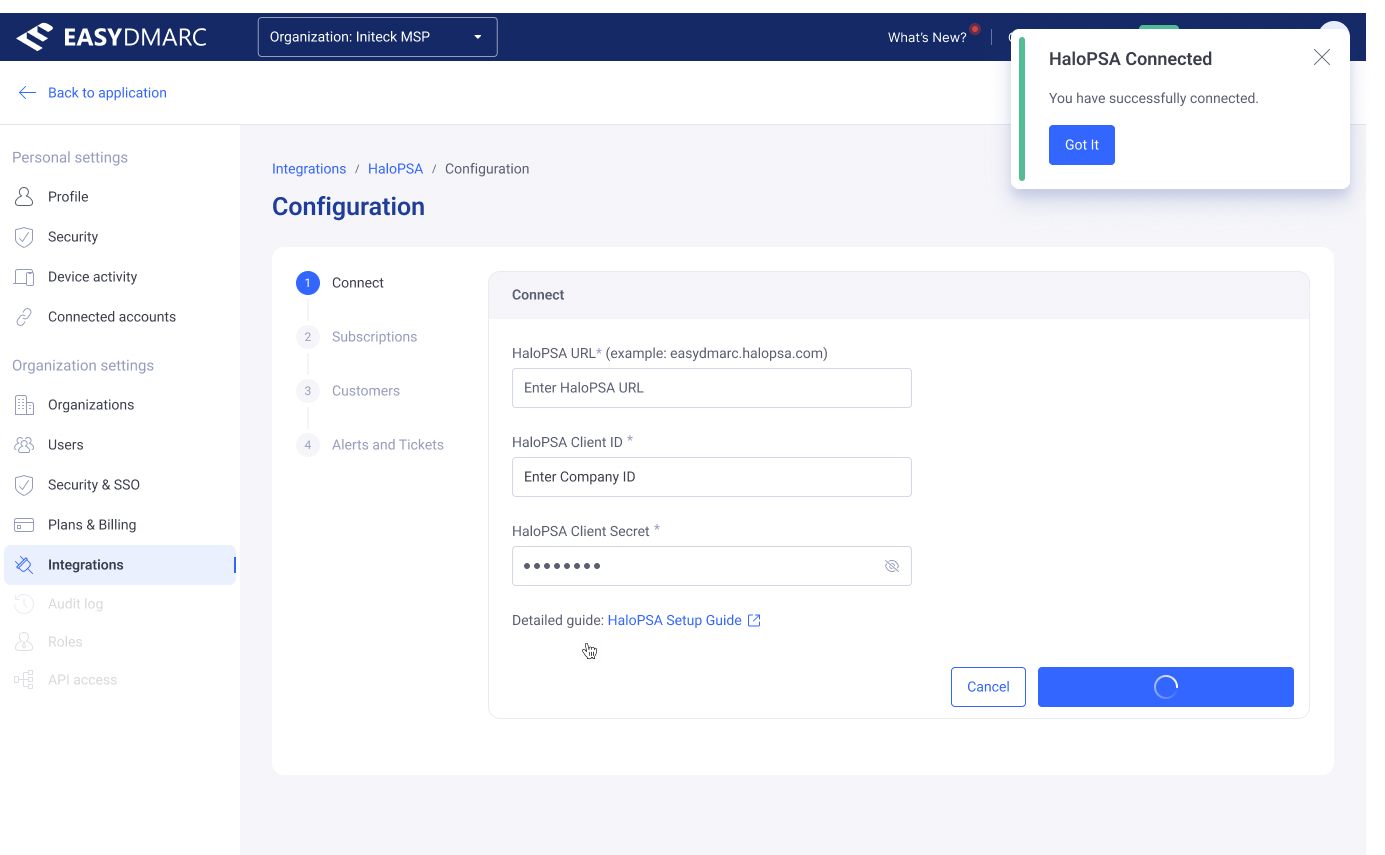
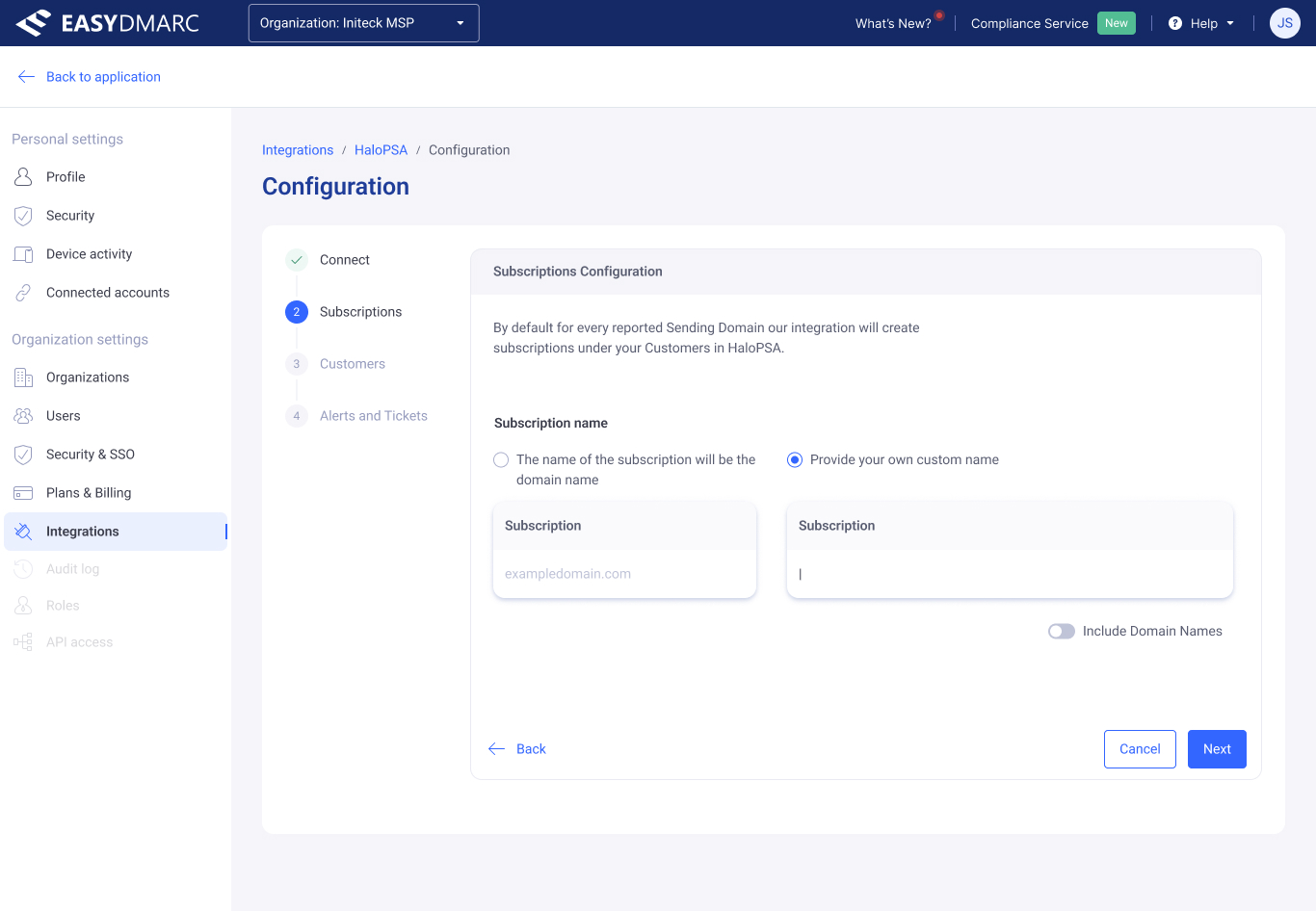
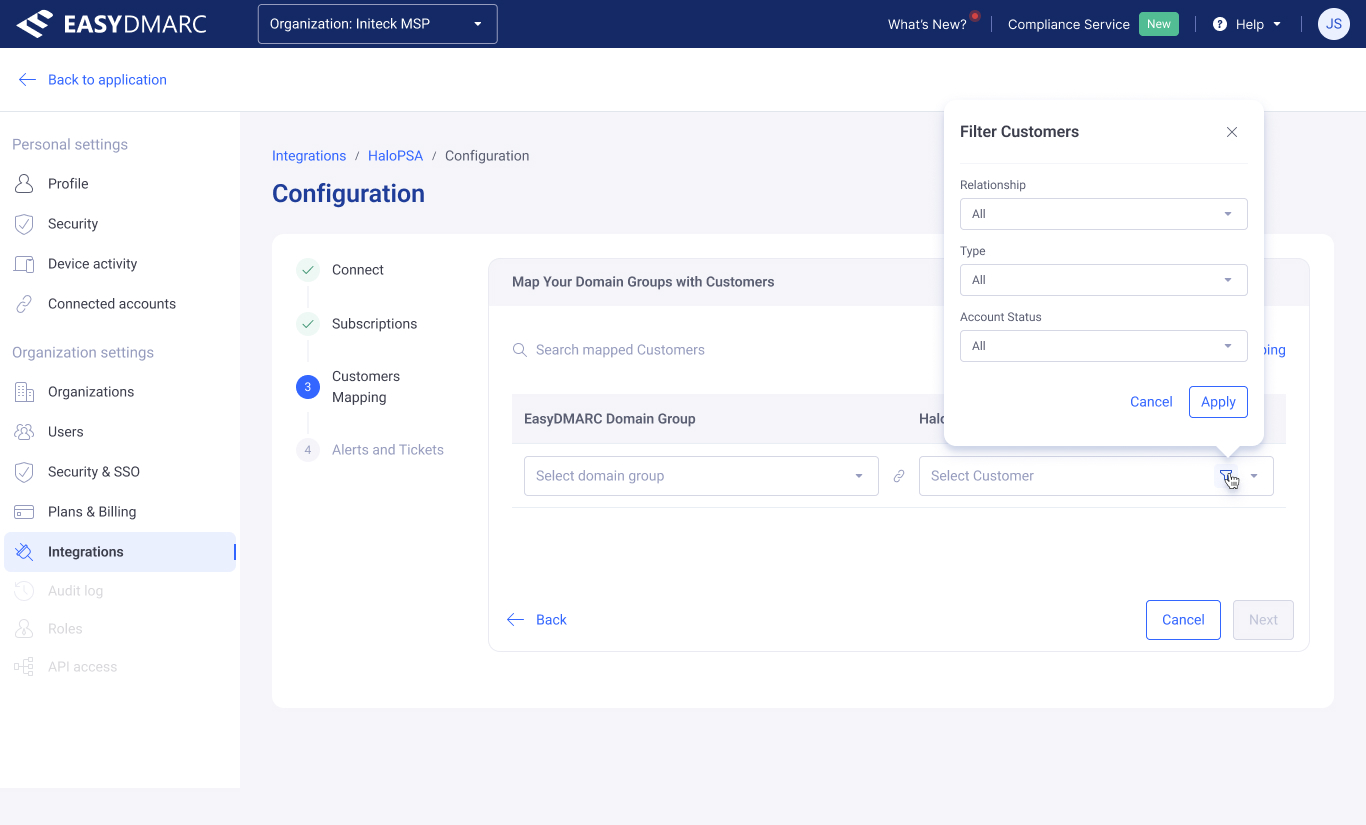
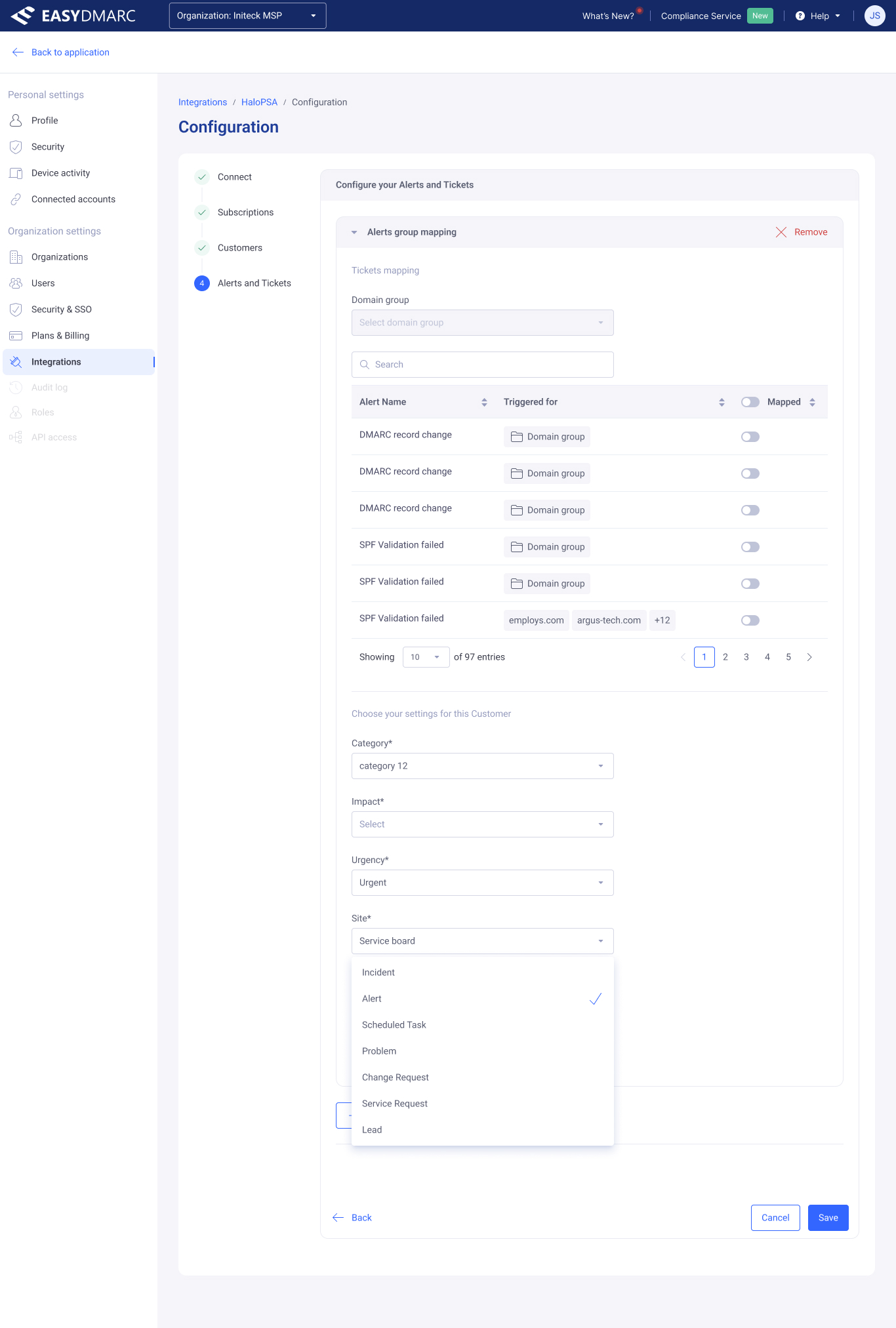
One stepper, four jobs — connect the account, decide how subscriptions are named, map domain groups to PSA customers, then map each alert type to the ticket it should open. The same stepper, drawer, table, and popover patterns from the other four tools, reused here.
One shared vocabulary across every tool.
Most of these tools shipped and are in production in the EasyDMARC platform today, while the Marketing Materials library was designed as a concept and hasn't released yet. More importantly, the patterns I designed for each one — the right-edge configuration drawer, the destructive-confirmation modal, the empty/activation state with a preview of the tool, the level-aware permission form — became patterns the rest of the platform could reach for.
That's the part of this work I'm most proud of. Each tool is a finished surface; together, they're a small case study in how a security platform stops feeling like a console.
What I'd take into the next one
The most useful working pattern from these projects was thinking in levels before screens. User Access Management has four access levels; Reputation Monitoring has Managed and Trial; GeoMaps has three view modes; the library has folder and file; Integrations has four setup steps. In each case, the structure of the tool came out of the level model — not out of trying to fit one screen around every case. When the levels are right, the screens almost design themselves.
Happy to walk through any of them in detail — flow choices, tradeoffs, the states that didn't make the cut — in a conversation.
Get in touch →Like what you see?
I'm open to senior product design roles and select freelance engagements. Always happy to chat.
Get in touch →